

Session timeout
Overview
For security purposes, your Ada dashboard session may end automatically due to time limits based on activity and session length. When your session expires, you are logged out and need to sign in again to continue using the dashboard.
How session timeout works
There are two types of timeouts that can log you out:
- Active session limit: The maximum amount of time you can remain logged in without having to re-authenticate.
- Inactivity timeout: The amount of time you can remain inactive (for example, if the tab is inactive or you are not actively engaging with it) without being logged out automatically.
When either of these limits is reached, you need to log back in to continue using the dashboard.
Limitations
If you require stricter session limits than the default options allow, contact your Ada representative to configure custom limits.
Use cases
Session timeout settings help protect your Ada dashboard from unauthorized access.
- Meet security compliance requirements: Configure session limits to align with your organization’s security policies.
- Protect sensitive data on shared workstations: Ensure sessions automatically end when users step away from shared computers.
- Reduce risk of unauthorized access: Limit how long sessions remain active to minimize exposure if a device is left unattended.
Capabilities & configuration
Owners and Admins can configure the following session timeout settings:
- Active session limit: Set the maximum duration for a logged-in session.
- Inactivity timeout: Set how long a session can remain idle before automatic logout.
The inactivity timeout cannot be longer than the active session limit.
Quick start
Set session timeout limits in a few steps.
For detailed instructions, see Implementation & usage.
Implementation & usage
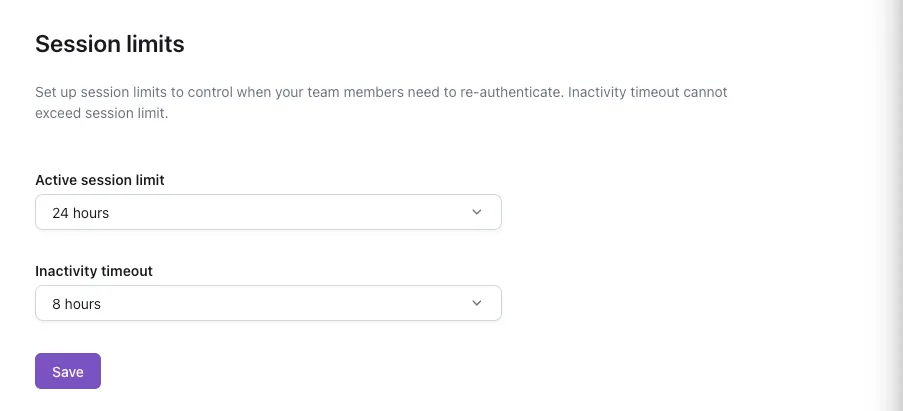
Configure session timeout settings from the Session limits page in the Ada dashboard.
Set session timeout lengths
Configure session limits to control how long team members can stay logged in.
Only users with the Owner or Admin role can edit these settings.
To set session timeout lengths:
-
On the Ada dashboard, click your initial, then choose Session limits.
The Session limits settings page opens.
-
Set values for Active session limit and Inactivity timeout.
-
Click Save.
Once configured, any users who log in will have their sessions restricted based on the defined limits.
Best practices
Avoid losing work due to session expiration by following these recommendations:
- Save your work frequently: Do not rely on auto-save features for important changes.
- Plan for breaks: If you need to step away, save your work and be prepared to sign in again when you return.
Related features
Explore additional access and security options.