

MCP tools
An MCP tool is a tool that already lives on an MCP server your company runs. Connect the server by URL, choose which of its tools the AI Agent may use, and the Agent calls them during a conversation to fetch or update data in your own systems.
The difference from an API tool (Action) is where the tool is defined. An API tool is built and maintained in the dashboard, where you configure the endpoint, inputs, and outputs. An MCP tool is defined on your server, and the server stays the source of truth for what the tool does and what data it can reach. Connect a server once, and every tool on it becomes available to turn on, without building each one by hand.
Which tool to use
Three tool types connect an AI Agent to data and systems. Choose based on where the tool is defined and what the Agent needs to do with the result.
How MCP tools work
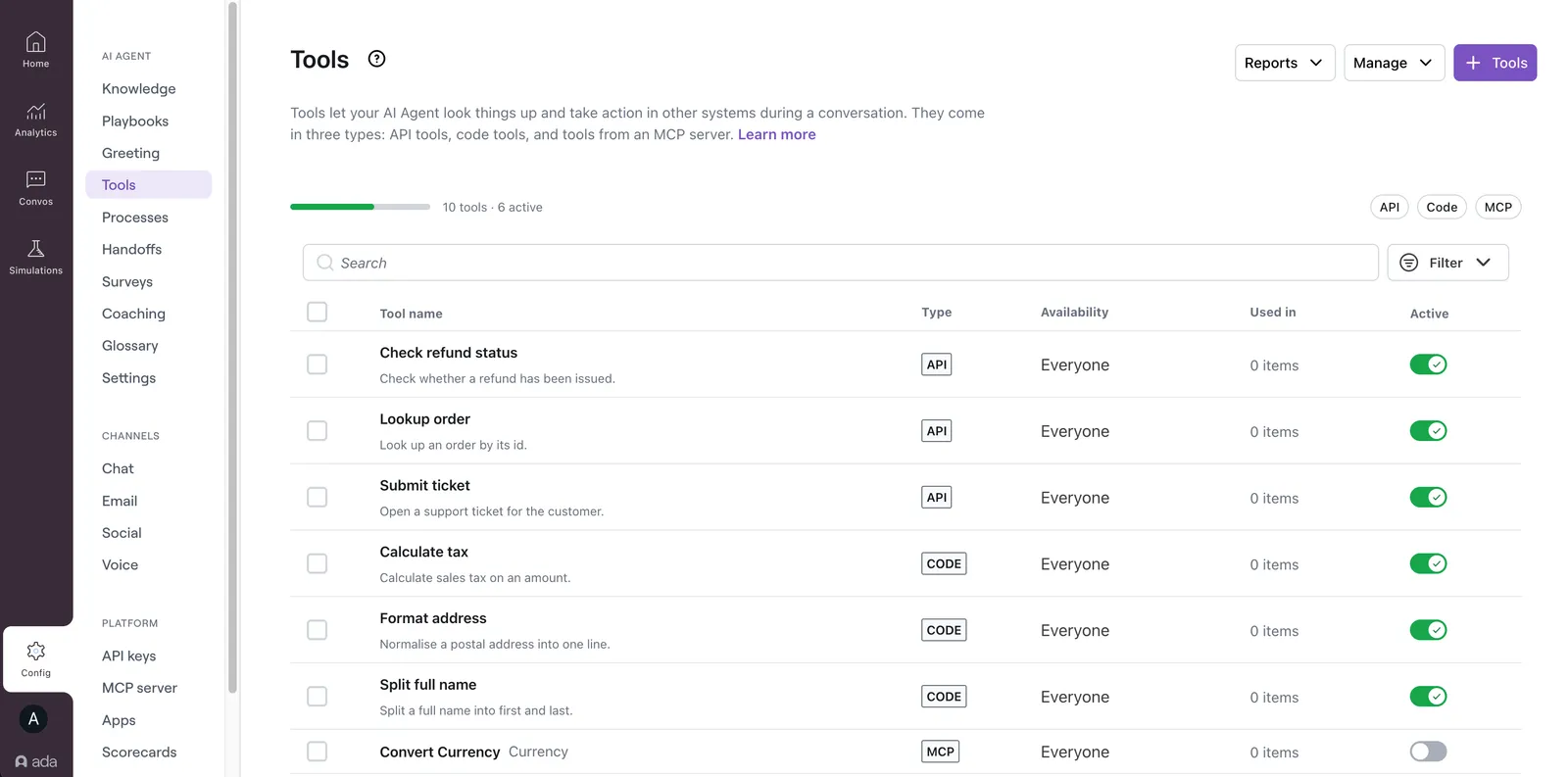
MCP tools are managed from the Tools page. Setup and use follow four steps:
- Connect the server. Add your MCP server by URL and give Ada a credential to connect with, as a shared company account. See Connect a server.
- The tools are discovered. Once connected, every tool the server exposes is listed, along with the name and description the server declares for each. If the server also declares safety hints for a tool, the tool shows them as badges: DESTRUCTIVE, OPEN WORLD, READ ONLY, and IDEMPOTENT. Discovery is manual: when your server adds or changes a tool, refresh the tool list on the Tools page for it to appear.
- Turn on the tools you want. Every discovered tool starts off. You enable each tool deliberately, so the Agent can only call the ones you have chosen.
- The Agent calls them in conversation. When a conversation needs one of your enabled tools, the Agent calls it, reads the result, and continues the reply. The Agent chooses which tool fits from its name and description, so the wording your server declares directly shapes when a tool is used.
What you can build
MCP tools are best when the system you want the Agent to reach is already exposed as an MCP server:
- Look up a record: pull an order, ticket, subscription, or account straight from the system that owns it.
- Check live status: read current inventory, shipment, or availability at the moment of the conversation.
- Take an action in your system: create, update, or cancel a record through a tool your server exposes.
- Reuse what you already run: connect an existing internal MCP server once instead of rebuilding each capability as an API tool.
Who a tool acts as
Each tool runs as one of two identities, set per tool:
- Connected account: the tool runs with the shared company account. Use it for company-wide or public data. Works on all channels.
- Customer signs in: each end user signs in to your system, and the tool acts as that person. Use it when a tool touches someone’s own personal data. Because signing in happens in a browser, it runs on some channels only: Ada Chat, Twilio SMS, Twilio WhatsApp, Ada Instagram, and most Zendesk Sunshine Conversations channels.
Your server decides what each identity can reach, so the AI Agent can reach whatever the connected account can. For the full comparison, see Authentication and channels.
Guardrails
Because an MCP tool runs on your server, your server owns what the tool can do. The dashboard adds the controls around it:
- Off by default. No tool runs until you turn it on. Enabling a tool is the deliberate step that lets the Agent use it.
- Per-tool control. Enable tools one at a time. Connecting a server does not switch on everything it exposes.
- A time limit. Each tool call has about 30 seconds to return before the Agent moves on, so a slow tool cannot stall a conversation.
- Connection status. The Tools page shows whether each server is connected, needs to reconnect, or has an error, so a broken connection is visible rather than silent.
- Server-declared hints. A DESTRUCTIVE, OPEN WORLD, READ ONLY, or IDEMPOTENT badge repeats what the server declares about a tool. It is the server’s claim, not Ada’s assessment, and Ada does not enforce it. A tool with no badge has a server that declared nothing.
For how to choose safe tools and write descriptions the Agent uses well, see Limits and best practices.
Run tools in a Playbook
You can add an MCP tool to a Playbook, the same way you add an API tool. In a RUN step, the Agent runs the tool at that point in the flow. Running a tool inside a Playbook is also how you gate it: keep a write tool behind a Playbook so it runs only within a controlled flow, not from open conversation.
Save outputs as variables
By default the AI Agent reads a tool’s whole result when it writes a reply, with no setup. Save a value as a variable when a Playbook has to read it by name. A Playbook can branch on it in an IF step, or put an exact value into a message. The outputs you save can also become the only part of the result the Agent reads. The section is optional: leave it empty for a tool the Agent only uses to answer.
Each output you save has four parts:
- Output name: a label for the value. If you select Only the output variables, the Agent reads the value under this name.
- Output format: how the tool returns the value. Your MCP server decides this. An MCP tool often returns plain text or Markdown written for the Agent to read, not JSON.
- JSON: the result is structured. Give a path to pull one value out of it.
- Plain text / Markdown: the whole result is saved. This still helps for a short value, such as a one-word status.
- Path: for a JSON result, the JMESPath to the value you want, such as
order.state. It appears only when the format is JSON. - Save to variable: the variable the value is written into. A Playbook and a message reference it by name.
To find the right path, open the Test tool response section on the tool page, click Test, and read the result. You can also open a real call in the conversation view.
What the AI Agent reads
Each tool carries one choice for how much of a result reaches the AI Agent. The choice sits at the bottom of the Save outputs as variables section, under the output rows. Two options are available:
- Full tool result: the Agent reads the whole result your server returned. This option is the default.
- Only the output variables: the Agent reads one JSON object that holds every output you defined. Each value appears under its output name. An output your server did not return appears as
null. When no output is found, the Agent reads an empty result. The Agent does not read the rest of the result.
Select Only the output variables to keep a large or noisy result out of the conversation. The response size limit then applies to the outputs, not to the whole result. A large response no longer drops the result when the outputs you defined are small. An output that selects a large value can still exceed the limit. See Limits and best practices.
You can select Only the output variables only after the tool has at least one output. Until then the option shows the hint “Add at least one output to choose this”.
If you delete the last output, the choice moves back to Full tool result.
An output whose format is Plain text / Markdown captures the whole text. When every output uses that format, the page shows a note under the options. The choice then changes how the result is labeled for the Agent, not how much it reads. Under Only the output variables, the Agent reads the text inside a JSON object with the output name, which makes the result slightly larger. A result close to the response size limit can then exceed it under this option, even when the full result fits.
A failed tool call works the same way under both options. The Agent reads the error your server returned.
An API tool controls this per output instead. Each API tool output has its own Give my AI Agent access to this information toggle. The Agent only ever reads the outputs you mark visible. See Actions.
Simulations
By default, a simulation calls an MCP tool on the real server, as in production. One exception: a simulation does not call an MCP tool that a Playbook step runs. The step continues as if the call succeeded. To stop a tool from reaching the connected system in simulations, select Block in simulations on the tool. A simulation that calls a blocked tool fails, from a Playbook step too. See Code tools, MCP tools, and HTTP Request blocks.
Track and report
MCP tool activity shows up alongside your other tools:
- Audit log. Connecting a server, enabling or disabling a tool, and each tool run are recorded in the audit log.
- Reports. A usage report shows activity per MCP tool, including call count, errors, CSAT, resolution rate, and containment.
Related features
- Connect a server: Add an MCP server, give it a credential, and turn on tools.
- Authentication and channels: Connected account vs. customer sign-in, and where each one works.
- Limits and best practices: Choosing safe tools, writing descriptions, and current limits.
- Playbooks: Run an MCP tool inside a step, and gate write tools behind a flow.
- Audit log: See connect, enable, and run events for MCP tools.
- Actions: API tools that retrieve and send data through endpoints you configure.
- Code tools: sandboxed Python that reshapes or computes a result before the Agent uses it.