

Block email addresses
Overview
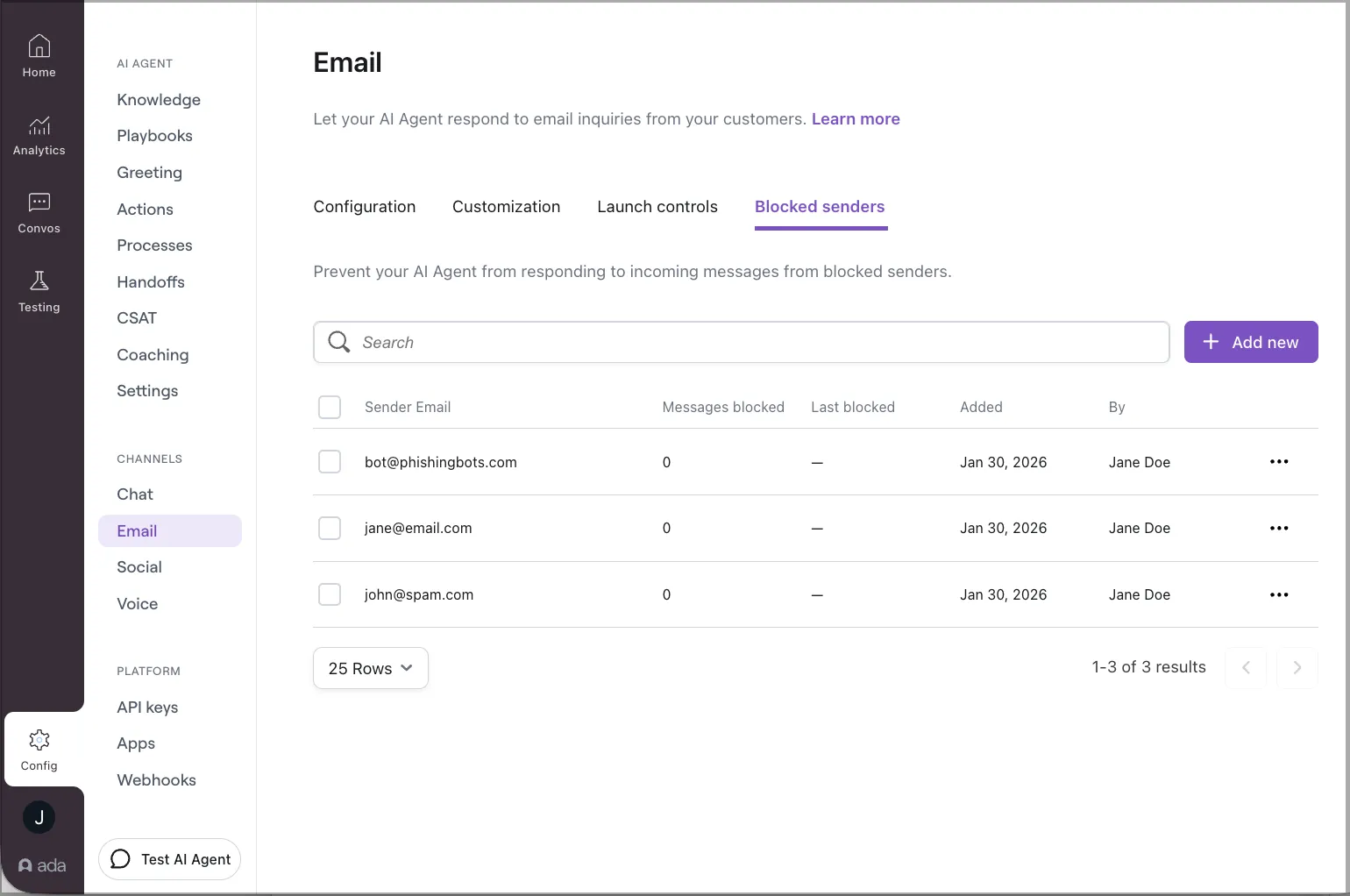
Prevent certain email addresses from receiving a reply from your AI Agent by blocking them from the Blocked senders section on the Config > CHANNELS > Email page.
The blocked senders list is global across all email channels on the AI Agent — a sender added to the block list will not receive responses on any of the AI Agent’s configured email addresses.
Use cases
Blocking email addresses helps you manage unwanted or problematic senders.
- Stop spam or abuse: Block senders who misuse your support channel.
- Exclude senders from automated responses: Prevent specific email addresses from receiving AI Agent replies.
- Remove senders from analytics: Exclude certain email addresses from resolution metrics and CSAT collection.
Capabilities & configuration
Blocking an email address affects how your AI Agent handles messages from that sender.
Blocked behavior
Any past conversations between the blocked sender and the AI Agent will now show a red Blocked indicator in the conversation where the email address appears.
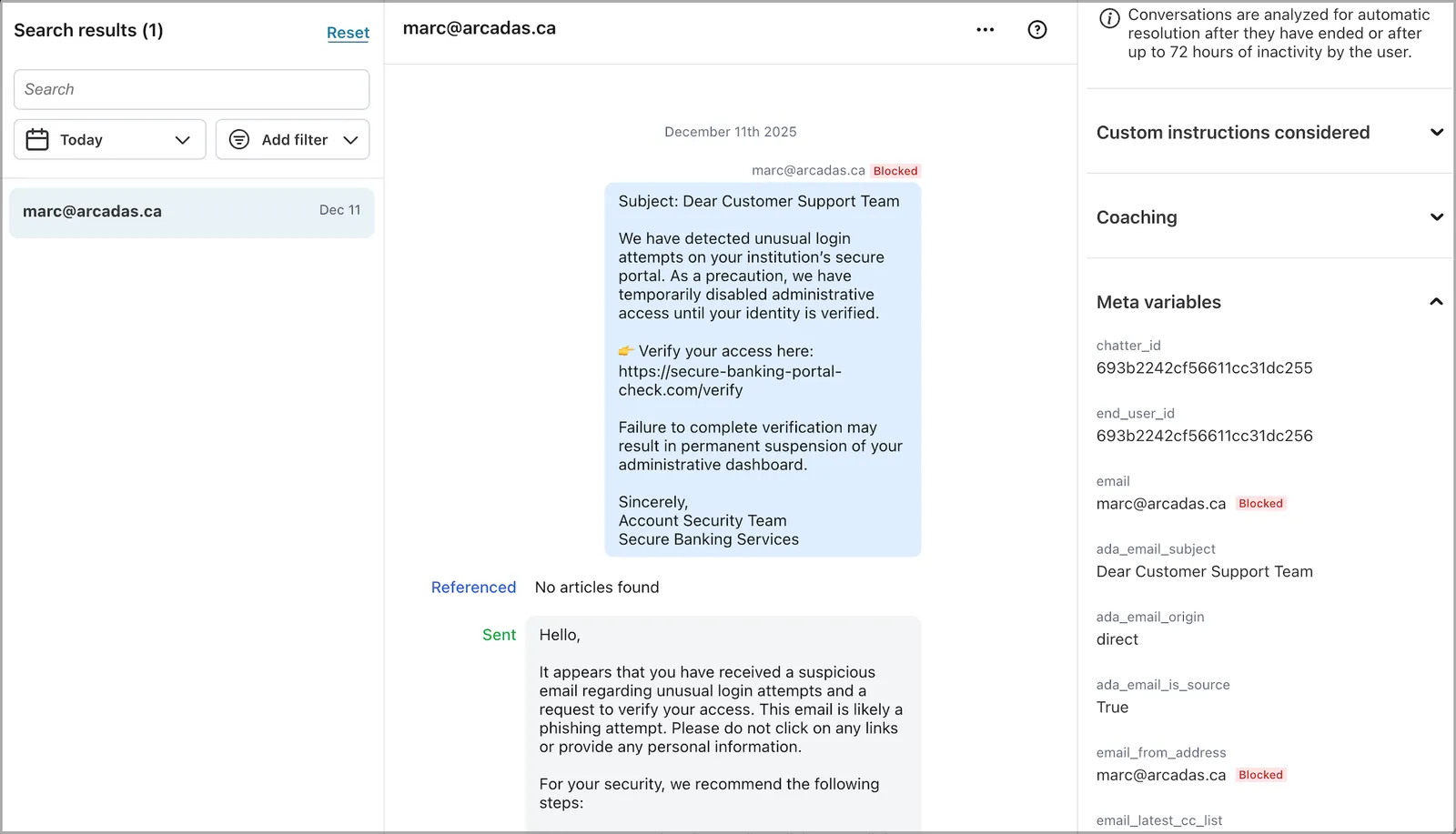
New emails sent from blocked senders after they’ve been added to the list:
- Will not create new conversations
- Will not receive AI Agent replies
- Are excluded from analytics and not assessed for resolution. These emails will not receive a CSAT
- Are not sent via Launch Controls (if you are using this feature)
Unblocked behavior
Once unblocked, messages from the sender will:
- Create new conversations (or continue existing open ones)
- Receive AI Agent replies
- Be included in your conversation view and reporting
CCs
- If a blocked sender sends an email that includes multiple CC’d participants, the AI Agent will reply only to the CC’d participants.
- If non-blocked sender sends an email that includes a blocked sender in the CC field, the AI Agent will remove the blocked sender from the recipient list and they will not see the AI Agent’s reply.
Launch Controls
- Emails from an address assigned to the “route to a human” group are not blocked even if the sender is on the Blocked Senders list.
- Emails from an address assigned to the “automation group” will not receive an AI Agent response if the sender is on the Blocked Senders List.
Learn more about expected launch controls behavior in Launch controls.
Quick start
Block an email address in a few steps. For detailed instructions, see Implementation & usage.
Implementation & usage
Block or unblock email addresses from several locations in the Ada dashboard.
From Convos
Block a sender directly from the Conversations page.
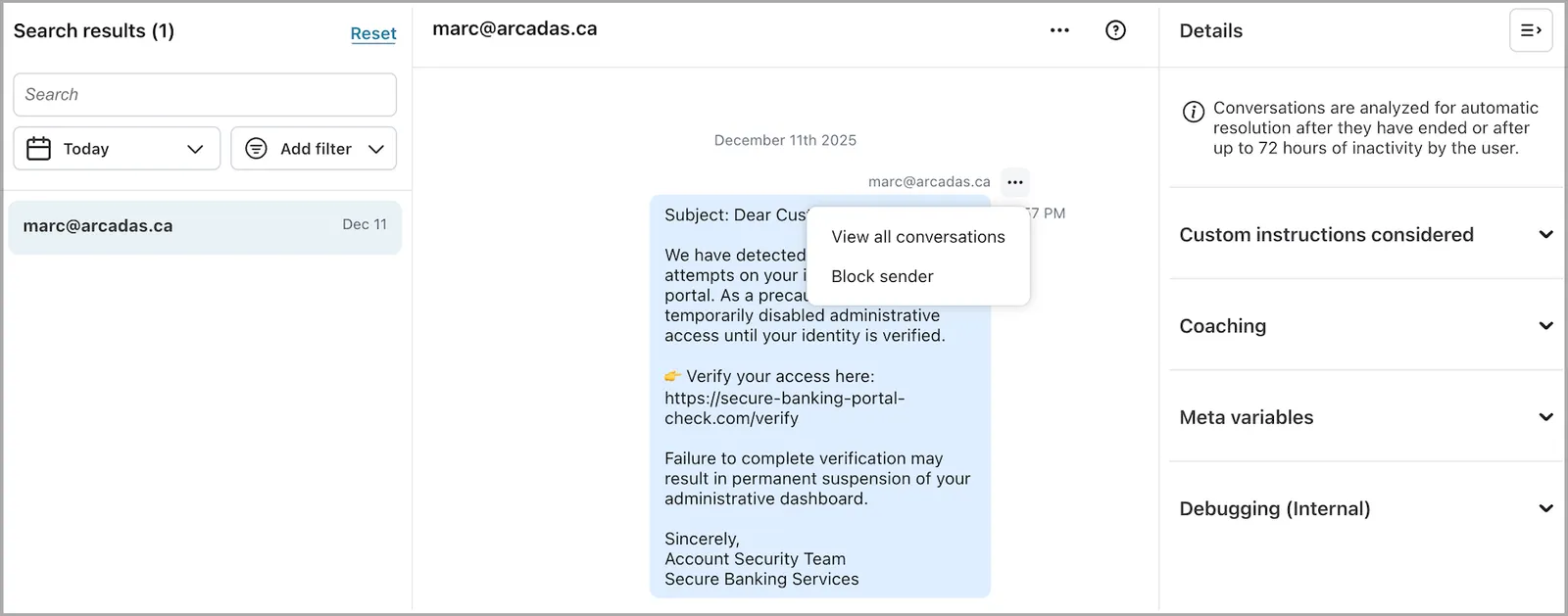
To block a sender from Convos:
- Click the … next to a sender’s email address above a message and select Block sender.
Details panel
Block an address stored in a metavariable.
To block a sender from the Details panel:
- In the right-hand Details panel, go to the Metavariables section.
- Click the … next to the displayed email address in the
emailoremail_from_addressmetavariable and select Block sender.
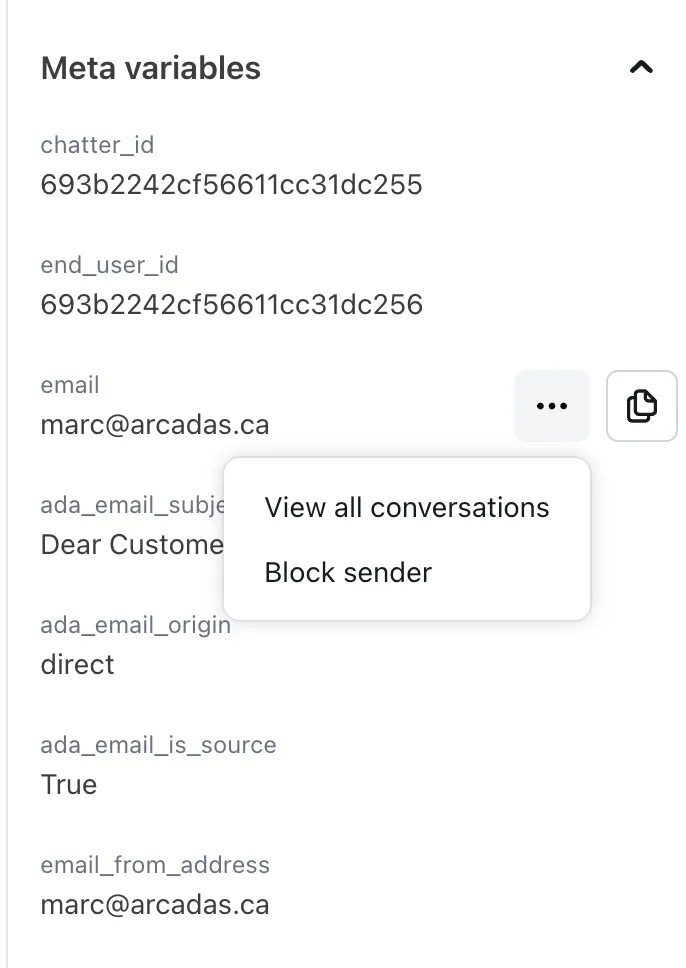
email metavariable represents the email’s original sender and does not change throughout the course of a conversation. The email_from_address metavariable represents the most recent sender of a new email in the conversation (could be the original sender or a CC’d recipient if they sent the last message) and updates with every new message the AI Agent receives. Follow the same steps to unblock a sender.
From the Blocked senders page
Add email addresses directly to the block list.
To block senders from the Blocked senders page:
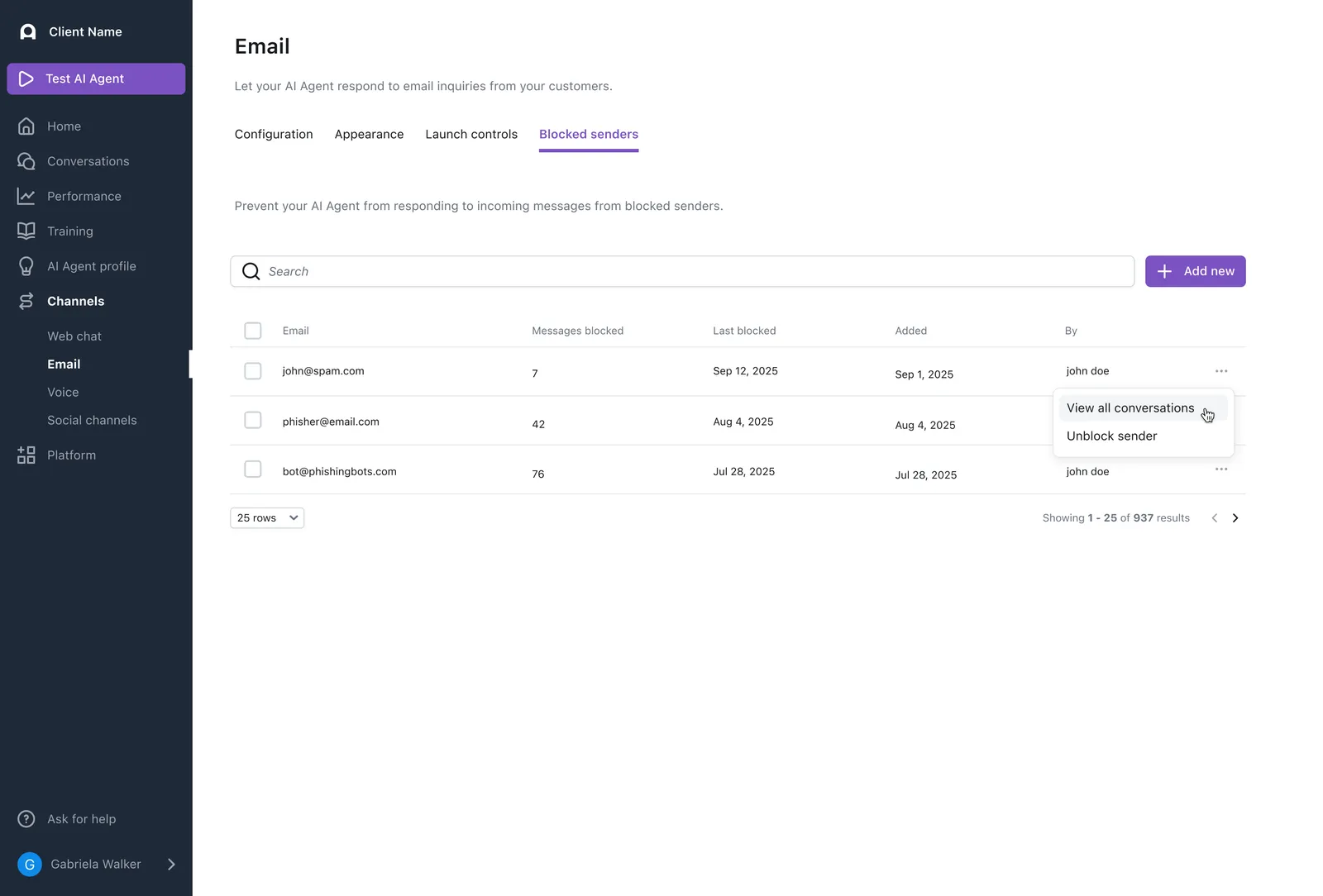
- On the Ada dashboard, go to Channels > Email, then scroll to the Blocked senders section.
- Click Add new.
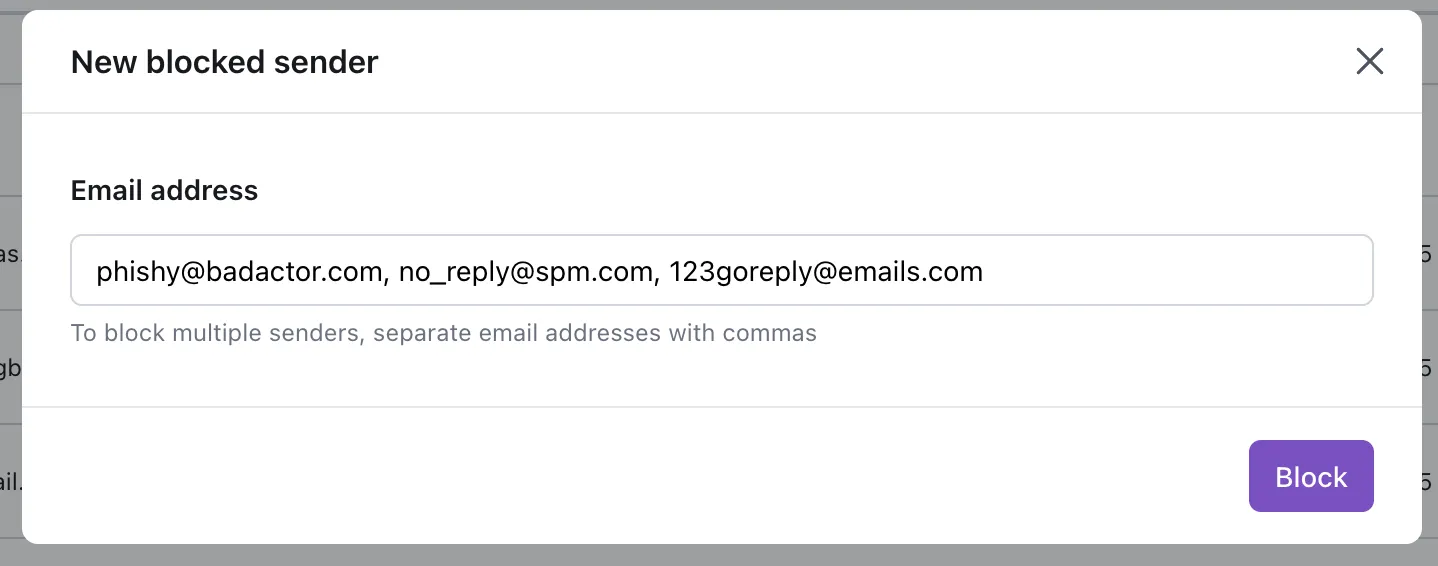
- Enter one or more email addresses to block, ensuring each email address is separated by a comma.
- Click Block.
FAQs
How long will my block persist on the blocked email addresses?
Blocked senders will remain blocked for as long as you continue to use the feature.
Does blocking apply to CC'd participants?
If a blocked address is in the CC list, it’s removed before a reply is sent.
Can I bulk block or unblock email addresses?
Yes, bulk actions are available to you in the Blocked senders section.
Does blocking apply across all channels?
Blocking applies across all email channels on the AI Agent (every BYOD address you’ve configured). It does not affect other modalities — Chat, Voice, or Messaging conversations from a blocked email address are unaffected.
How can I view all the past conversations this blocked sender has had with my AI Agent?
Click the View all conversations option that appears when you click the … next to the blocked email address either in Convos or in the Blocked senders table.
Related features
Explore additional Email configuration and management options.
- Email configuration: Activate and configure your Email channel.
- Launch controls: Control how emails are routed during rollout.
- Conversations: View and manage AI Agent conversations.
- CSAT: Configure customer satisfaction surveys.
- Multiple participant conversations: Handle emails with CCs and multiple recipients.