Configure
Every Playbook has a name of up to 128 characters, a description, availability rules, one or more sections containing steps, and general guidelines. Playbooks can also be assigned to conversation start events so they run automatically when a conversation begins on a specific channel. The Playbook editor includes a side panel with four panes, accessible via the icon rail on the right side of the editor.
Runtime harness
While a Playbook runs, the AI Agent continuously monitors the conversation and can intervene automatically — without requiring explicit steps in the Playbook. This built-in behavior ensures Playbooks stay responsive to end user needs even when the conversation takes an unexpected turn.
- Escalation and exit: When the end user asks for a human agent, the Agent clears the Playbook’s progress and exits permanently. The conversation does not return to the Playbook.
- Intent change detection: When the end user goes off-topic, the Agent suspends the Playbook and addresses the new topic. Depending on how the conversation unfolds, the Agent may then return to where it left off in the Playbook or exit it entirely.
- Pause and resume for Knowledge search: When the end user asks a question that would benefit from a Knowledge search, the Agent temporarily pauses Playbook execution, performs a Q&A search, answers the question, and then resumes where it left off.
Flow controls
By default, the runtime harness exits the Playbook, suspends it, or searches Knowledge when the end user deviates from the current flow. Flow controls let you change these defaults to keep the Agent focused on the Playbook.
Conversation deviation behaviour
In the Playbook details pane, open Advanced settings to find the Conversation deviation behaviour section. Three controls determine what happens when the end user deviates:
When Stay in this Playbook is active, the Agent does not ignore the end user’s request. It acknowledges the request, continues with the current flow, and follows up later to offer to act on it.
Playbook-level vs. step-level controls
Controls are available at two levels:
- Playbook level: In the Playbook details pane under Advanced settings. For Asks for human and Asks a Q&A question, these apply throughout the entire Playbook execution — including while the Agent is sending a message or speaking on a Voice call. The Goes off-topic control takes effect while an
ASKstep is collecting the end user’s response. ASKstep level: In anyASKstep’s side pane under Advanced settings. These override the Playbook-level defaults for that specific step. Each step dropdown includes a Match Playbook-level setting option that defers to the Playbook-level setting.
When a step has its own explicit setting, the step setting always takes precedence.
When the Agent follows up
When Stay in this Playbook is active, the Agent overrides the default runtime harness behaviors described above. Instead of exiting, suspending, or searching Knowledge, the Agent acknowledges the deviation, continues the current flow, and then follows up to ask whether the end user still wants help with their original request. The timing of that follow-up depends on where the control is set:
- Step-level setting: The Agent follows up immediately after that
ASKstep completes. - Playbook-level setting with no step override: The Agent follows up at the end of the Playbook.
This distinction matters even when the values match. If the Playbook is set to Stay in this Playbook and a step is also explicitly set to Stay in this Playbook, the follow-up still happens after the step — not at the end of the Playbook — because the step-level setting is an override regardless of the value.
Interaction with exact wording
When an ASK step uses the exact wording question mode and deviation controls are active, a hint appears in the editor: “If the user deviates, the AI Agent may transform these words to acknowledge their request before re-asking.” This means the Agent may adjust the fixed message slightly to acknowledge the deviation before repeating the question.
Side panes
The Playbook editor’s side panel contains four panes — Playbook Details, General Guidelines, Steps, and Variables — accessible via the icon rail on the right side of the editor.
Playbook Details
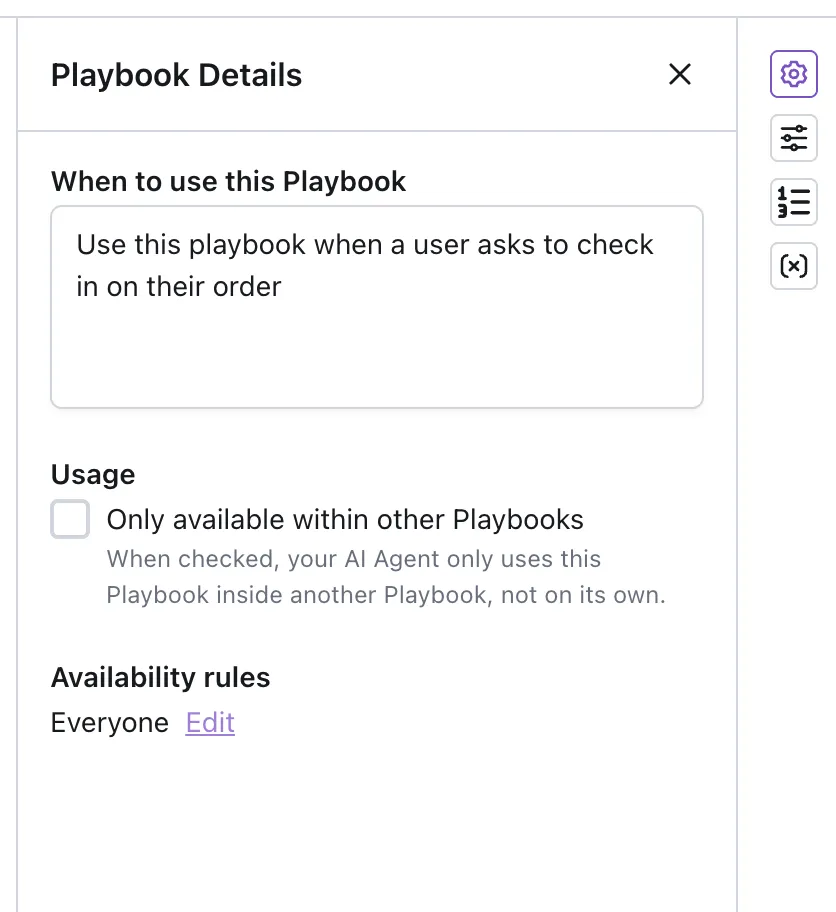
The Details pane controls the Playbook’s description, usage scope, and access rules.
-
When to use this Playbook: Describes the situations where the Playbook is appropriate, much like how you would explain its use to a human agent. This is the primary signal the Agent uses when selecting which Playbook to run. Enter a description of up to 512 characters.
-
Usage: Check Only available within other Playbooks to prevent the Playbook from triggering on its own. When checked, the AI Agent only uses this Playbook inside another Playbook, not on its own. Use this for child Playbooks that exist solely to support a parent.
-
Availability rules: Restrict which end users can access this Playbook based on variable conditions. Set to Everyone or configure rules using the following operators:
-
Acknowledgment: Controls what the AI Agent says immediately before this Playbook starts. Leave the field blank to let the Agent word the acknowledgment itself. Enter an instruction of up to 500 characters to guide it. To fix the exact wording, make the whole instruction
say exactly "your text". Exact wording is spoken as written and never translated.Messaging conversations follow the Send acknowledgement messages setting in personality settings. If that setting is off, select Always acknowledge on Chat for this Playbook to send acknowledgments for this Playbook only.
Conversation start events
A conversation start event triggers a Playbook automatically when a new conversation begins on a specific channel. Instead of relying on intent matching from the description, the Playbook runs immediately as the first response on that channel.
The available events depend on which channels are configured. Messaging and Voice events are always available. Other events appear when the corresponding channel is configured.
Supported channels
To assign a conversation start event to a Playbook:
- Open the Playbook editor and select the Details pane.
- In the When to use this Playbook field, type
@. - Select a conversation start event from the dropdown. Events already assigned to another Playbook are greyed out. The selected event appears as a pill above the description field.
- Save the Playbook.
A Playbook can have multiple conversation start events assigned — for example, both Messaging and Voice — so it runs at the start of conversations on all assigned channels. Each event can only be assigned to one Playbook at a time.
What happens to Greetings: Messaging and Voice channels use a Greeting as their default conversation opener. When a conversation start event for one of these channels is assigned to a Playbook, the Playbook replaces the Greeting for that channel. The Greeting page shows which events currently trigger the Greeting and which have been reassigned to a Playbook. To revert a channel to using the Greeting, remove the event from the Playbook.
Social channels and Email do not have Greetings, so assigning a conversation start event to a Playbook on these channels sets the Playbook as the first response — there is no Greeting to fall back to.
Greeting-first vs. user-message-first channels: On Messaging and Voice, the AI Agent speaks first — the Playbook fires before the end user sends a message. On social channels and Email, the end user sends a message before the conversation start event fires. In this case, the Playbook has access to the end user’s first message and can reason about their intent when generating responses. If the Playbook is not designed to address the original intent, that intent is stashed and picked up after the Playbook completes, so the end user’s request is not lost.
Playbooks can also be linked to Proactive Outreach so they run when an end user engages with a proactive message.
Simulations support conversation start events — when a Playbook has an event assigned, simulations trigger that Playbook at the start of the conversation, matching production behavior.
General Guidelines
The General Guidelines pane is a rich text editor for instructions that apply to all end user interactions in the Playbook. Type @ to reference API tools, Handoffs, Variables, Playbooks, Knowledge articles, and Exit. A reference tells the Agent which item applies. A reference does not run the item.
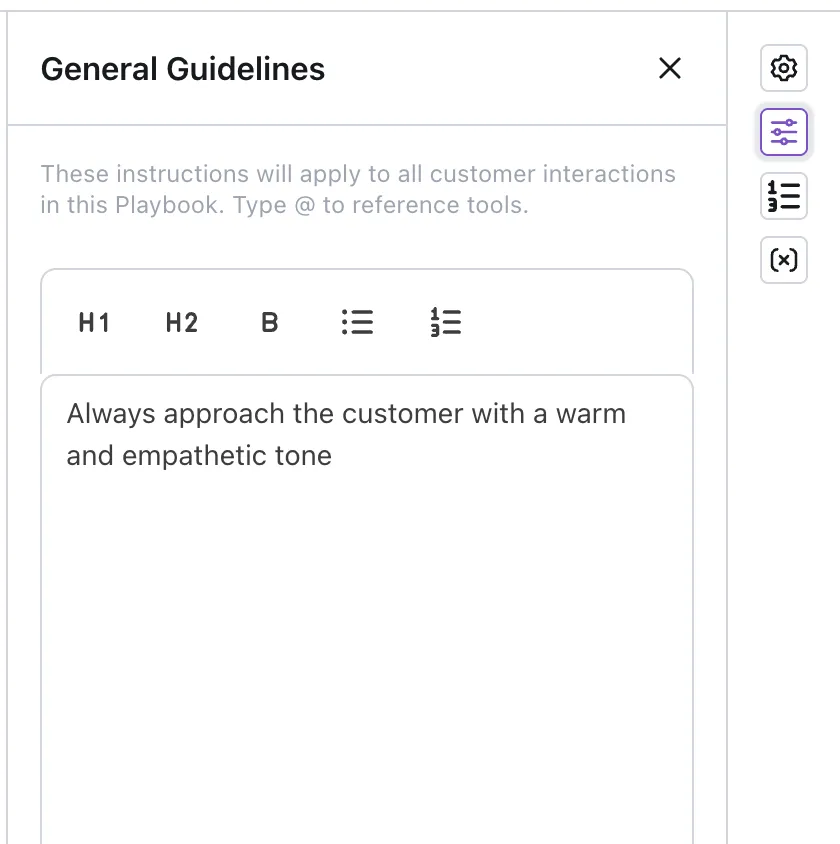
The editor supports headings (H1, H2), bold text, bulleted lists, and numbered lists. Use it for:
- Tone and formatting specific to this Playbook.
- Guardrails and boundaries — what the Agent should and should not do.
- Knowledge references — reference articles using
@ArticleNamementions or instruct the Agent to search the knowledge base. - Handoff, API tool, linked Playbook, and Exit references: a reference is a name, not an action. The Agent reads the reference as the item’s name. For a Handoff, the Agent reads the Handoff’s handle. For a linked Playbook, the Agent reads “the linked playbook”. Nothing runs. Use a reference when a rule must name the item. To hand off, call an API tool, run a linked Playbook, or exit at a point in the flow, add a
RUNstep at that point. - Edge case handling — fallback behavior for unexpected situations.
General Guidelines are stateless — they apply throughout the entire conversation regardless of which step the Agent is currently on. This makes them ideal for cross-cutting rules that should not be embedded in any single step or section.
The Agent also reads General Guidelines when it suspends the Playbook because the end user went off-topic. On those turns the Agent can use any Handoff, API tool, or Playbook the AI Agent allows. Write guidelines that make sense outside the step sequence.
Good General Guidelines content:
- “Always verify the end user’s identity before sharing account-specific information.”
- “Never offer a refund greater than the original order value.”
- “If the end user asks about a topic not covered by this Playbook, search the knowledge base before handing off.”
- “Use a friendly, professional tone. Avoid jargon.”
- “Only
@Supportcan approve a refund above $100. Do not promise a refund in the chat.”
Poor General Guidelines content:
- Step-specific instructions that belong in a particular step (for example, “In Step 3, ask for the order number” — write this directly in Step 3 instead).
- Long, detailed procedures — structure these as steps within a section instead.
- Guidance that only applies in one branch of the flow — place this in the relevant
IF/ELSEbranch instead. - A rule that hands off or runs a tool, for example “Hand off to
@Supportwhen the end user is upset” or “Follow@Returns Processfor a return”. A guideline cannot run the item. Add aRUNstep where the Playbook must run it.
SEND, ASK, or SET step in the Playbook body.RUN step in the Playbook body.@ArticleName or natural-language search instructions.Steps
The Steps pane provides a navigable outline of all sections and steps in the Playbook. Each row displays the step number, keyword (SEND, SET, RUN, etc.), and a preview of the step’s target — such as the API tool name for a RUN step or the variable name for a SET step.
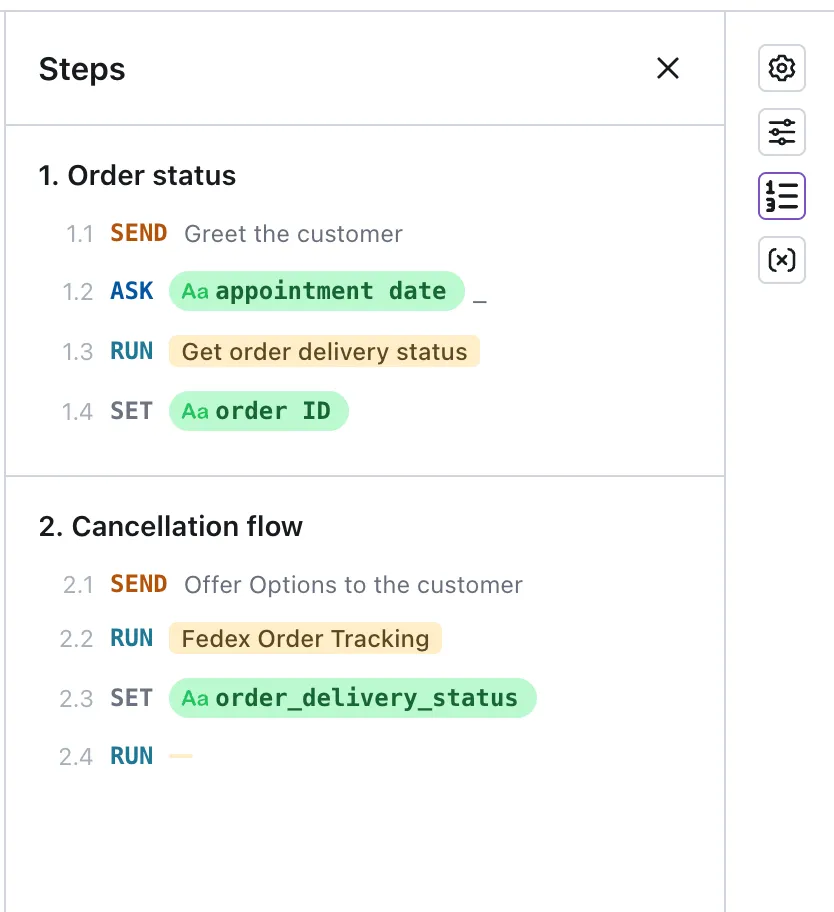
Click any row to scroll directly to that step in the editor.
Variables
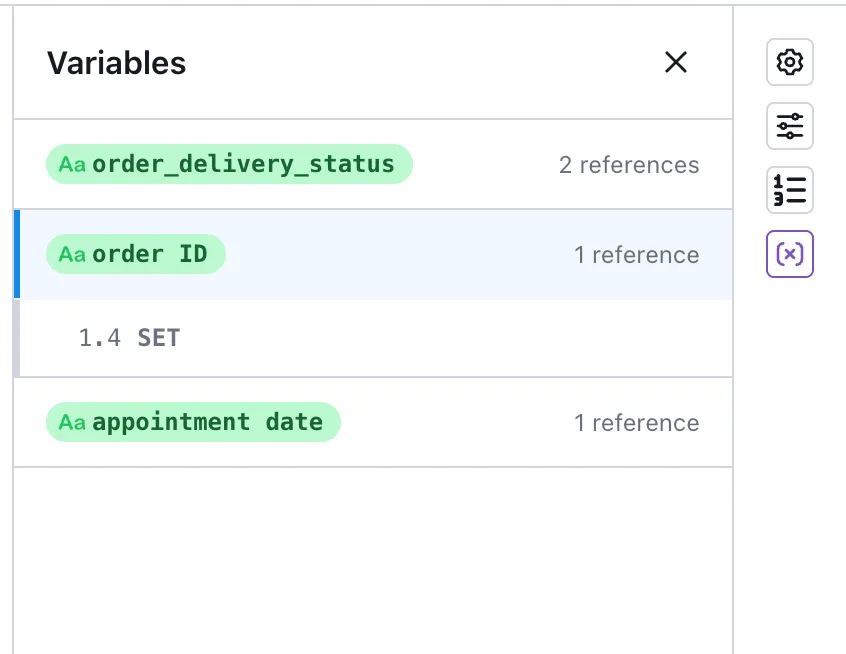
The Variables pane displays all variables referenced in the Playbook. Each variable row shows a reference count. Click a variable to expand it and see every step that reads or writes it, listed by step number and keyword.
Build your Playbook with sections and steps
The body of a Playbook is organized into sections and steps.
Sections
Sections represent stages of the end user journey — for example, “Verify identity”, “Look up order”, or “Process refund”. Each section contains a sequence of steps that execute in order.
- Add sections to group related steps and make the workflow easier to read.
- Sections execute in order unless redirected by an
IF/ELSEbranch orGO TOjump. GO TOcan jump to steps in other sections, enabling cross-section flows.- Each section must have at least one step. The editor shows an empty section as an error. See Find and fix errors.
Steps
Within each section, add steps to define what the AI Agent does. The six step types are:
For complete field-level documentation, including modes, validation rules, and examples for each step type, see Step reference.
To add a step:
- In a section, click Add Step.
- Select a step type.
- Configure the step’s fields (for example, the message content for a
SENDstep, or the variable and instruction for anASKstep). - Click the step icon to open that step’s configuration in the side pane. Applies to
ASK,SEND, andSET.
Reference API tools, Handoffs, Exits, and Variables
Playbooks connect to external systems and end user data through references to API tools, Handoffs, Exits, and Variables.
API tools and Handoffs
In any step that supports references, type @ to search for existing API tools and Handoffs. Select one to insert a reference. If no results appear, click + Create API tool or + Create Handoff to define a new item without leaving the editor.
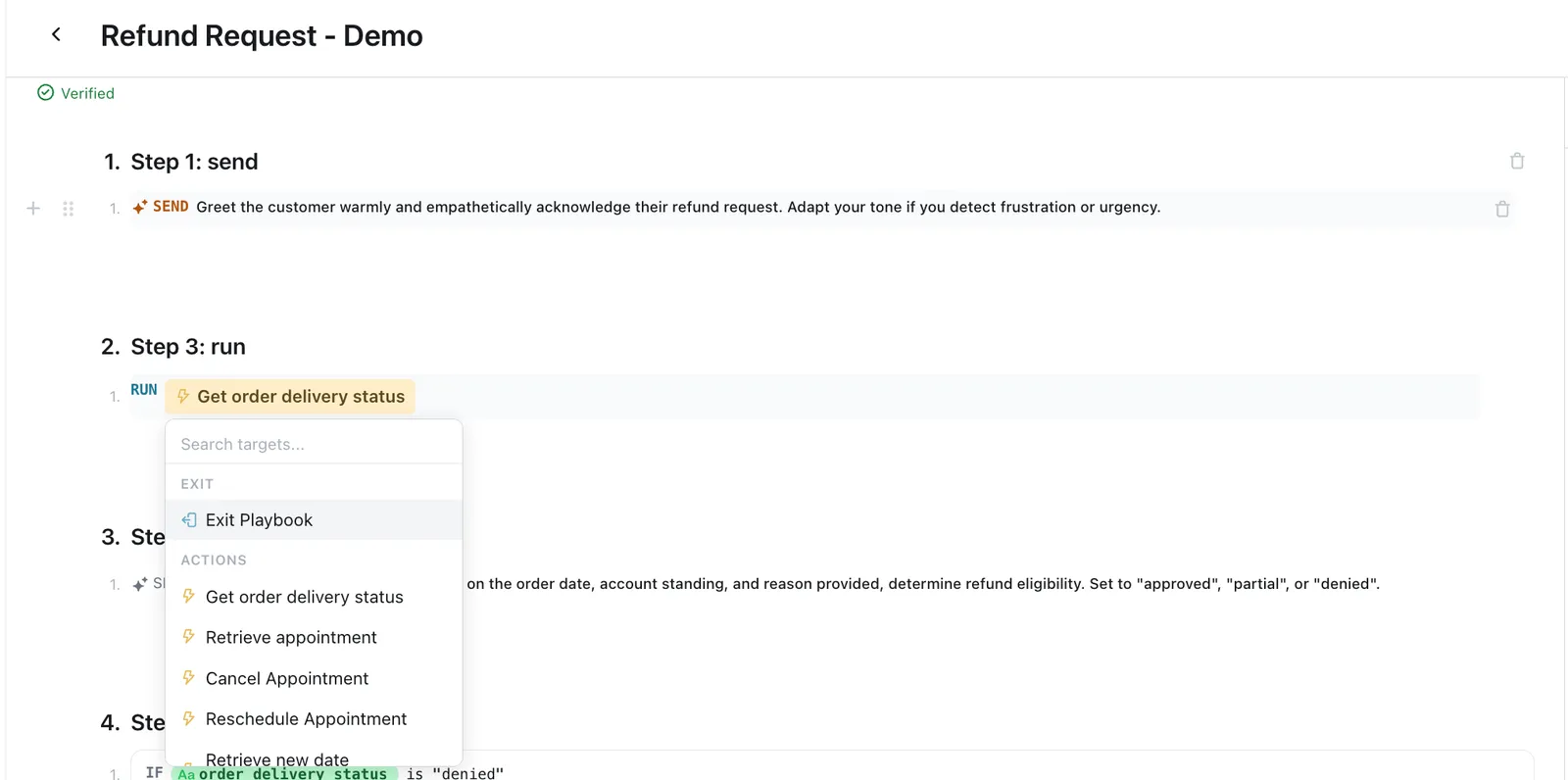
Use RUN steps to execute API tools (API calls) and trigger Handoffs (escalation to human agents) at specific points in the workflow.
SEND or ASK text is removed from the message the end user receives. The words around it stay. Write the name in plain words in exact-words text. Put references in instructions or in General Guidelines. Use a RUN step to run the item.Exits
Use a RUN step with the Exit option to deterministically end a Playbook. Type @Exit to find the Exit Playbook option in the reference menu — it appears in the same reference dropdown shown above.
Variables
Playbooks support Global Variables, Sensitive Variables, and Metavariables. Reference variables in any step to personalize the flow.
- Reading: Reference a variable to shape logic (for example, check
@order_statusin anIF/ELSEbranch). Metavariables are read-only. - Writing:
SETandASKsteps write to Global Variables and Sensitive Variables. Variables cannot be written from General Guidelines.
@variable pill when referencing variables. Typing variable names manually is not recognized by the system.Knowledge
Playbooks can reference Knowledge sources — including third-party knowledge bases, Ada-created articles, and web-scraped content.
- Direct reference: Use
@ArticleNamein General Guidelines to reference a specific article. SENDsteps: In a Contextual AI-generatedSENDstep, select Search Knowledge or an article from the@menu. The step grounds its reply in the search results or in the article. See Search Knowledge inSENDsteps.- Native search: The runtime harness can pause Playbook execution to perform a Knowledge search when it detects the end user needs information, then resume where it left off. You can also add natural-language search instructions in General Guidelines to guide this behavior.
Link a Playbook
Break large workflows into smaller, reusable components by linking Playbooks together.

Version compatibility
Linked Playbooks must be of the same version. A Playbook cannot link to a Playbook (Classic), and a Playbook (Classic) cannot link to a Playbook. If you are migrating from Classic, update all Playbooks in a linked chain together so that parent and child Playbooks are on the same version.
How linking works
Linked Playbooks use call-and-return logic: the parent calls a child via a RUN step, the child runs to completion, then control automatically returns to the parent. The child does not branch — it always returns to the exact point in the parent where it was called.
RUN > Exit). Without an explicit Exit, the child may not return control to the parent reliably.How to link
Use a RUN step with the linked Playbook option. The parent pauses while the child runs, then continues once the child exits.
- You can link multiple Playbooks within a single parent with no limit on how many a parent may call.
- Treat the top-level Playbook as the parent and all linked Playbooks as children.
- Keep child Playbooks focused on a single, structured task to ensure they remain reusable.
Restrict child Playbooks
When a Playbook exists only to support another — meaning it should never trigger on its own — enable AI Agent can only use this Playbook within other Playbooks in the Playbook Details pane. This prevents accidental triggering and reduces misfires.