

Simulations
Simulations enable AI Managers to proactively understand how configuration changes impact AI Agent behavior. By creating and running test cases, you can verify that updates improve behavior without causing regressions.
Simulations differ from Interactive Testing in that they run test cases as multi-turn conversations in bulk automatically, rather than manually and one at a time.
Use Simulations for systematic validation at scale—including regression testing, compliance audits, and deployment readiness.
Use Interactive Testing for quick checks and qualitative exploration.
Overview
When you modify an AI Agent—whether by updating Knowledge, adjusting Actions, or refining Playbooks, predicting the full impact across all support scenarios is difficult. Simulations address this challenge by allowing you to define a set of test cases, simulate end-user inquiries, and evaluate the AI Agent’s simulated responses against the expected outcomes you define.
With Simulations, you can:
- Create a library of test cases that you can run anytime to understand how your AI Agent is behaving
- Quickly simulate across end-user segments to ensure coverage of real-world situations
You can run up to 3,000 simulations per day and maintain up to 1,000 test cases per instance. If you need additional capacity, contact your Ada representative.
Limitations
Simulations have the following constraints:
- Web Chat, Email, and Voice channels only.
- Up to 40 turns per simulation: Each test case runs as a multi-turn conversation capped at 40 turns between the simulated end user and the AI Agent.
- Greetings and conversation start events: In Web Chat and Email simulations, the conversation starts from the end user’s first message, so Greetings aren’t played. If a conversation start event is assigned to a Playbook, simulations trigger that Playbook the same way production does. On the Voice channel, the AI Agent greets the caller at the start of the call, as it would on a live call.
- Manual test case creation: Test case creation is available in the dashboard. Bulk test case creation can be facilitated through the MCP Server.
- Interruptions: The simulated end user may interrupt the AI Agent naturally, as a real caller might, but can’t currently be directed to interrupt at specific points via the Scenario field.
- Pass/fail evaluations only: Expected outcomes produce binary pass/fail results. Complex scoring or weighted evaluations are not available.
- Change set status: You can select change sets with a Testing status. A test case can still show results from a change set that was promoted or deleted.
- No direct dashboard export: Simulation results cannot be exported directly from the dashboard. Test cases and results can be exported as CSV through the MCP Server.
- Default test case settings: Language and channel default to English and Web Chat unless otherwise specified at test case creation.
Both simulated responses and evaluations are powered by generative AI. Some minor variability in responses and evaluation results is expected between simulation runs. To improve consistency, use clear and specific expected outcomes, ensure relevant Coaching and Custom Instructions are in place, and re-run simulations periodically to observe trends over time.
Multi-turn behavior by capability
Simulated conversations run as multi-turn exchanges, capped at 40 turns. The simulated end user responds based on the Scenario you define, and the AI Agent uses its full production capabilities. The conversation ends when the Agent resolves the inquiry, reaches a handoff, or hits the 40-turn cap.
Use cases
Simulations support several common workflows:
- Pre-deployment validation: During initial AI Agent configuration, validate behavior across key scenarios before launching to end users.
- Regression Testing: After updating Knowledge articles or modifying Actions, re-run existing test cases to confirm the changes produce expected results without causing regressions.
- Continuous improvement: Post-deployment, run simulations regularly to monitor AI Agent performance and identify areas for improvement.
- Major update validation: Before and after significant changes, run comprehensive simulation suites to catch unintended downstream impacts.
- Coverage validation: Create test cases representing different end-user segments, languages, and channels to ensure the AI Agent handles a broad range of real-world situations.
- Deployment readiness: Run a full simulation suite before deploying changes, generating clear pass/fail metrics to share with stakeholders and support go/no-go decisions.
- Compliance and safety audits: Validate AI Agent behavior for compliance-sensitive scenarios and edge cases.
Capabilities & configuration
Simulations run structured test cases as automated, multi-turn conversations.
Test case structure
Each test case includes the following elements:
Test case examples
The following examples illustrate how to structure test cases for common scenarios:
Simulation results
Each simulation run generates pass/fail results for individual expected outcomes and an overall status for the test case. Results also include a rationale explaining each judgment and a list of generative entities (Knowledge, Actions, Playbooks, etc.) used to produce the response. For more details, see Review results.
Mock API tools
Every API tool is Live by default and sends a real request in a simulation. Select Mock in simulations on an API tool to answer it from the test case’s External systems text instead, so no request reaches your system. Code tools, MCP tools, and HTTP Request blocks have no mock. Select Block in simulations to stop their calls. See Mock API tools.
Voice simulations
On the Voice channel, Simulations place a real call to the AI Agent and run the conversation through its voice pipeline.
Because the call runs end to end, voice simulations capture channel-specific behavior that text-based simulations can’t:
- Speech recognition: The simulated end user speaks, and the AI Agent interprets the audio as it would on a live call, so misheard words or unclear phrasing appear as they would for a real caller.
- Spoken responses and pacing: The AI Agent replies in its configured voice, so timing and how natural the exchange sounds come through in the recording.
- Real-world latency: Responses take as long as they would on a live call, so pauses and delays show up the way callers actually experience them.
- Keypad (DTMF) input: The simulated end user can respond to keypad prompts—for example, pressing 1 to reach billing, or entering an account number when asked—so phone-menu routing and numeric entry can be tested.
- Text messages: The simulated end user can send and receive SMS during the call, so flows that text a link or ask for information by message can be tested. This requires Agent SMS to be enabled for the AI Agent.
- Handoffs and webhooks: A handoff ends the call and does not reach your agents. Your webhooks are sent, as on a real call. API tools follow their Mock in simulations setting, as on Web Chat. See Mock API tools.
Results include a recording of the actual call alongside the transcript and evaluation. For guidance on writing scenarios that produce realistic calls, see Scenarios for voice simulations.
Quick start
Get started with Simulations in just a few steps. For detailed instructions, see Implementation & usage.
Create a test case
In your Ada dashboard, navigate to Simulations, and click Add. Enter a Test case name, a Customer inquiry, a Scenario describing the end user’s goal and behavior across turns, select the Language and Channel (Web Chat, Email, or Voice), and define at least one Expected outcome. Then, click Save.
Run the simulation
Select your test case and click Run. If the Run a simulation dialog appears, select an Environment and click Start simulation. The AI Agent runs a multi-turn simulation and evaluates the transcript against your expected outcomes.
Implementation & usage
Create test cases, run simulations, and review results to validate your AI Agent’s responses.
Create a test case
Test cases define the end-user inquiry and expected outcome that the AI Agent’s response is evaluated against. Each test case captures a specific scenario you want to validate, making it reusable for regression testing and ongoing verification.
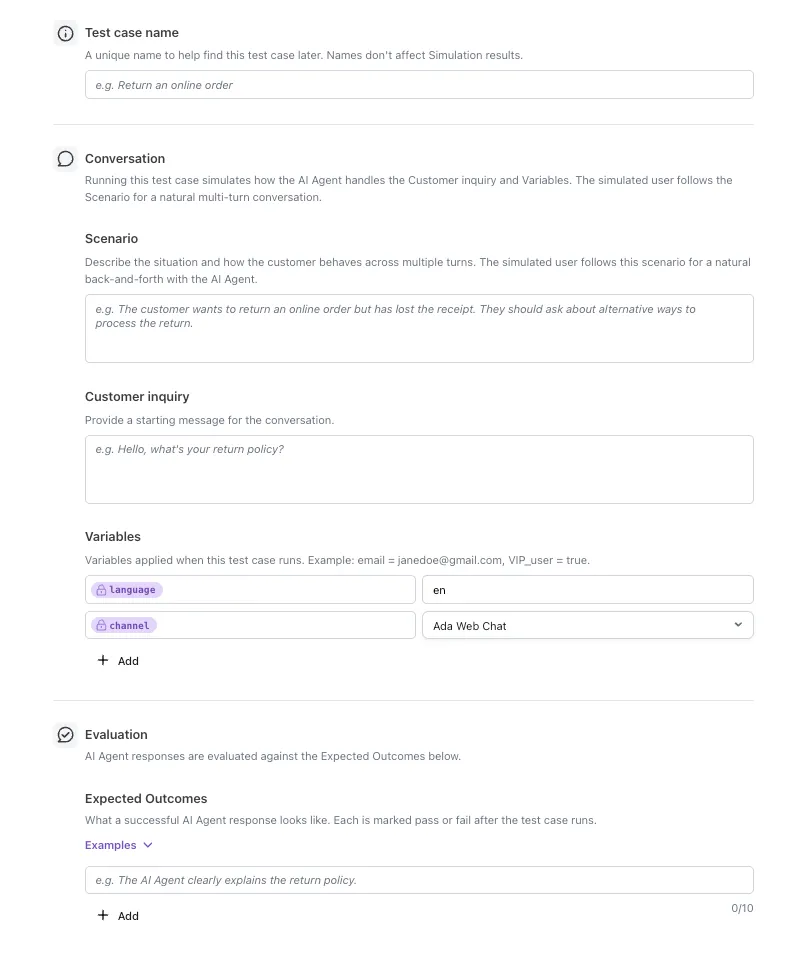
Test case name
The Test case name should be descriptive and clearly reflect the scenario being tested—for example, Refund policy accuracy or Password reset initiation. A clear name makes it easier to identify test cases when running batches or reviewing results.

Conversation setup
Conversation setup defines what the AI Agent receives and the context in which it responds.
-
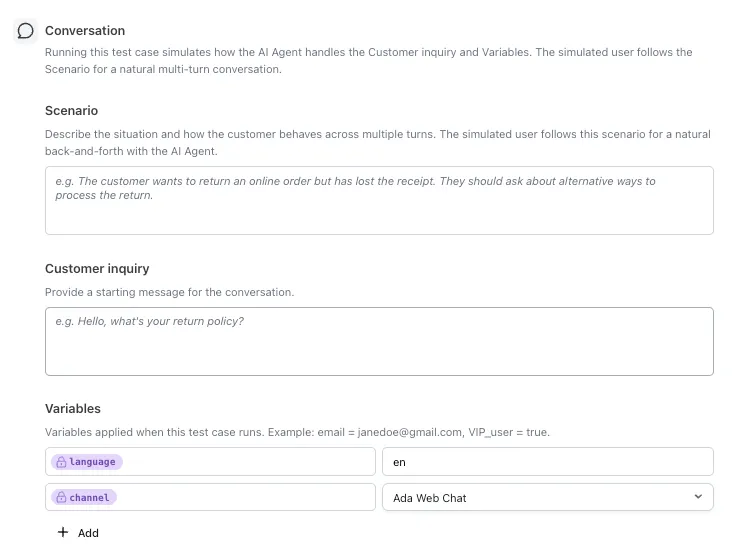
Customer inquiry: The message the AI Agent receives, simulating what an end user would send. This should reflect realistic phrasing and context.
-
Variables: Variables allow test cases to simulate specific end-user contexts, such as language preferences or channel type. Adjusting values like
languageandchannelhelps ensure the AI Agent’s response reflects real-world conditions. -
External systems: What your systems return for the API tools set to Mock: the records, their values, and the rules they enforce. Facts that the end user would say belong in the Scenario. See Write the External systems field.
Scenario
The Scenario describes the simulated end user’s goal, context, and how they should respond across turns. It drives the simulated end user’s behavior throughout the multi-turn conversation, so realistic scenarios produce more representative results.
A well-written Scenario:
- States the end user’s goal (for example, get a refund for a damaged item)
- Provides relevant context the end user knows and would share when asked (account identifiers, dates, product names, prior interactions)
- Defines how the end user responds—whether they answer clarifying questions directly, push back, provide partial information, or accept the Agent’s suggestions
- Focuses on a single goal per test case
For detailed guidance, see Scenarios in the best practices guide.
Migrating existing test cases
Test cases created before multi-turn Simulations launched remain runnable. Their existing Customer inquiry is reused as the Scenario for simulated runs.
The next time you edit a pre-existing test case, you are required to add a Scenario before saving.
To populate Scenarios for existing test cases in bulk, use the MCP Server rather than editing each test case individually.
Evaluation
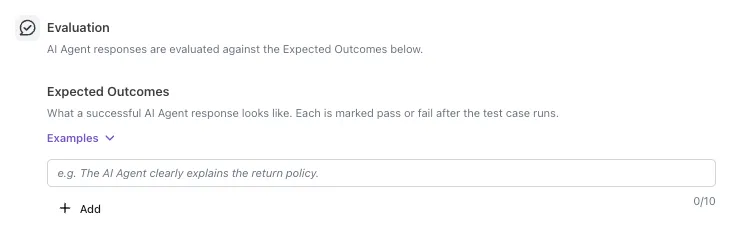
The Expected Outcomes section is used to define what the AI Agent’s response must achieve to pass. The AI Agent’s response is evaluated against each criterion independently, producing:
-
A pass/fail result per Expected Outcome
-
An overall pass/fail for the test case
-
A rationale explaining each judgment
-
Expected outcomes: Each test case requires at least one expected outcome and supports up to ten. Write outcomes that are specific and measurable—for example, instead of
responds helpfully, useprovides the return policy timeframeorincludes a link to a help article. Clear, well-defined outcomes produce more reliable pass/fail evaluations and meaningful rationale.
Create a new test case
You can create test cases from the Simulations page in your Ada dashboard.
To create a test case:
- In your Ada dashboard, navigate to Simulations, then click Add.
- On the Simulations page, enter a Test case name.
- Under Conversation, enter a Customer inquiry and optionally add Variables to simulate specific end-user contexts.
- Enter a Scenario describing the end user’s goal, context, and how they should respond across turns.
- If the test calls an API tool set to Mock, describe its records and rules under External systems. See Write the External systems field.
- Under Evaluation, add at least one Expected outcome.
- Click Save to create the test case.
Edit or delete a test case
You can modify or remove existing test cases from the Simulations page.
To edit a test case:
- In your Ada dashboard, navigate to Simulations.
- Select the test case you want to edit from the list on the left.
- In the test case section on the right, click the three dots in the top-right corner and select Edit.
- Update the Test case name, Conversation, or Evaluation as needed.
- Click Save to apply your changes.
To delete a test case:
- In your Ada dashboard, navigate to Simulations.
- Select the test case you want to delete from the list on the left.
- In the test case section on the right, click the three dots in the top-right corner and select Delete.
Run simulations
Simulation runs execute one or more test cases against the current published AI Agent configuration or a change set in testing. Each run simulates a multi-turn conversation—up to 40 turns—between the simulated end user and the AI Agent, then evaluates the transcript against the defined expected outcomes.
Select and run test cases
Simulations can be run on individual test cases to validate specific scenarios, or in batches to evaluate broader coverage. Batch simulating is useful for regression testing after configuration changes or for validating deployment readiness across multiple scenarios at once.
-
Selecting multiple test cases and running them together produces a consolidated simulation run with results for each case.
-
Simulation runs execute separately from live traffic and do not affect production performance.
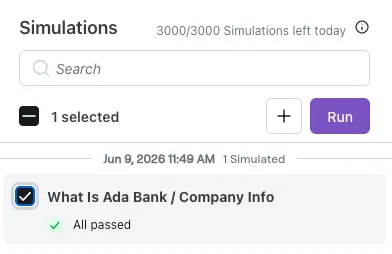
Run opens the Run a simulation dialog when a Testing change set is available. Otherwise, the simulations use your Agent’s published configuration. Your environment selection applies to all selected test cases.
To run simulations:
- In your Ada dashboard, navigate to Simulations.
- On the Simulations page, select one or more test cases on the left.
- Click Run.
- If the Run a simulation dialog appears, select Production or a change set under Environment.
- If you selected an environment, click Start simulation.
- Wait for the simulations to complete.
Review results
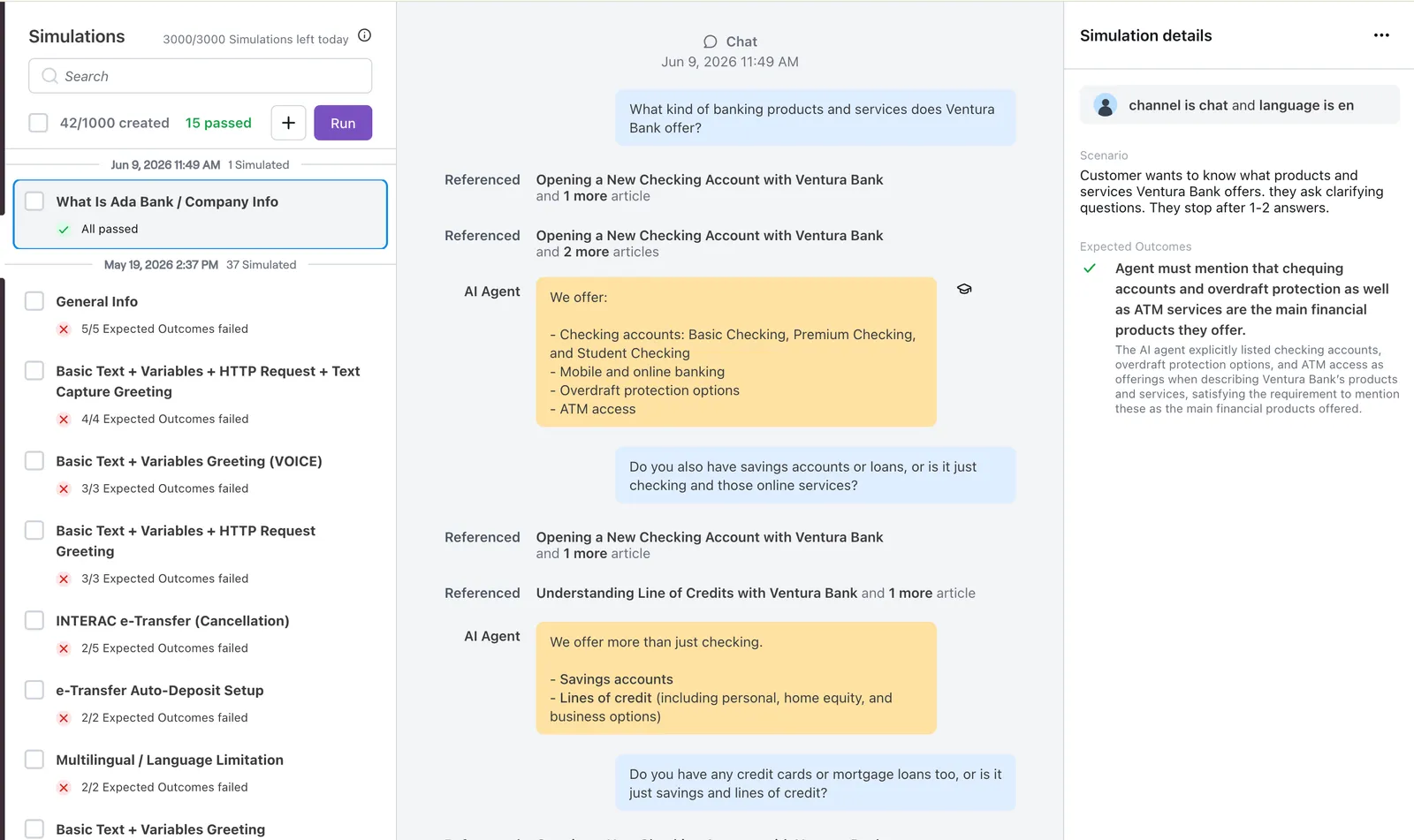
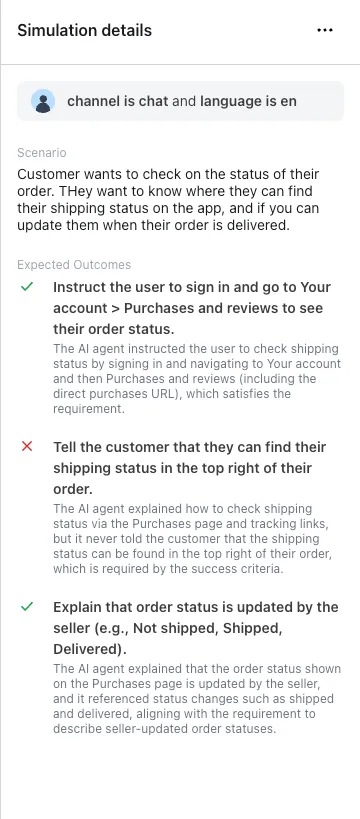
Simulation results provide visibility into how the AI Agent performed against each expected outcome. Results include pass/fail status, evaluation rationale, and details about which tools were referenced by the AI Agent to generate its response.
Simulations shows the latest result for each test case, regardless of environment. Results are grouped by when they ran and the environment used. For production results, the heading includes live. For change set results, it shows the change set name. If the name is unavailable, the heading shows Archived change set.
Each test case displays an overall pass/fail status based on whether the AI Agent’s response met all defined expected outcomes. Individual criterion results are also available, allowing you to identify which specific expectations passed or failed.
Clicking into a test case reveals additional context:
-
Conversation transcript: The full multi-turn exchange between the simulated end user and the AI Agent, including every message from both sides.
-
Audio playback (Voice channel only): A recording of the simulated voice call, capturing the AI Agent’s spoken responses and the simulated end user’s speech. The simulated end user uses a single standard voice.
-
Evaluation rationale: An explanation for each criterion judgment, describing why the response passed or failed.
-
Generative entities used: A list of Knowledge, Actions, Playbooks, and other configuration elements that contributed to the response.
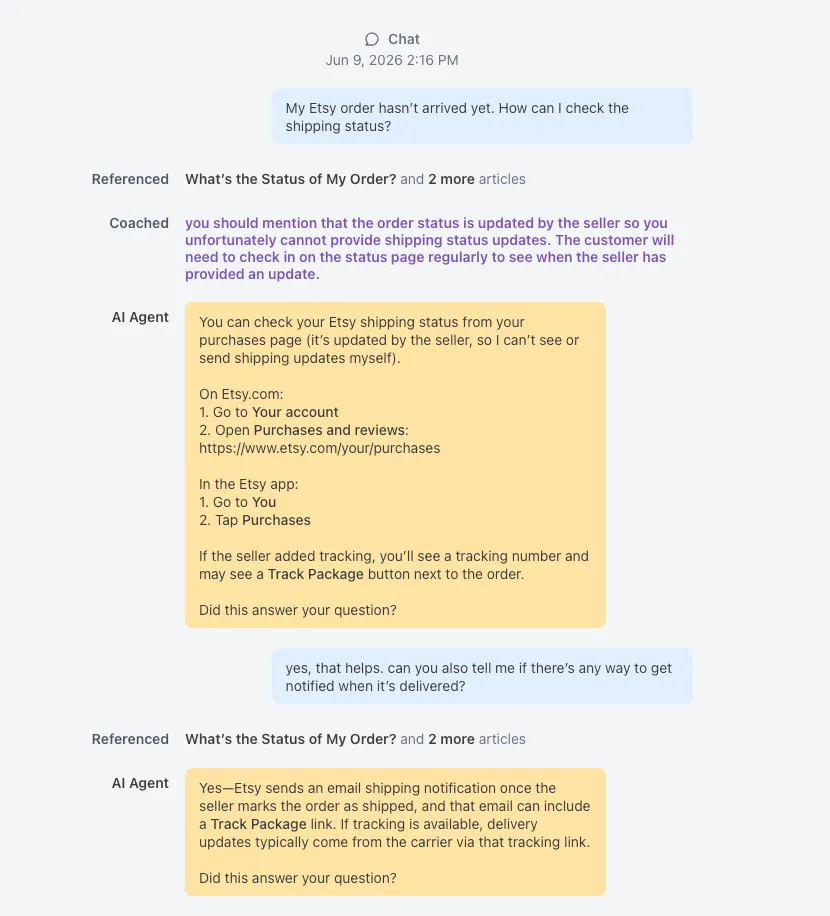
To review simulation results:
- In your Ada dashboard, navigate to Simulations.
- Select a completed test run to view the results.
- Select a test case to see the response details, evaluation results, and rationale.
Improvement actions
Failed test cases highlight areas where the AI Agent’s behavior does not meet expectations. The results provide the context needed to diagnose issues and make targeted improvements.
Evaluation rationale
Each test result includes an evaluation rationale that explains why each criterion passed or failed. The rationale provides insight into the AI Agent’s reasoning and helps identify whether the issue stems from missing Knowledge, incorrect Action behavior, Playbook logic, or other configuration.
Configuration links
Test results include direct links to the generative entities—such as Knowledge articles, Actions, or Playbooks—that contributed to the response. These links provide quick access to the relevant configuration, making it easier to locate and update the source of an issue.

Apply Coaching to a simulated conversation
When a test case fails because of how the AI Agent responded, you can apply Coaching directly from the simulated conversation without leaving the Simulations workflow.
The coaching button appears on applicable AI Agent messages in the simulated conversation, the same way it appears in the Conversations view. Coaching applied here:
- Will also be available for the AI Agent to use in production conversations, so improvements validated in Simulations carry over to real end-user interactions.
- Same as Conversation view, supports all coaching behaviors i.e. Send a message, Handoff, use knowledge base, run an Action, follow a Process, and run a Playbook
- Shows a “Saved Coaching” indicator on AI Agent messages that already have coaching applied, with a link to the saved coaching for easy access to editing.
To apply Coaching from a simulated conversation:
- In your Ada dashboard, navigate to Simulations and click on a test case to open a completed simulated conversation.
- Hover over an AI Agent message and click the Provide coaching icon.
- Review the When replying to field and refine the intent if needed, select a behavior, and provide your feedback.
- Click Save.
- Re-run the test case to verify the coaching produced the expected improvement.
For details on writing effective coaching, see Coaching best practices.
Iterative improvement
Re-running test cases after making changes confirms whether updates resolved the issue. This cycle of simulating, diagnosing, and improving supports continuous refinement of AI Agent behavior over time.
Related features
These features complement Simulations and support AI Agent optimization:
-
Interactive Testing: Test your AI Agent in real time by chatting with it directly, simulating different user types with variables.
-
MCP Server: Retrieve test cases, test run results, and quota information, or export test data as CSV through a connected AI assistant.