

Set Variable block
Overview
The Set Variable block automatically defines variables in your greeting that you can use in other blocks, without your customers ever knowing it’s happening behind the scenes.
Configuration
Define variables automatically in your greeting for use in other blocks.
To configure the Set Variable block:
-
Under Variable, select a variable to save the value in, or click Make New Variable to create a new one.
You can’t select metavariables, which your AI Agent sets automatically, or variables that contain list responses.
If this variable already has a value assigned to it at this point in the conversation, this block will overwrite the old value. If you created a new variable, follow these steps to finish creating it:
- If you created a new variable, enter a Name for it that describes the data it will contain.
- Under Availability, select either Only this Answer to limit the variable’s use to the current greeting, or All Answers to make the variable available throughout your AI Agent.
- Under Type, select the type of information the variable should store, so your AI Agent can help validate customer responses to fit it.
- Click Save. Your AI Agent saves your new variable.
-
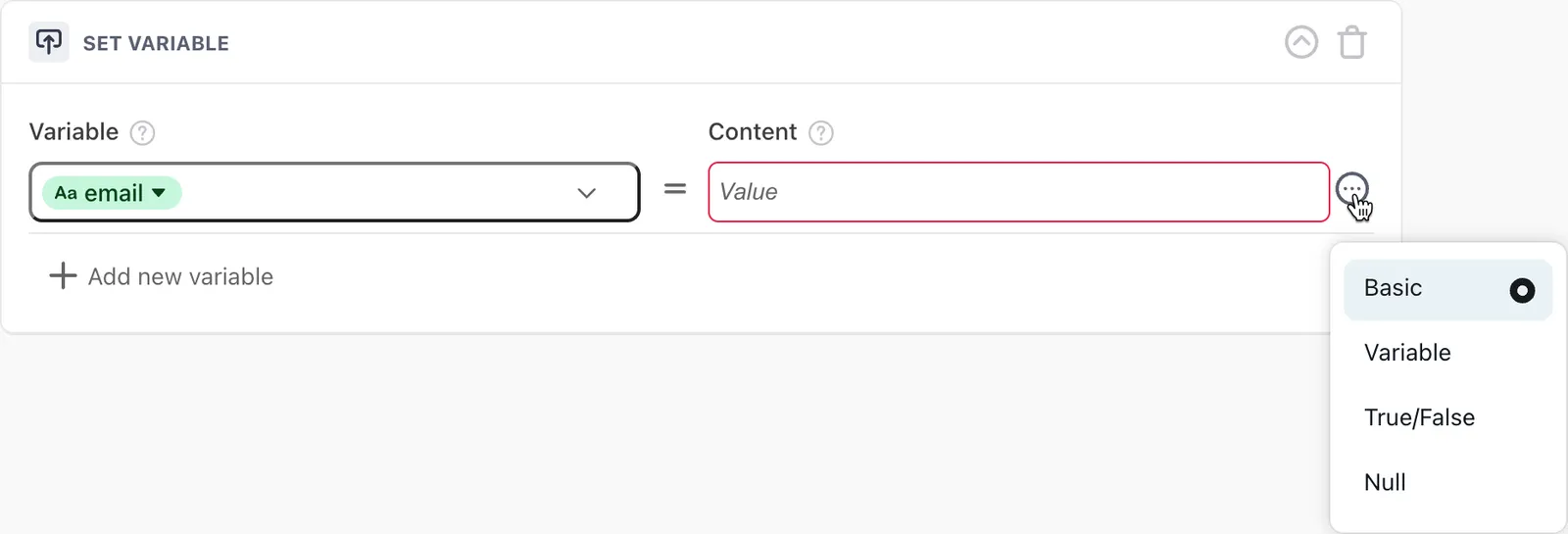
Under Content, beside the dropdown list, click the More Options icon
 and select a variable type:
-
Basic: Save a static text value that you add manually into the variable.
-
Variable: Save the content of another existing variable into this variable. For example, you can save the value of an existing metavariable into this variable.
For security reasons, you can’t save a variable with the value of an authentication variable.
-
True/False: Save either a positive or negative response in the variable.
-
Null: Clear any previously set values from the variable.
-
-
Under Content, enter or select a value to save in the variable. The options you have depend on the variable type you selected, or are absent if you selected Null.
-
If required, click Add new variable to add additional variables to set at the same time.
If the block contains more than five variables, it will be collapsed by default the next time you view the greeting, so you can scroll through the greeting’s content more easily. To expand the block and view all of the variables, click the arrow icon next to the trash can icon in the upper-right corner of the block.