Test and publish
Before publishing, test how your Playbook behaves across common flows and edge cases. This page covers testing, publishing, and ongoing management of Playbooks.
Test your Playbook
- Walk through the most common paths first, then expand to edge cases — missing inputs, unexpected values, alternate branches.
- Test from the perspective of different end user types.
- Account for error states and fallback scenarios.
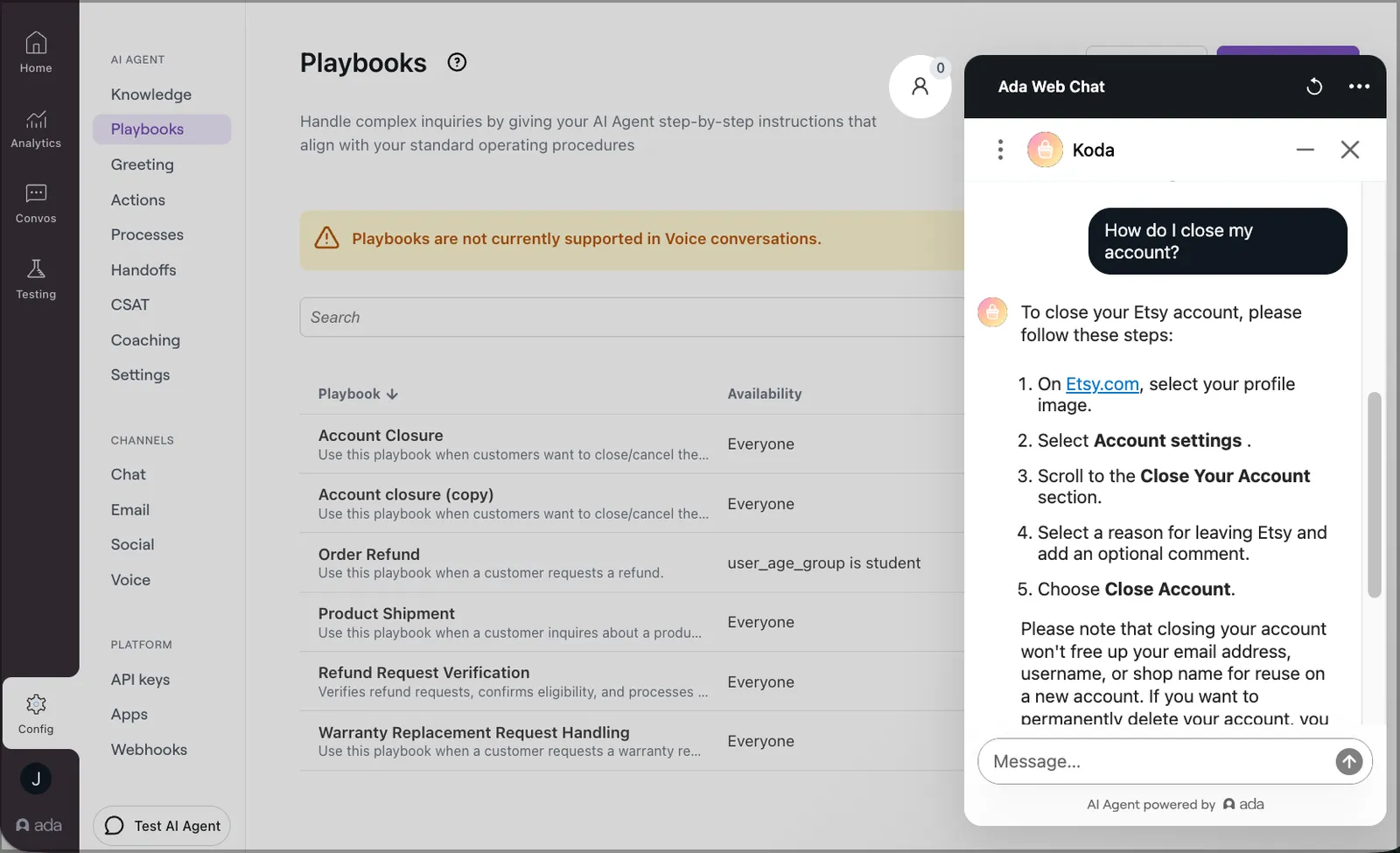
You can preview the Playbook in isolation using Test Playbook, or simulate a full conversation using Test AI Agent to confirm it triggers under the right conditions. Test AI Agent is only available for active Playbooks — inactive Playbooks can only be tested using Test Playbook.
Save and publish
Playbooks can be saved as inactive (draft) or active (live in end user interactions). This allows you to work on Playbooks incrementally without affecting the end user experience.
You can save an inactive Playbook that has errors. To set a Playbook to active, fix every error first. While the Playbook has errors, the Active toggle is locked.
Find and fix errors
The editor checks the Playbook as you build it, so you can find and fix each error before you activate the Playbook.
- Error menu: When the Playbook has errors, the page header shows a N errors to resolve menu next to the Active toggle. The menu lists the errors under Playbook, Errors, and Warnings. Warnings do not block activation.
- Rows: A step or section row shows its line number and keyword, for example 1.5 IF/ELSE, with the message below. A Playbook row shows the name of the field, for example When to use this Playbook.
- Go to an error: Select a row to scroll to the step, section, or field and place the cursor in it. If the field is in a closed Playbook Details pane, the pane opens.
- Status: The editor shows Checking for errors while it checks a step, and Verified when the Playbook has no errors.
A saved Playbook shows its errors when it opens. In a new step or section, errors show after you leave it.
The editor reports these errors, among others:
- A section with no steps.
- An
IForELSE IFbranch with no steps. TheELSEbranch can be empty. - A
GO TOstep with no target. - A missing When to use this Playbook description, for a Playbook that can run on its own.
Duplicate a Playbook
To reuse the structure or content of a Playbook, create a copy using the Duplicate option. This is useful for iterating on workflows, experimenting with variations, or creating templates.
Edit or delete a Playbook
Go to Config > Playbooks and open the Playbook to manage.
- Edit: Modify content and save as active or inactive.
- Delete: Select Delete Playbook from the More options menu.
View dependencies
In the Playbook list, each row displays a dependency summary showing counts of linked Playbooks, API tools, Variables, and Handoffs.

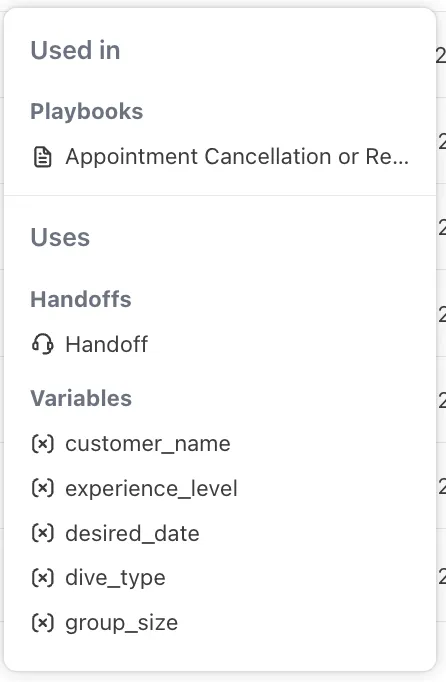
Select a Playbook to see the full dependency breakdown:
- Used in: Parent Playbooks that reference this one.
- Uses: Handoffs, API tools, and Variables this Playbook references.
Dependency safeguards
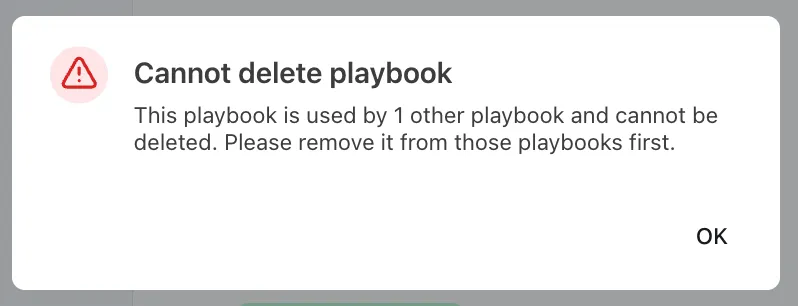
- Deletion protection: You cannot delete a Playbook referenced by an active parent Playbook. Remove the reference first, then delete.
- Circular dependency prevention: Playbooks cannot reference each other in a loop. If saving would create a circular dependency, the save fails and a notification displays the conflicting dependency chain.