

Salesforce Messaging agent availability
Overview
Set up a Salesforce Flow to retrieve agent availability and wait time attributes. Use these values to display information to end users or apply conditional logic before a Handoff to Salesforce.
Quick start
Complete these steps to set up agent availability checking. See Implementation & usage for detailed instructions.
Create an External Client App
Set up an External Client App in Salesforce with the Client Credentials Flow enabled.
Implementation & usage
Configure Salesforce and Ada to check agent availability before Handoffs.
Set up the External Client App in Salesforce
Create an External Client App so Ada can authenticate and call the availability endpoint using client credentials.
To set up the External Client App:
-
Go to Setup > App Manager, then click New External Client App.
-
Under the basic details, complete the following fields:
-
Expand the Enable OAuth section and select the Enable OAuth check box.
-
In the Callback URL field, enter a value. The Client Credentials Flow does not redirect, so a placeholder such as
https://localhostis sufficient. -
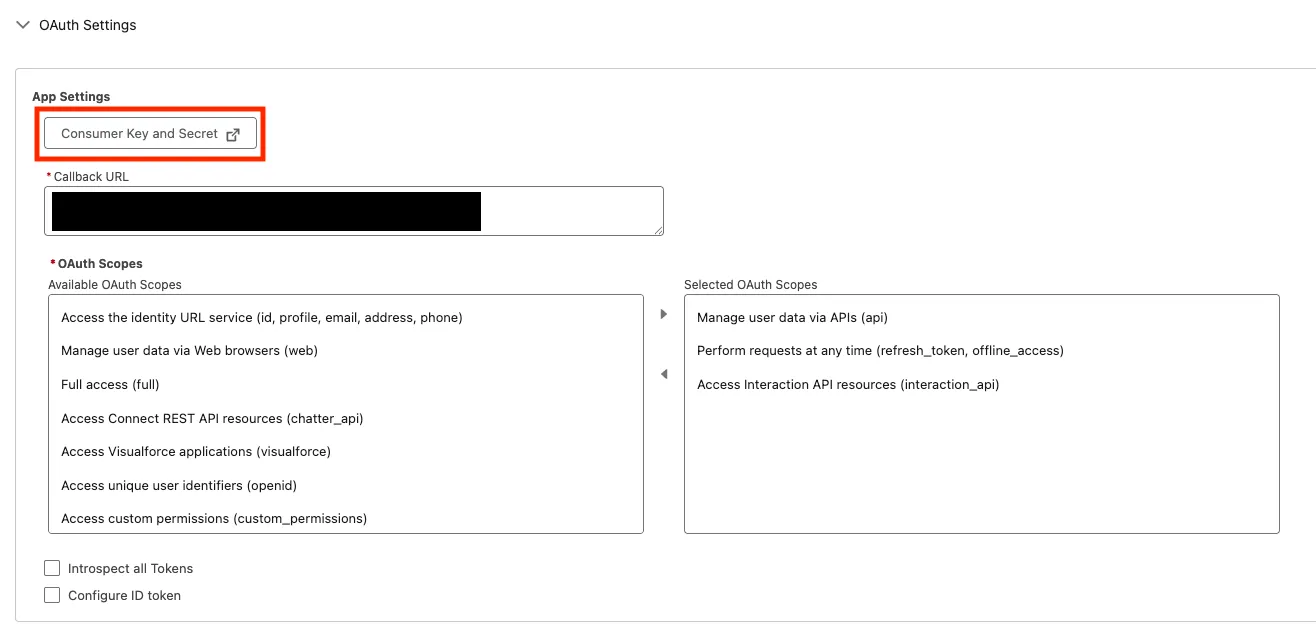
Under OAuth Scopes, add the scopes required for server-to-server API access. The
Manage user data via APIs (api)scope is typically sufficient. ThePerform requests at any time (refresh_token, offline_access)scope is not required, because the Client Credentials Flow does not issue refresh tokens. -
Select the Enable Client Credentials Flow check box.
-
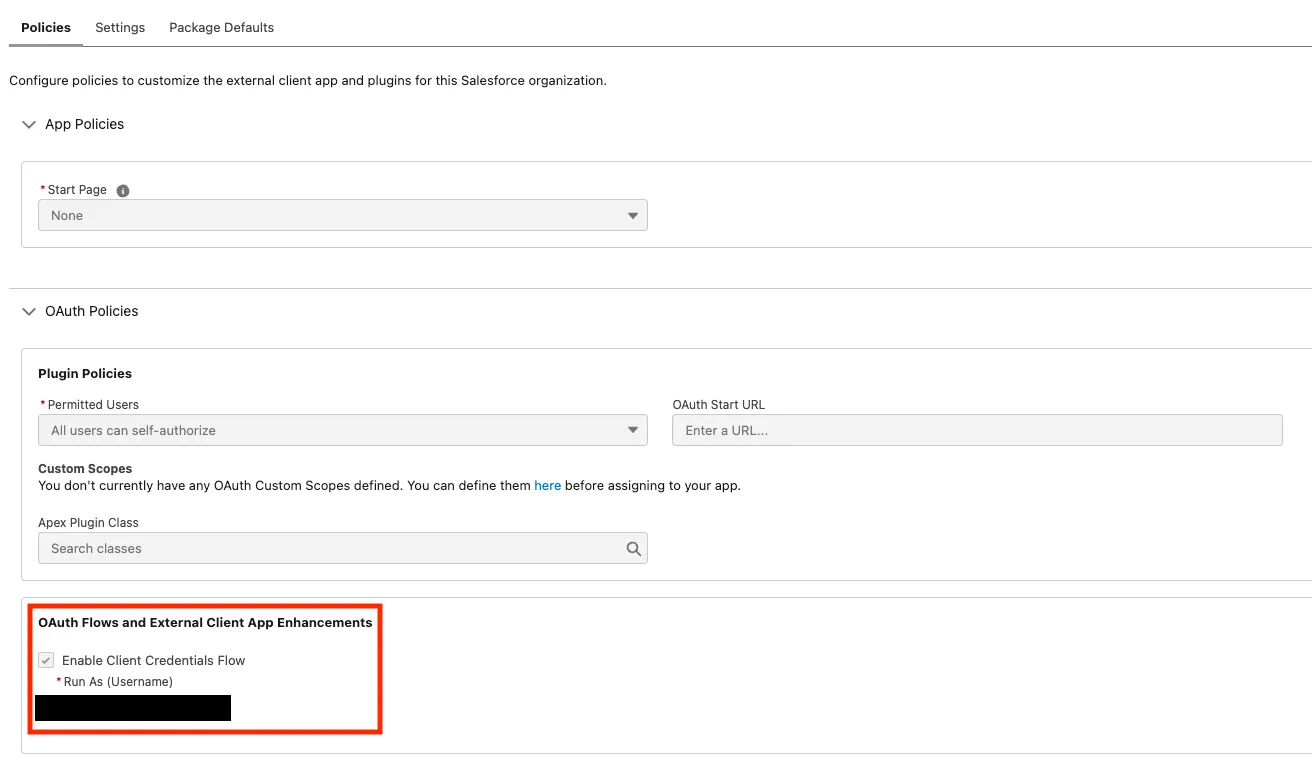
Save the app, then find it in the External Client App Manager. Select the dropdown, then select Edit Policies.
The Client Credentials Flow requires an explicit Run As user assigned at the policy level.
-
Under Client Credentials Flow, set the Run As user to your integration or service user, then click Save.
-
To retrieve your credentials, return to the External Client App Manager, select the dropdown, then select Edit Settings. Verify via email to reveal the Consumer Key (client ID) and Consumer Secret (client secret).
Set up the Flow in Salesforce
Create a custom Flow to return queue availability and wait time attributes.
To set up the Flow:
-
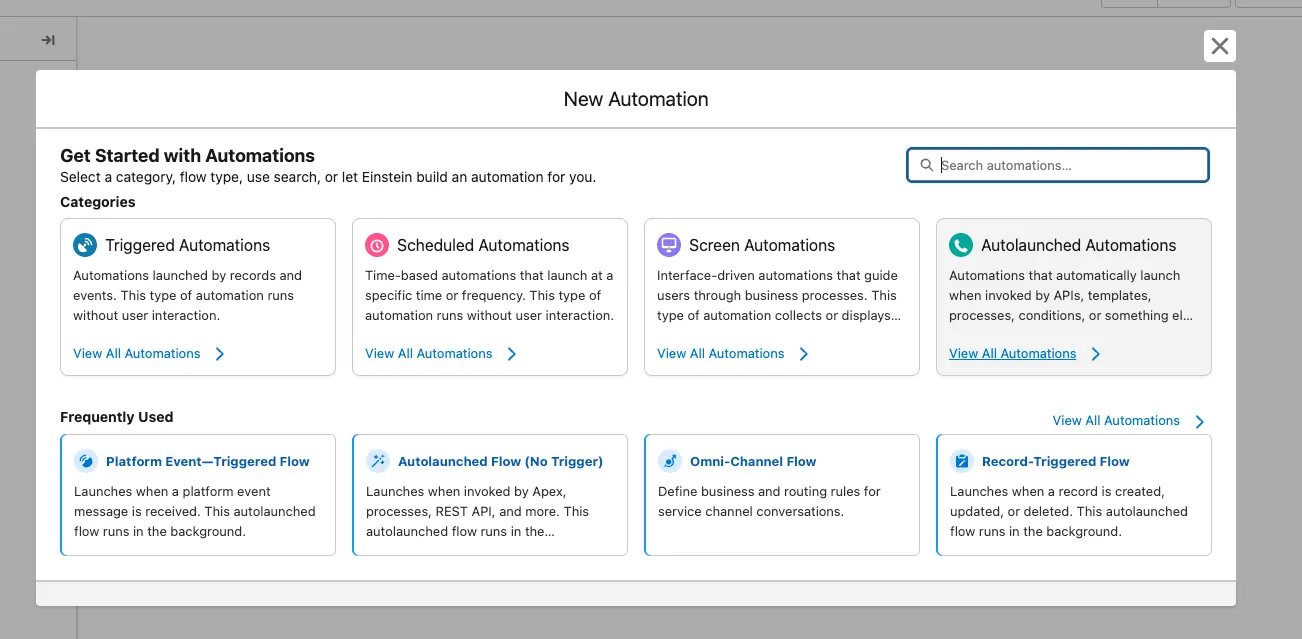
Go to Process Automation > Flows in Setup, and select New Flow
-
Select Autolaunched Automations > Autolaunched Flow (No Trigger)
-
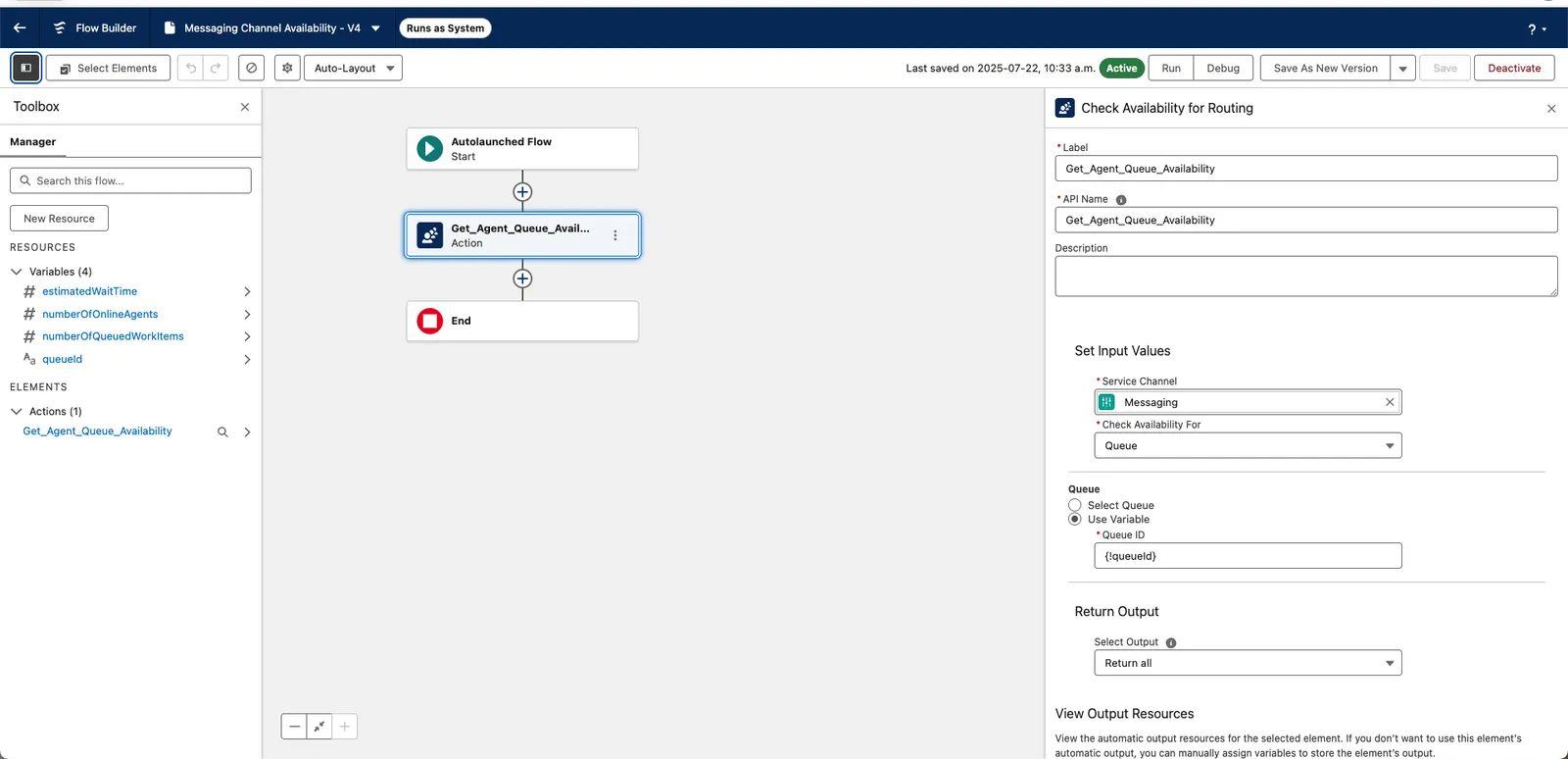
Between the Start and End elements, select the + symbol and add an Action element, selecting the Check Availability for Routing action. Select the following options:
-
Service Channel: Messaging
-
Check Availability for: Queue
-
Queue > Use variable: {!queueId}
You can also set a fixed queue with Select Queue. -
Select Output: Return all
-
Check Manually assign variables
-
Add variables to the respective fields.
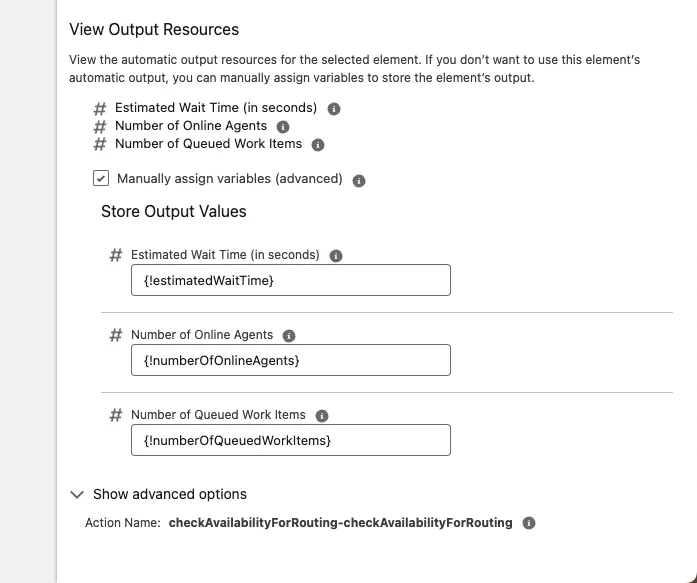
-
-
On the upper left, select Toolbox and go to Manager > Resources > Variables.
-
Ensure that queueId has Available for input selected.
-
Ensure that the other variables (from Store Output Values) has Available for output selected.
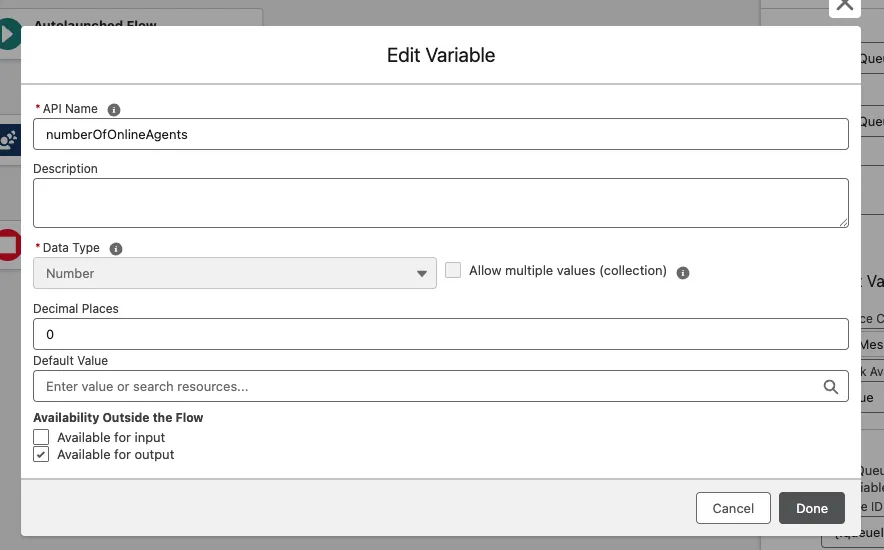
-
-
Set up the Handoff in Ada
Configure HTTP Request blocks in your Handoff to call the Salesforce endpoints.
To set up the Handoff:
-
The token endpoint: Add an HTTP Request block to generate an access token for calling the flow endpoint. Store the Client ID and Client Secret in the token vault, and save the access_token as a sensitive variable.
For example:
https://**{{subdomain}}**.sandbox.my.salesforce.com/services/oauth2/token?grant_type=client_credentials&client_id=**{{salesforce_client_id}}**&client_secret=**{{salesforce_client_secret}}**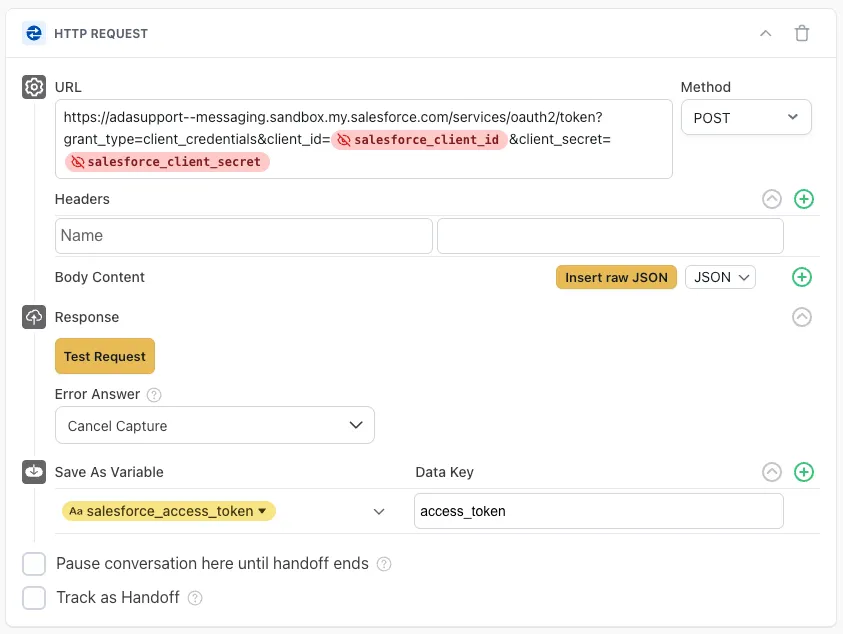
-
The custom flow endpoint, called by adding the flow name to the URL and passing the access token as a bearer token in the request header.
If you’re using a variable to select the queue, pass the id in the body using this key:inputs[0].queueId.For example:
https://**{{subdomain}}**.sandbox.my.salesforce.com/services/data/v64.0/actions/custom/flow/**{{flow_name}}**.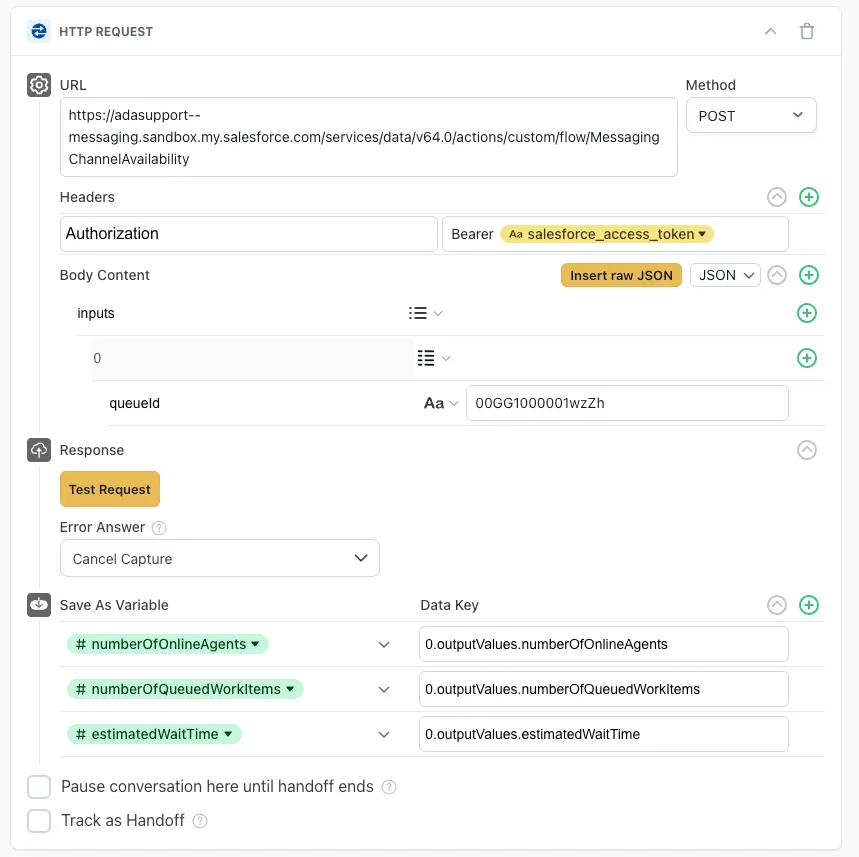
From there, you can store the relevant outputs using the key 0.outputValues.{{variableName}}. These values can then be used in conditional logic or surfaced to end users via a Text block before reaching the Salesforce Messaging Utils block.