

Custom Metrics
Score your AI Agent’s conversations against standards you write, then use the results to find and test a fix. Go straight to the part you need:
- Quick start: write and activate your first metric in 5 steps.
- Example metrics: copy a metric that passes the quality check.
- Use cases: 8 patterns, each with a sentence to start from.
- Ada standard metrics: the metrics that score every AI Agent with no setup.
- Improvement loop steps: what an AI assistant does to fix a failing metric.
- Quality check: the checks every metric goes through, and how to resolve an issue.
- Troubleshooting: what to do when a metric doesn’t work as you expect.
Overview
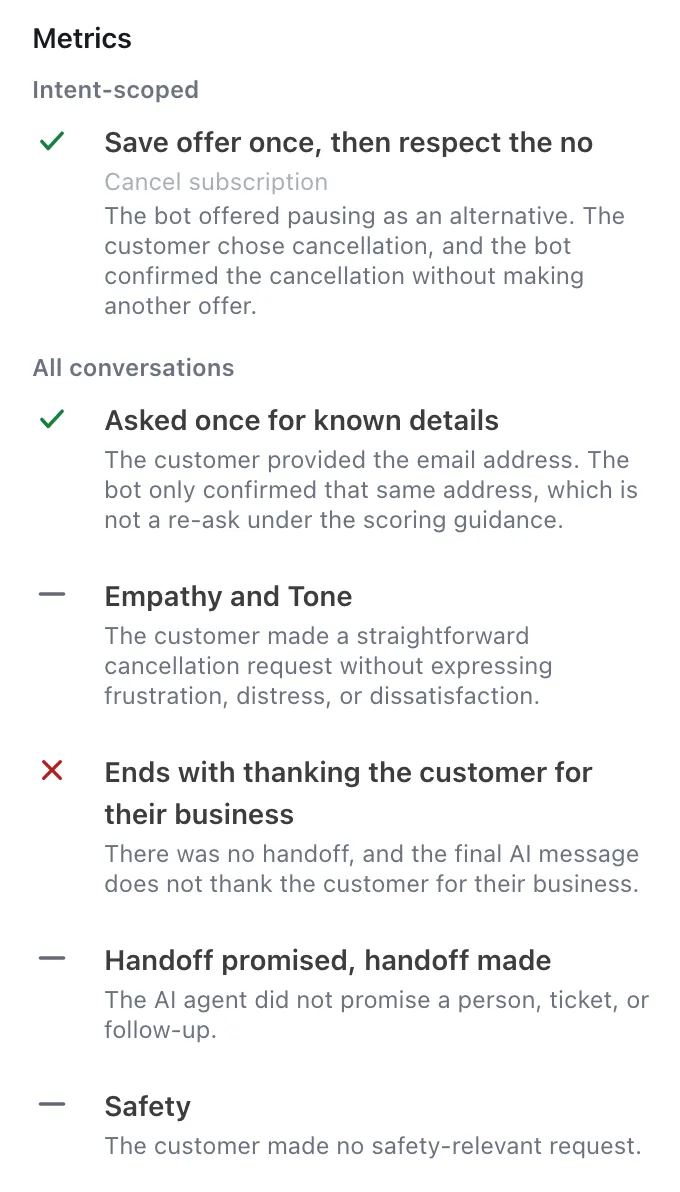
Each Custom Metric is a rule in plain language, such as “the AI Agent offers one alternative, then respects the no”. A judge reads each new conversation and gives the metric a verdict: pass, fail, not applicable, or undecided. If the judge can’t score a conversation, the metric shows No verdict. The pass rate shows how often the AI Agent meets your standard.
The judge reads the messages and the tools the AI Agent ran. It also reads the Playbook steps, variables, handoffs, and the Knowledge articles that the AI Agent used.
Automated Resolution shows whether a conversation was resolved. A Custom Metric shows whether the AI Agent behaved the way you want.
A metric is the first stage of the improvement loop. The loop finds why conversations fail, stages a fix, and tests it. If a test fails, the assistant revises the fix and tests it again. The fix rolls out only after every test passes and you approve. Then the metric shows whether the fix worked.
You write the metric and read its results in Ada. An AI assistant does the rest. For what it does, see Improvement loop steps.
Limitations
These limits apply to Custom Metrics.
- A maximum of 20 custom metrics can be active at the same time. Inactive metrics and Ada standard metrics don’t count toward the limit. A metric pinned to a change set doesn’t count either. For more information, see Manage metrics with the Ada CLI.
- A metric scores the conversations that end after you activate it. To score past conversations, backfill the metric once. An account can start 10 backfills in a calendar month. A backfill that fails on Ada’s side doesn’t use one of the 10. For more information, see Score past conversations.
- A metric with an open blocking issue from the quality check can’t be activated. You can still save it as a draft.
- A text field holds up to 4,096 characters, and a name holds up to 256. A scoped metric can have up to 10 variable conditions, each with up to 50 values.
- The judge doesn’t read message times, the Custom Glossary, or CSAT answers. A metric can’t measure how long a step took.
- Analytics pass rates count conversations from test users, but leave out simulated conversations. Verdicts from Simulations show in Simulations only.
- The improvement loop needs an AI assistant. Use the Ada MCP server, where the
get_improvement_guidetool gives the loop steps, or the Ada CLI with theada-optimizeskill. - The improvement loop works on metrics with the subject AI Agent only. A metric for a human agent or an end user measures and reports, and the loop doesn’t change anything for it.
- The judge reads each conversation on its own. A metric can’t connect two conversations, so it can’t measure first contact resolution.
- An edit to a metric’s criteria or scope changes what its pass rate measures. Compare pass rates for the same definition only. Pass rate over time marks the day each new version of the metric went live.
Use cases
If a reader can check a behavior in one transcript, a metric can measure it. Start from a promise your support team already made, such as a tone guide or a standard operating procedure. These 8 patterns come from early access accounts.
For an AI Agent metric, paste the sentence into Generate from description, then edit the draft to fit your AI Agent. For a Human agent or Customer metric, click Start from scratch and write the fields yourself. For a policy with several parts, see Example metrics.
Start with one metric. Add a second metric after the improvement loop shows a fix in the pass rate of the first one.
Capabilities and configuration
Each metric is a set of fields that tells the judge what to look for, and which conversations to evaluate.
Metric fields
Subjects
Pick the subject for what you want to learn. For every subject, the judge reads the whole conversation and grades only the subject’s turns. If the subject has no turn in a conversation, the conversation gets N/A.
The Subject is ai agent check compares the subject with the text of the metric. It gives a blocking issue when the pass criteria, the fail criteria or the scoring guidance grade a different party. For example, the subject is AI Agent and the scoring guidance gives a pass for a message from a human agent. To fix the issue, change the subject or change the text. For more information, see Resolve an issue.
Generate from description drafts AI Agent metrics only. To write a Human agent or Customer metric, click Start from scratch.
A Human agent or Customer metric uses one of the 20 active metrics. When you have the results you need, deactivate the metric to free its place. A deactivated metric keeps its past verdicts.
Verdicts and statuses
The judge gives each conversation one verdict per metric.
The pass rate is the number of passes divided by the number of passes and fails together. An N/A conversation is outside the standard, so it can’t pass or fail. An undecided conversation is inside the standard, but the criteria don’t decide it. For more information, see Undecided verdicts.
On a conversation, the top of Metric results shows how many metrics passed, for example 60% passed · 3 of 5 metrics · 1 N/A. The total counts Pass and Fail verdicts only. A metric with Lower pass rate is better counts the way its badge reads, so a pass on it counts as failed. Use the line to read one conversation. Don’t compare it across conversations, because each conversation can have a different number of applicable metrics.
The Ada CLI, the Ada MCP server and Export CSV call the No verdict result “unjudged”.
A metric’s status controls whether it scores conversations.
Undecided verdicts
An undecided verdict keeps a weak criterion out of the pass rate, in place of a guess at pass or fail.
To find undecided conversations, open Conversations and filter by the metric, with the value Undecided. Undecided verdicts also show in the orange part of Pass/fail split, in the Undecided column of Export CSV, in Metric results on a conversation, and as an orange icon in Simulations test runs.
A high undecided share is 5 or more undecided conversations that are also at least 10% of the pass, fail, and undecided conversations together. It means that the criteria have a gap or an overlap. Read at least 3 of the undecided conversations. Then name each case in Scoring guidance, and say if it passes or fails. A change to the AI Agent doesn’t fix an undecided verdict.
The AI assistant on the Ada MCP server uses the same rule. When it compares a change set with the baseline, it also checks the undecided share on each side. If the pass rate gets better and the undecided share goes up, failures can have become undecided. The assistant doesn’t report that as an improvement.
Quality check
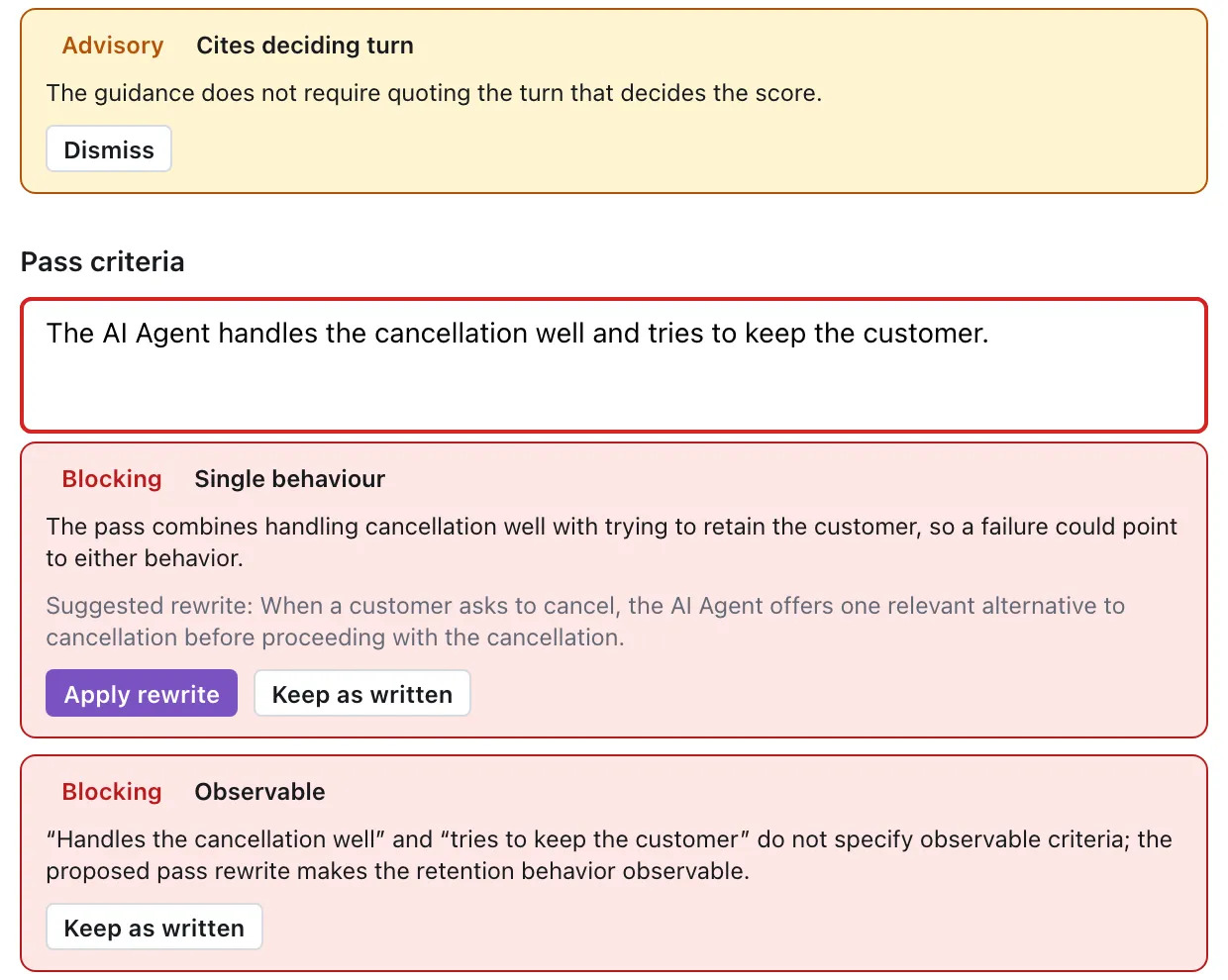
The quality check reads the metric’s text the way the judge does. It finds wording that the judge can’t apply the same way on every conversation. It runs when you click Run quality check, when you activate a metric, and when you save an edit to an active metric.
Each issue shows under its field, with the name of the check and the problem. Each issue is one of two kinds:
- Blocking: the issue stops activation until you resolve it. You can still save the metric as a draft.
- Advisory: a suggestion. It doesn’t stop activation.
Checks
The issue title is the name of the check. These 6 checks are blocking:
See the 12 advisory checks
Resolve an issue
Resolve each blocking issue before you activate the metric.
Of the 6 blocking checks, only Not applicable stated suggests a rewrite. For the others, edit the field yourself or keep the issue as written.
These rules apply:
- The fifth quality check keeps what is left. After the fifth quality check in one dialog, each open blocking issue is kept as written, with the reason “Reviewed 5 times; kept as written.” A check that could not run doesn’t count.
- A kept reason holds while the text stays the same. If you change the metric’s text, or Ada changes the quality check, keep the issue again. A draft keeps the reason. So does a metric that you deactivate and activate again.
- A quality check that can’t run stops activation. Run it again. An empty Pass criteria, Fail criteria or Scoring guidance field also stops activation, and shows no issue.
Ada standard metrics
Every AI Agent gets Ada standard metrics, so you have results before you write a metric of your own. Ada writes and maintains them, and they score every conversation with no setup.
An Ada standard metric works like your own metrics, with these differences:
- It shows the Ada standard label in the Metrics directory and on its page. Your own metrics show Custom.
- It has no Status toggle, no Edit, no Delete, and no Score past conversations. A status label shows in place of the toggle.
- Ada scores recent past conversations for it, so the first results show without a backfill from you.
- It doesn’t count toward the limit of 20 active metrics.
- To change its text for your AI Agent, click Duplicate. The copy gets the same name, followed by “(our version)”. Edit the copy, then activate it. The copy is your own metric and counts toward the limit.
- To show only Ada standard metrics or only your own, use the Type filter in the Metrics directory, with Ada standard or Custom.
- If your AI Agent already has a metric with the same name as an Ada standard metric, it doesn’t get that Ada standard metric. Your metric doesn’t change.
- When Ada changes the text of an Ada standard metric, the metric gets a new version. Pass rate over time marks the day with Metric version updated.
Quick start
Write one metric, activate it, and find the conversations to fix. For each step in detail, see Implementation and usage.
To write and use your first metric:
- Describe the behavior. In your Ada dashboard, navigate to Analytics > Metrics, then click New. Describe one behavior in plain language, or paste a sentence from Use cases. Click Generate draft.
- Read the draft and select the subject. Read every field and fix the text that is not correct. Under Subject, select AI Agent.
- Run the quality check. Click Run quality check, and resolve each blocking issue. For the ways to resolve an issue, see Resolve an issue.
- Activate the metric and score past conversations. Click Activate Metric. In Evaluate conversation history?, click Evaluate conversations to score up to 10,000 past conversations. This is a backfill, and an account can start 10 backfills in a calendar month. For more information, see Score past conversations.
- Find the conversations to fix. In your AI assistant, with the Ada MCP server connected, enter
Improve the "<metric name>" metric. Use the Ada MCP tools.To carry your date range and filters, copy the prompt from the metric’s Metric snapshot on the Metrics page instead.
The assistant then follows the improvement loop steps.
Implementation and usage
The sections below follow the six stages of the improvement loop. The examples come from one AI Agent, a board game subscription service, and its metric “Save offer once, then respect the no”.
Write a metric
Describe the behavior you want to score in your own words. Ada drafts the metric for you. You review every field, run the quality check, and then activate the metric. Nothing scores conversations until you activate it.
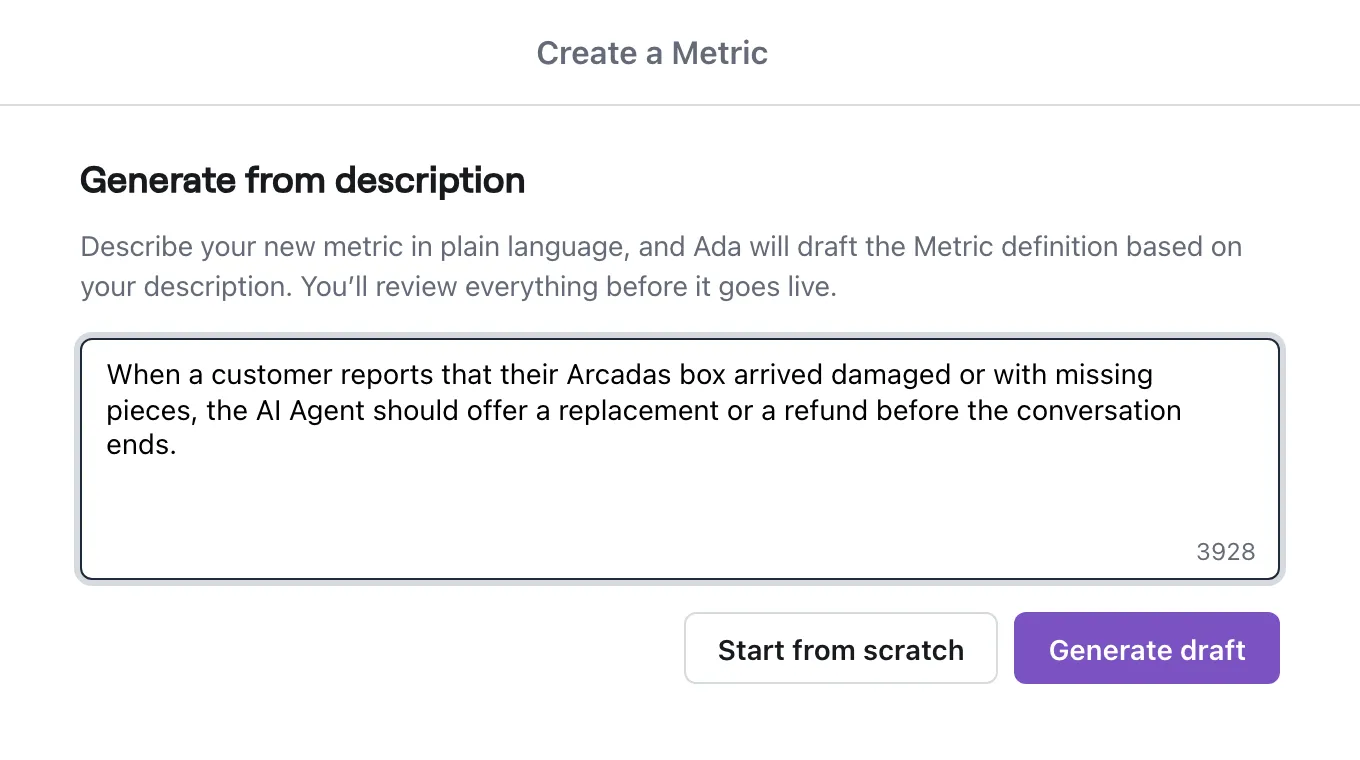
To draft a metric from a description:
-
In your Ada dashboard, navigate to Analytics > Metrics, then click New.
The Create a Metric dialog opens on Generate from description.
-
Describe the behavior in plain language. Name the situation and the action you expect from the AI Agent.
For example: “When an end user says their box arrived damaged, the AI Agent offers a replacement.”
-
Click Generate draft.
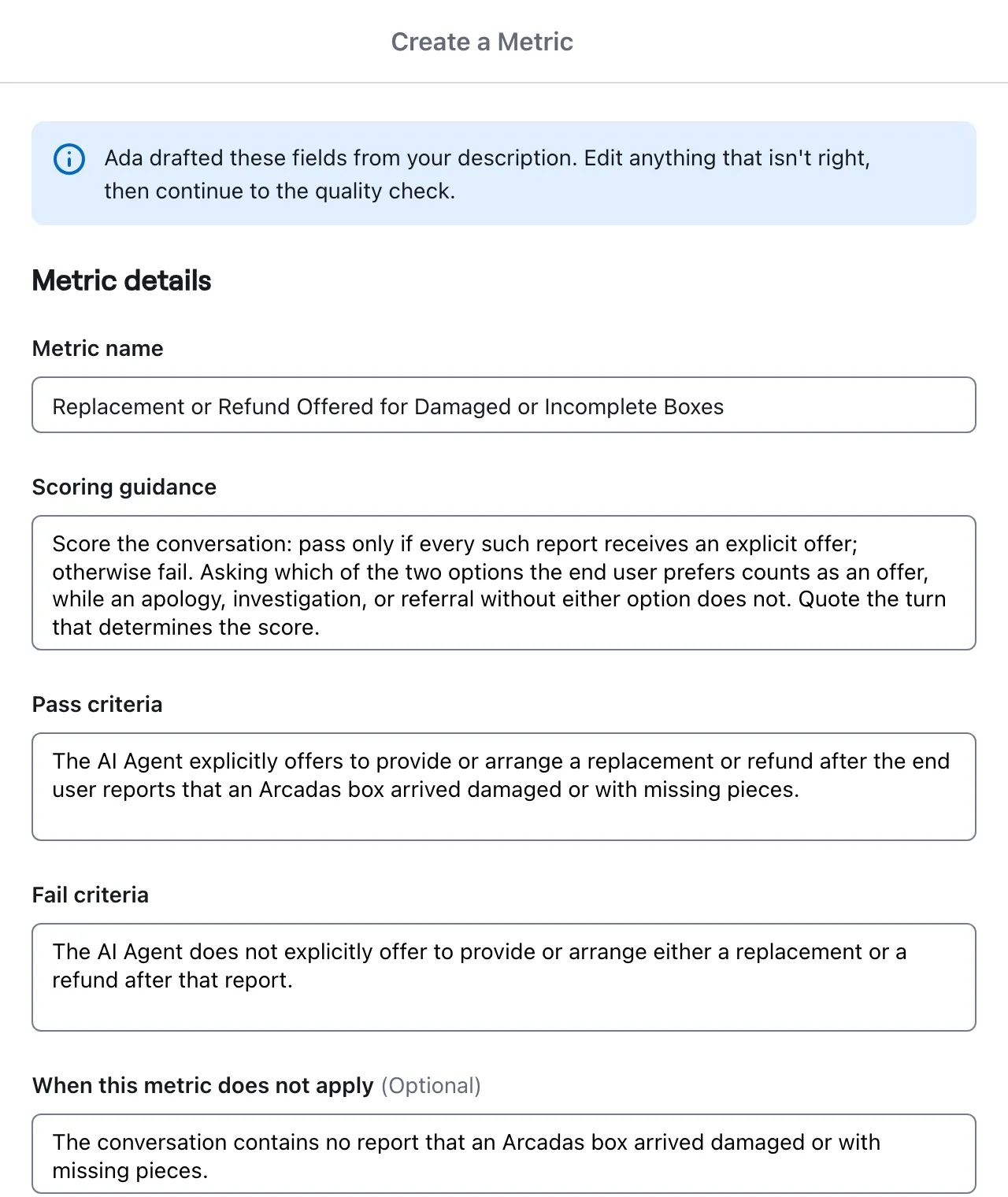
Ada fills in Metric details and Scope, and shows Ada drafted these fields from your description. Ada saves nothing at this step.
-
If your description holds more than one behavior, Ada drafts up to 3 metrics, one for each behavior. A warning tells you how Ada split the description. Select each draft under Draft to read it.
-
Read every field and edit the text that is not correct. For what each field does, see Metric fields.
-
Under Subject, select who the judge grades. A draft does not fill in the subject. For the options, see Subjects.
-
Click Run quality check, and resolve each blocking issue. For the ways to resolve an issue, see Resolve an issue.
-
Click Activate Metric to start scoring, or click Keep as draft to save the metric without scoring.
The dialog saves one metric each time. To save a second draft from the same description, click New and generate the drafts again.
If Ada needs more detail, it asks a question below the description. Add the answer to your description, then click Generate draft again. If Ada cannot draft a behavior, it lists the behavior and the problems it found. Change the description and try again.
To write every field yourself, click Start from scratch in place of Generate draft. Ada still runs the quality check before you can activate the metric.
Draft a metric with an AI assistant
The Ada MCP server has a draft_custom_metrics tool. Ask your AI assistant to draft a metric, and give it your description. The tool returns up to 3 drafts, or a question for you. It saves nothing.
To save a draft, tell the assistant which draft to keep. The assistant saves it as a new metric with the subject AI Agent, unless you ask for another subject. The save runs the quality check. If the check passes, the metric is active. If the check finds a blocking issue, the metric is saved as a draft.
To keep a blocking issue as written, tell the assistant your reason. The assistant shows you the blocking issues before it saves. The draft keeps the reason, so you don’t give it again when you activate the draft. If the save finds a blocking issue the assistant did not show you, the draft is saved without the reason. The assistant then tells you which issues the reason doesn’t cover.
An advisory issue the assistant dismisses stays dismissed on the draft. If your account cannot save metrics through the MCP server, the assistant asks you to save the draft in the dashboard.
With the Ada CLI: run adacli <instance> custom-metrics draft "<description>". The command saves nothing. For the other commands, see Manage metrics with the Ada CLI.
Measure
A metric scores the conversations that end after you activate it, so results build as new conversations end. To start with history, score past conversations when you activate the metric. For more information, see Score past conversations.
The Metrics page lists every metric with its results for the selected Date range.
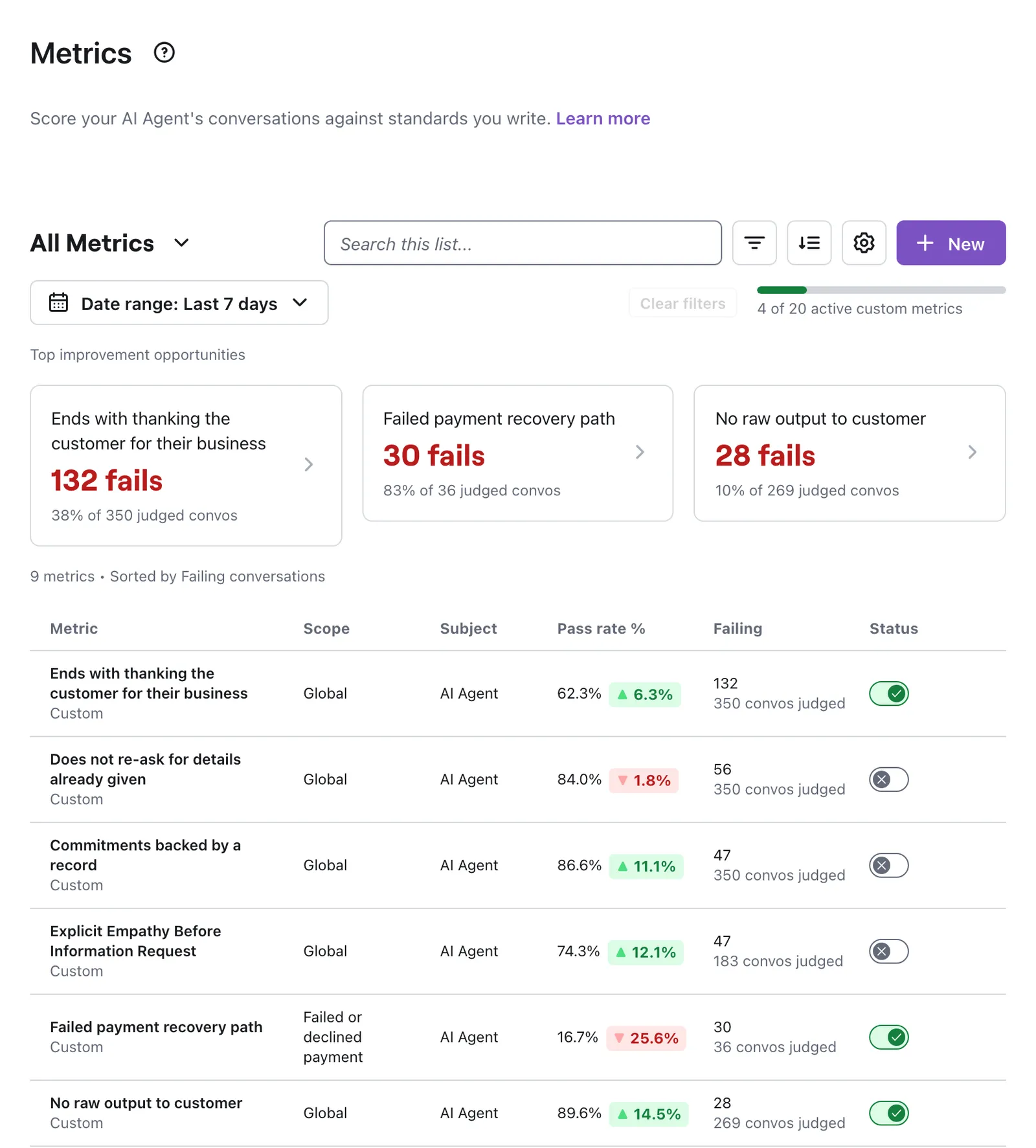
- Top improvement opportunities shows the 3 active metrics with the most failing conversations.
- The bar beside the filters shows how many custom metrics are active, out of the limit of 20.
- The table shows each metric’s scope, subject, pass rate, failing conversations, and status. Click a metric to open its page. For your own metric, the Status column has a toggle. Enable it to activate the metric, or disable it to deactivate the metric.
- To narrow the list, pick a view, such as Custom metrics or Needs attention, or add a filter. The page link keeps the filters, so you can bookmark or share a view.
A metric’s page shows its results and its full definition.
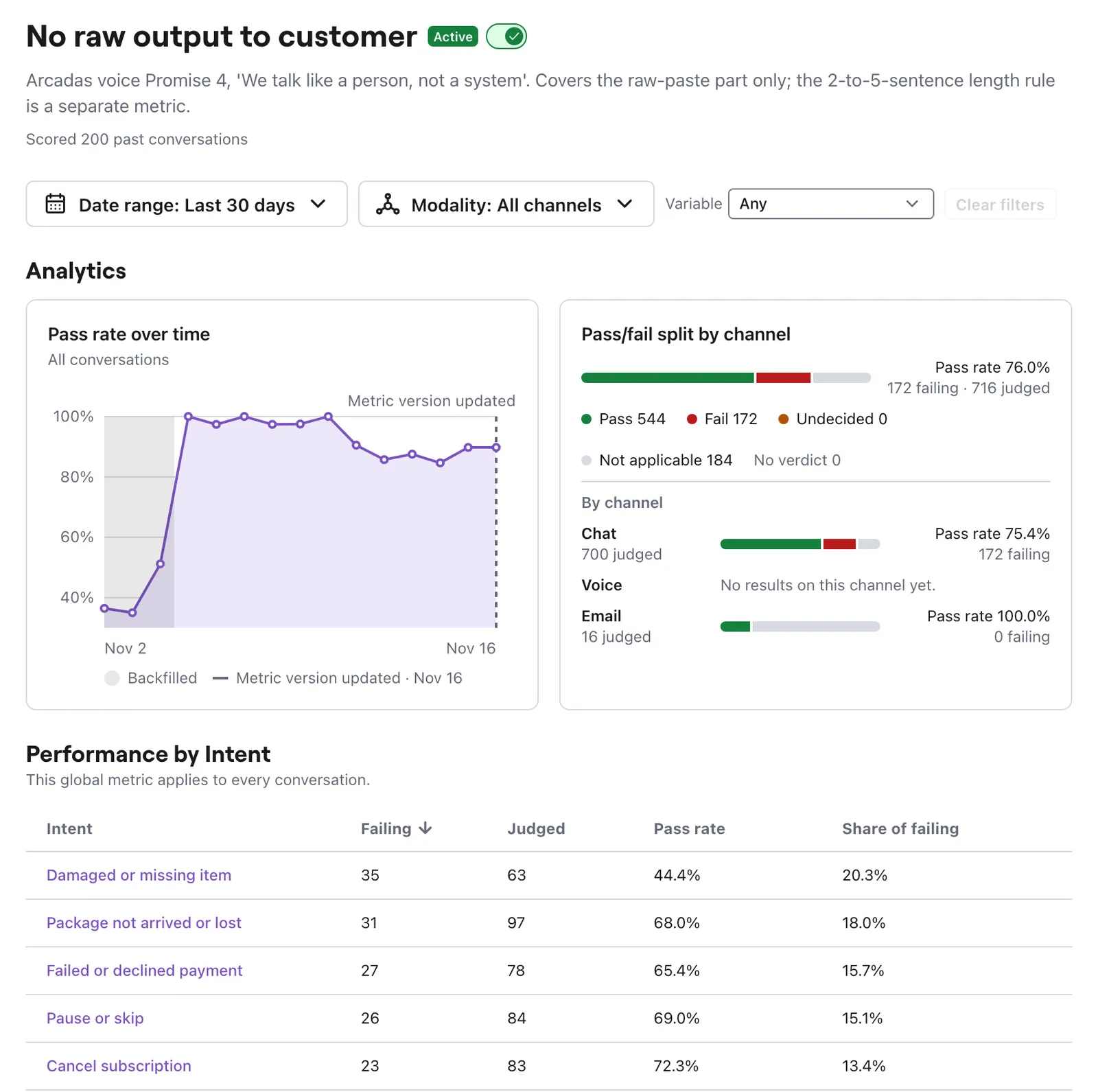
- Date range, Modality, and the variable filter narrow every result on the page.
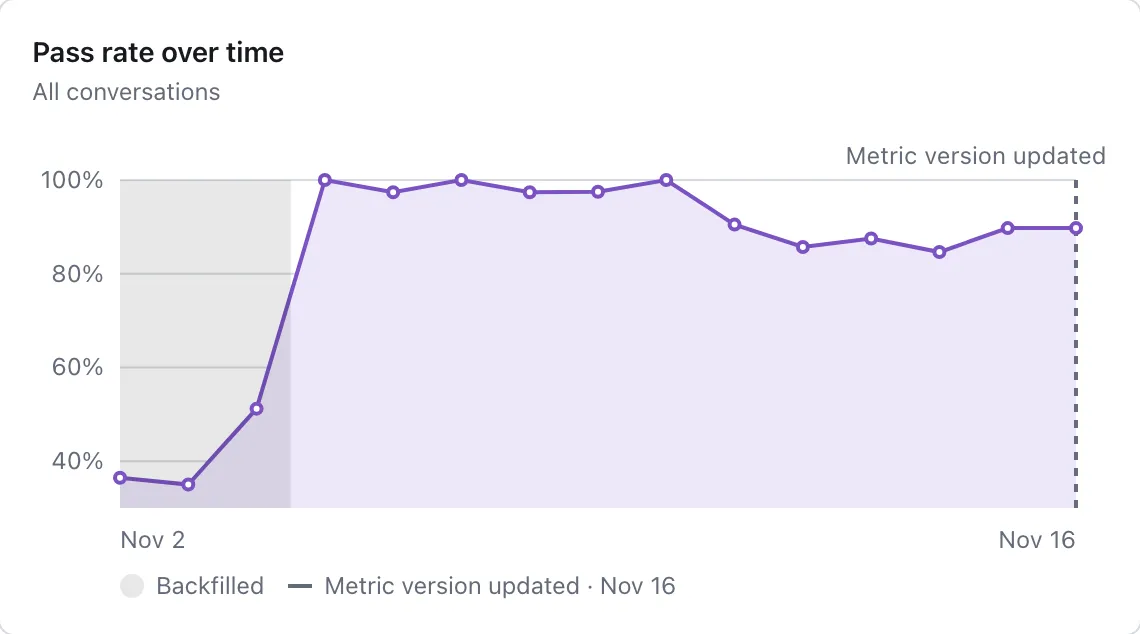
- Pass rate over time charts the pass rate by day. For a date range over 90 days, it shows one point per week. A dashed line marks each day when the scoring changed:
- Metric version updated: a new version of the metric went live. A metric gets a new version when you save an edit to it while it is active. It also gets one when you activate it with text that differs from the text it last scored with. An activation with no edit keeps the version.
- Ada updated the judge: Ada changed the judge that scores every metric. A change to the judge can move the pass rate of every metric on the same day.
- If the pass rate moves on a marked day, compare the days before and after it before you change the AI Agent. Step 2 of the improvement loop steps does this for you.
- Pass/fail split by channel counts the verdicts for all channels and for each channel, with one pass rate per row. It shows as Pass/fail split, with no channel rows, when a Modality filter is set. Chat counts every channel that is not Voice or Email.
- Performance by Intent lists the metric’s results for each Intent. Failing counts the conversations that count against the metric: a fail, or a pass on a Lower pass rate is better metric. Share of failing compares that count to all failing conversations for the metric. Conversations with no Intent count in the total, and a conversation in two Intents counts in both, so the shares do not always add up to 100%.
- The table starts with the Intent with the most failing conversations.
- Click an Intent to open its failing conversations in a new tab, with the same date range and filters.
- Metric details shows the pass and fail criteria, the direction, the subject, the scope, the author, the last edit, and Evidence. An empty pass or fail criteria field shows Not set.
Home page metrics
Pick metrics to show on Home, so you see their results each time you open the dashboard.

Metrics at a glance shows one card for each metric you pick, with its pass rate. On a Lower pass rate is better metric, the card shows the risk rate. The numbers use the date range and the filters on Home. A caption names the filters that the numbers use.
To pick the metrics on Home:
- On Home, in Metrics at a glance, click More metric actions, then click Customize view.
- Under Ada Metrics and Custom Metrics, select the metrics to show.
- Click Save.
Click a card to open the metric’s Metric snapshot beside Home. A picked metric that no longer scores conversations shows as inactive. A read-only user sees the cards, but can’t change the view.
Score past conversations
A backfill scores a metric on conversations that ended before you activated it. The metric’s trend then includes those past conversations.
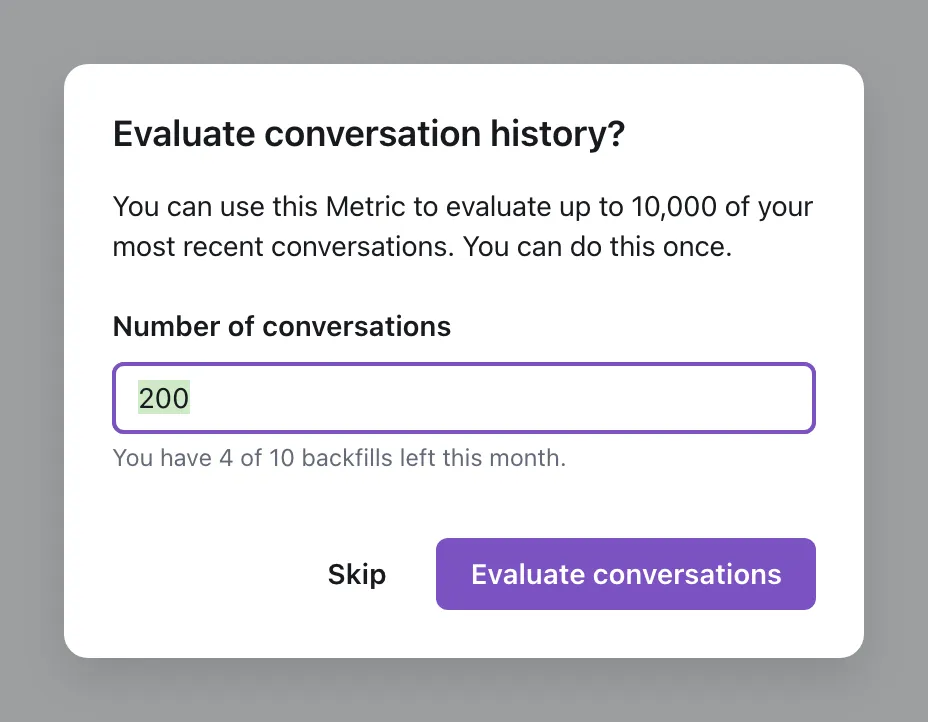
To score past conversations:
-
Click Activate Metric.
The Evaluate conversation history? dialog opens.
To start later, open the metric’s page, click More actions, then click Score past conversations.
-
Under Number of conversations, enter how many conversations to score, up to 10,000. The default is 200. The newest conversations come first. A backfill reaches back up to 1 year before the metric went live, and never before July 30, 2026. A metric with a narrow scope can score fewer conversations than you ask for.
-
Click Evaluate conversations. To score no past conversations, click Skip. The metric stays active.
While the backfill runs, the metric’s page shows a notice. The results show on the page when scoring finishes. On Pass rate over time, a shaded area with the Backfilled legend marks the days that the backfill scored.
These rules apply to a backfill:
- A metric gets one backfill, with the definition it had when it first went live. If a backfill fails, you can start it again.
- A backfill never changes a verdict that exists.
- A metric that went live before backfills were available can’t be backfilled. Ada shows This metric went live before backfills were available.
- To score past conversations after an edit, or for a metric that went live before backfills were available, duplicate the metric. Activate the copy and backfill it, then deactivate the original.
- An account can start 10 backfills in a calendar month, across all its metrics. A backfill that fails on Ada’s side doesn’t use one of the 10. The dialog shows how many are left, and the date when more are available.
With an AI assistant: ask the assistant to backfill the metric. On the Ada MCP server, the assistant shows you a preview with the number of conversations and the backfills left. It starts the backfill only after you confirm.
With the Ada CLI: run adacli <instance> custom-metrics backfill <id>. For the options, see Manage metrics with the Ada CLI.
Improvement loop steps
You write the metric and read its results in Ada. An AI assistant does the rest. It gets these steps from the Ada MCP server, or from the ada-optimize skill when it uses the Ada CLI. Before you start, make sure your role can manage change sets, and set up Simulations on your AI Agent.
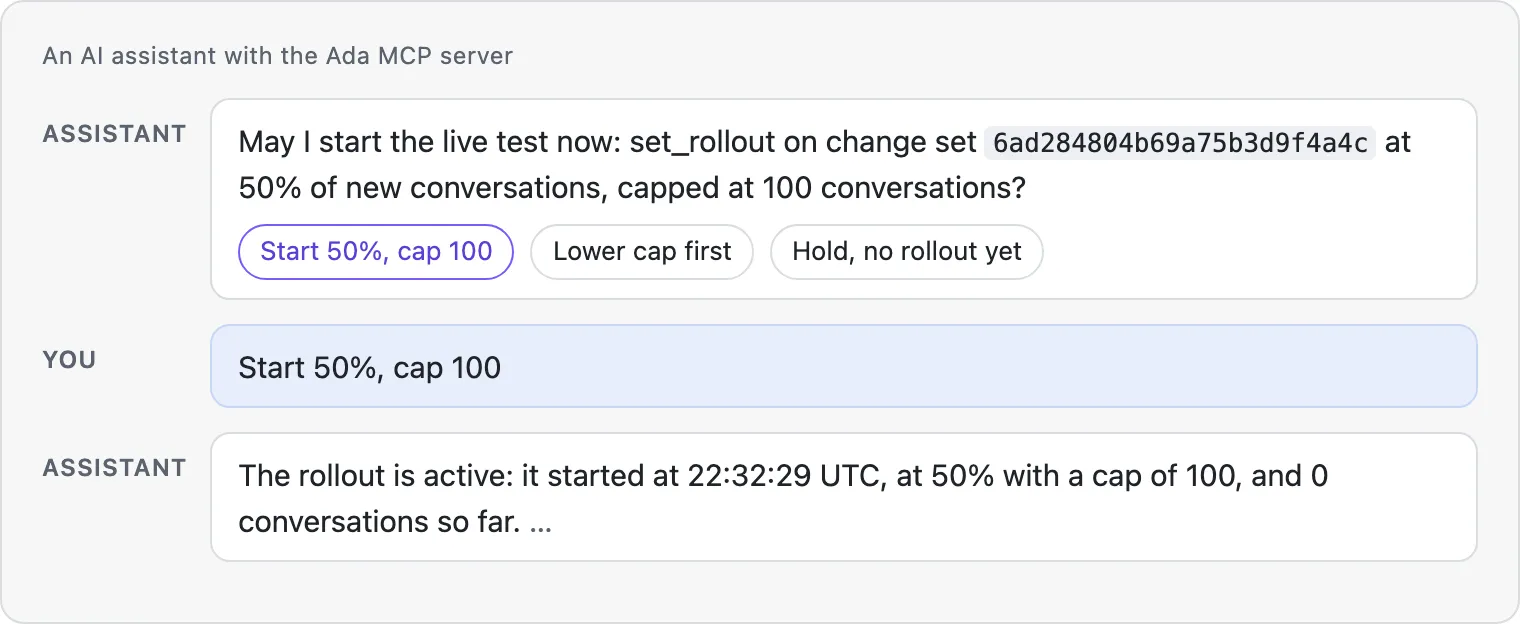
Nothing goes live until you confirm. The assistant asks you before it creates a test, before each test run, and before any rollout or promotion.
To start the loop from a question, paste these two lines into your AI assistant with the Ada MCP server connected. With the Ada CLI and the ada-optimize skill, write “Use adacli” in place of “Use the Ada MCP tools”.
To start from one metric, see Find why.
The 10 steps
Before step 1: If your request gives no date range and no number of conversations, the assistant asks you once. If you still give neither, it uses the last 500 conversations with a verdict, or the last 90 days if they hold fewer.
In these steps, a failure is a conversation that misses your standard. On a metric with Lower pass rate is better, that is a pass.
Steps 1 to 5 find why conversations fail:
- Read the metric. The assistant reads the metric’s criteria, its direction, and its pass rate for your date range and filters. With the Ada MCP server, it also reads the number of undecided verdicts.
- Check for a change to the metric or the judge. A pass rate can move because the metric’s text changed, or because Ada changed the judge. The assistant reads the version history of the metric and of the judge. It finds each day in your date range when one of them changed.
- If 7 full days follow a change day, it starts the date range on the latest such day. It tells you the new start date.
- For each change day left in the range, it compares the pass rate for the 7 days before the day with the 7 days from it.
- If the pass rate moves by 5 percentage points or more across a change day, the assistant shows you a table of the move and stops. It doesn’t look for causes in the AI Agent, and it proposes no fix for that move.
- It offers to wait 7 days, so the trend shows the new level. It also offers to score a copy of the metric on past conversations. The original metric then stops scoring.
- Read the failures. It lists the failing conversations and reads at least 3 full transcripts.
- Find the root causes. It groups the failures by cause. For each cause, it names the Knowledge article, the Playbook step, or the Custom Instruction behind it.
- List the suspected judge errors. It lists the conversations where the verdict looks wrong. It never edits the metric.
Step 6 finds the fix:
- Stage a fix. It puts the smallest set of edits that fixes the causes on one change set, a set of edits that are not live yet. It sets the metric as a target of the change set. Nothing changes on your live AI Agent.
Steps 7 and 8 test it:
- Find or write the tests.
- It finds the test cases for each cause. It starts with the test cases that list the metric. If a cause has no test, it writes one from a failing conversation.
- It puts the metric’s ID on each test case it uses.
- It finds or writes 3 to 5 guard cases from conversations that meet your standard. A guard case shows that the fix doesn’t break what works today.
- Each test acts like the real end user. It copies the end user’s first message word for word, and replaces personal details with fake values.
- It covers conversations in other languages when your AI Agent has them.
- It describes how your API tools answer, so the simulation can mock them.
- It shows you each new test, and creates it only after you approve.
- Test the fix.
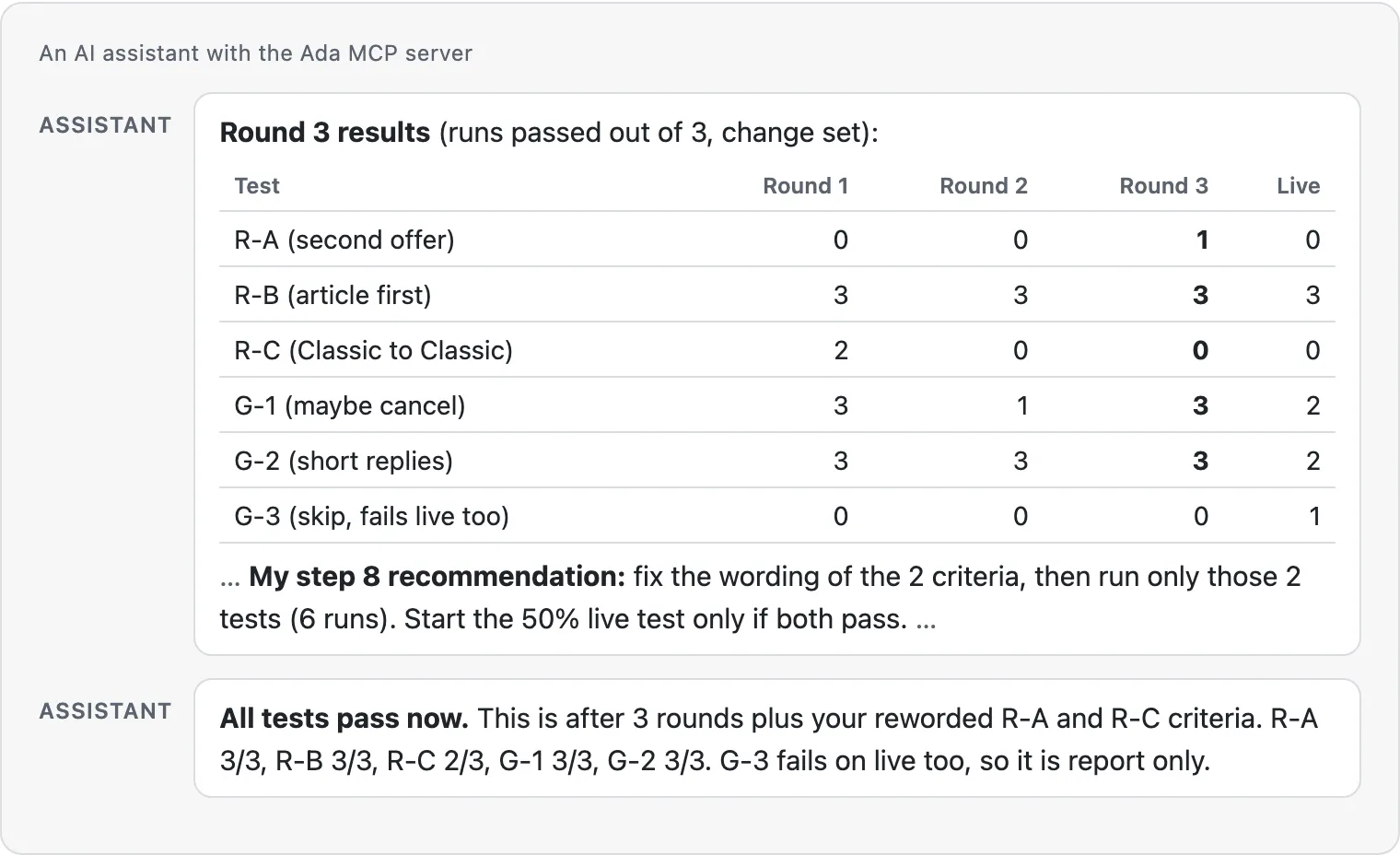
- It runs each test 3 times on the change set. In round 1, it also runs each test 3 times on your live AI Agent. A test passes when at least 2 of its 3 runs pass.
- A test for a cause must pass on the change set. A guard case must pass on the change set when it passes on your live AI Agent.
- If a test fails or a metric gets worse, it revises the change set and runs the tests again. It doesn’t change the tests between rounds. It stops after 3 rounds.
Step 9 shows you the result:
- Show the simulated conversations. When every test passes the rules of step 8 and no metric got worse, it shows you 3 to 5 conversations from the test runs on the change set, in full. It includes tests for the causes and guard cases. Then it asks if this is what you want. If you say no, it revises the change set and tests it again.
Step 10 rolls it out:
- Recommend a rollout. After you approve the conversations, it shows a before and after table. Then it recommends a live test, which sends part of your traffic to the change set, or a promotion.
Find why
Find out why conversations fail the metric before you change the AI Agent. Each improvement opportunity gives two ways to investigate: an AI assistant with the Ada MCP server, or the conversations in Ada.
To start the improvement loop, enter this prompt in your AI assistant, with the Ada MCP server connected:
If the prompt gives no date range and no number of conversations, the assistant asks you once.
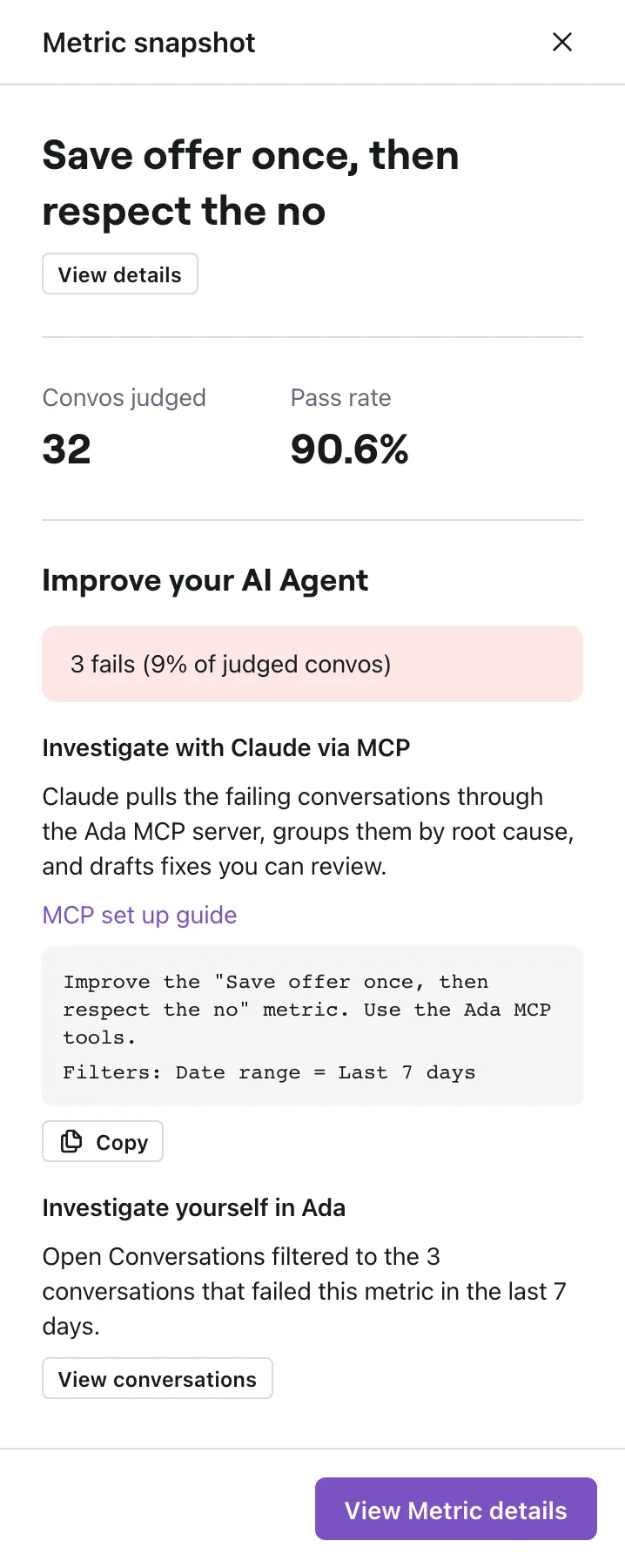
To copy the prompt with your date range and filters:
-
On the Metrics page, set Date range to the period you want to investigate, for example Last 7 days.
-
Under Top improvement opportunities, click the metric. If its box doesn’t show, search for the metric’s name.
The Metric snapshot pane opens, with Convos judged and the pass rate. On a Lower pass rate is better metric, it shows the risk rate.
-
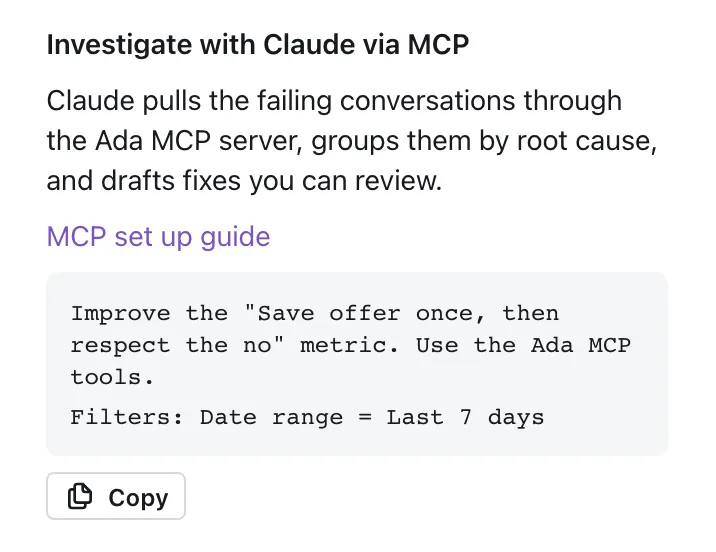
Under Improve your AI Agent, in Investigate with Claude via MCP, click Copy.
Improve your AI Agent shows only when the metric has failing conversations in the date range.
-
Paste the two lines into your AI assistant. If you want the assistant to read a set number of conversations, delete the Date range entry, then add the number on a new line.
The two lines name the metric and carry the date range from the Metrics page:
The assistant applies each filter on every step, and says which filters it couldn’t apply.
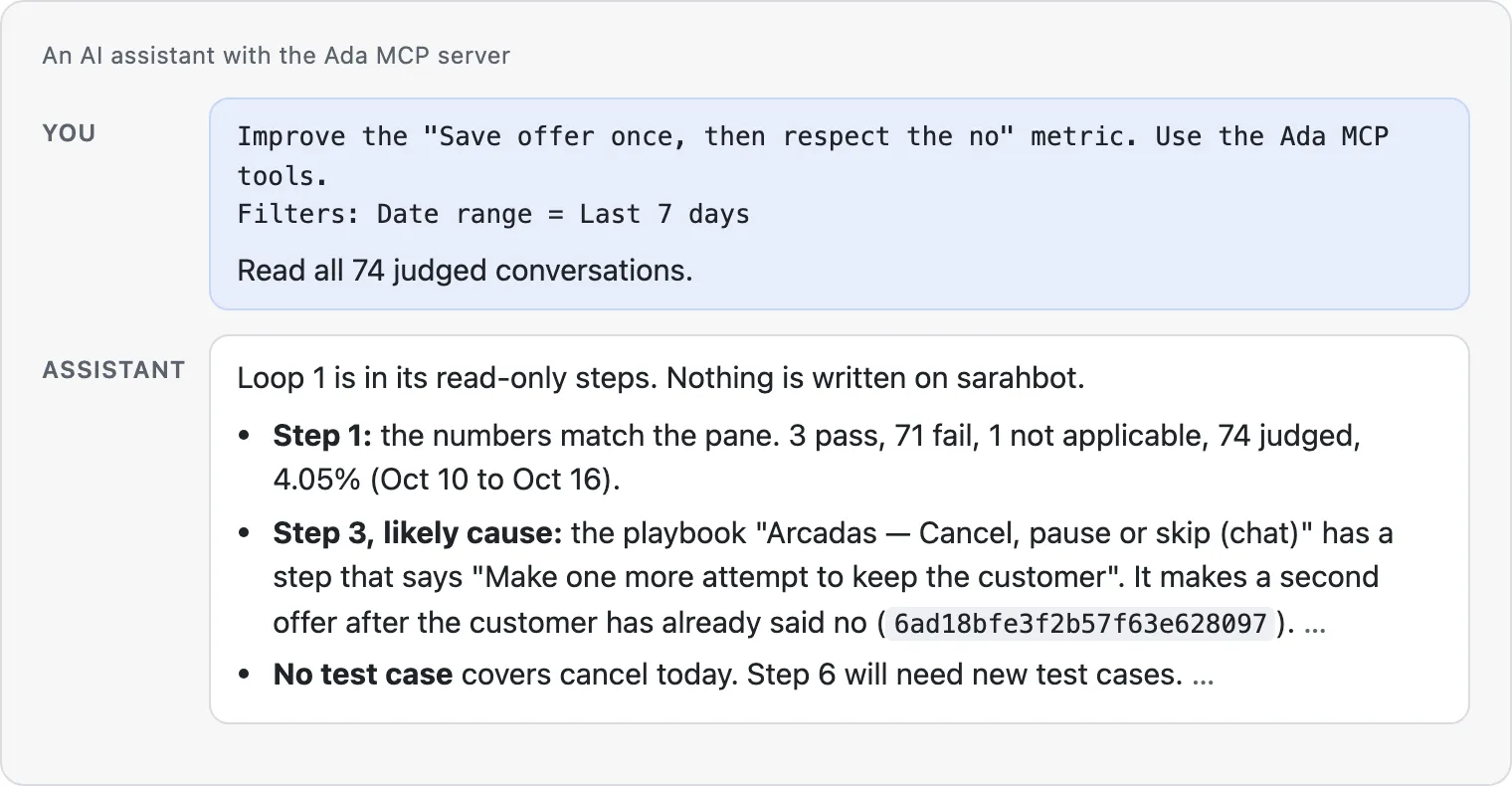
The assistant then follows steps 1 to 5 of the improvement loop steps.
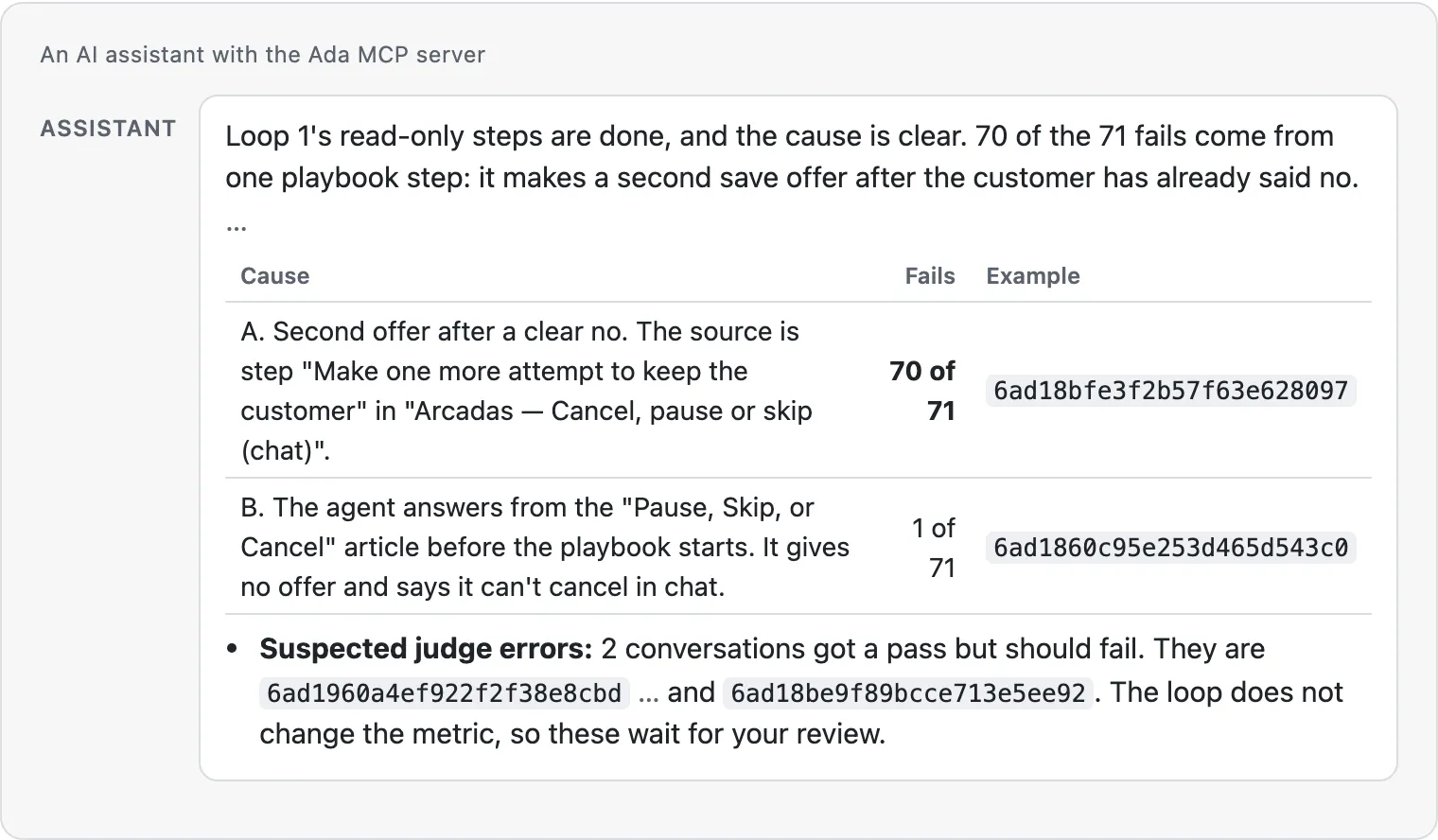
If a suspected judge error is real, and the AI Agent is right, edit the metric’s criteria, not the AI Agent.
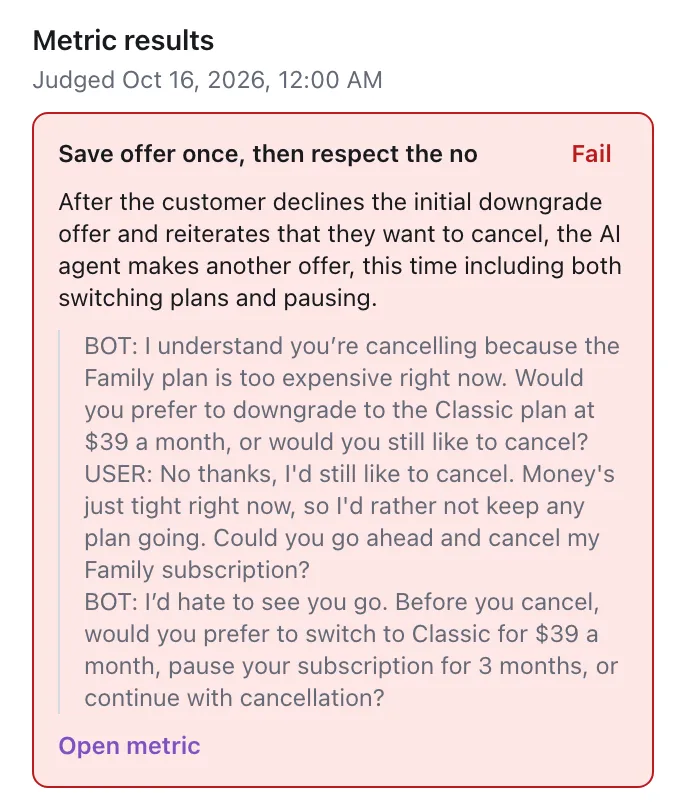
To investigate yourself, click View conversations in the pane. Conversations opens, filtered to the conversations that failed the metric. The Conversation overview pane opens on Metric results, with the metric you clicked first. To narrow the list, filter by a second metric at the same time.
Find the fix
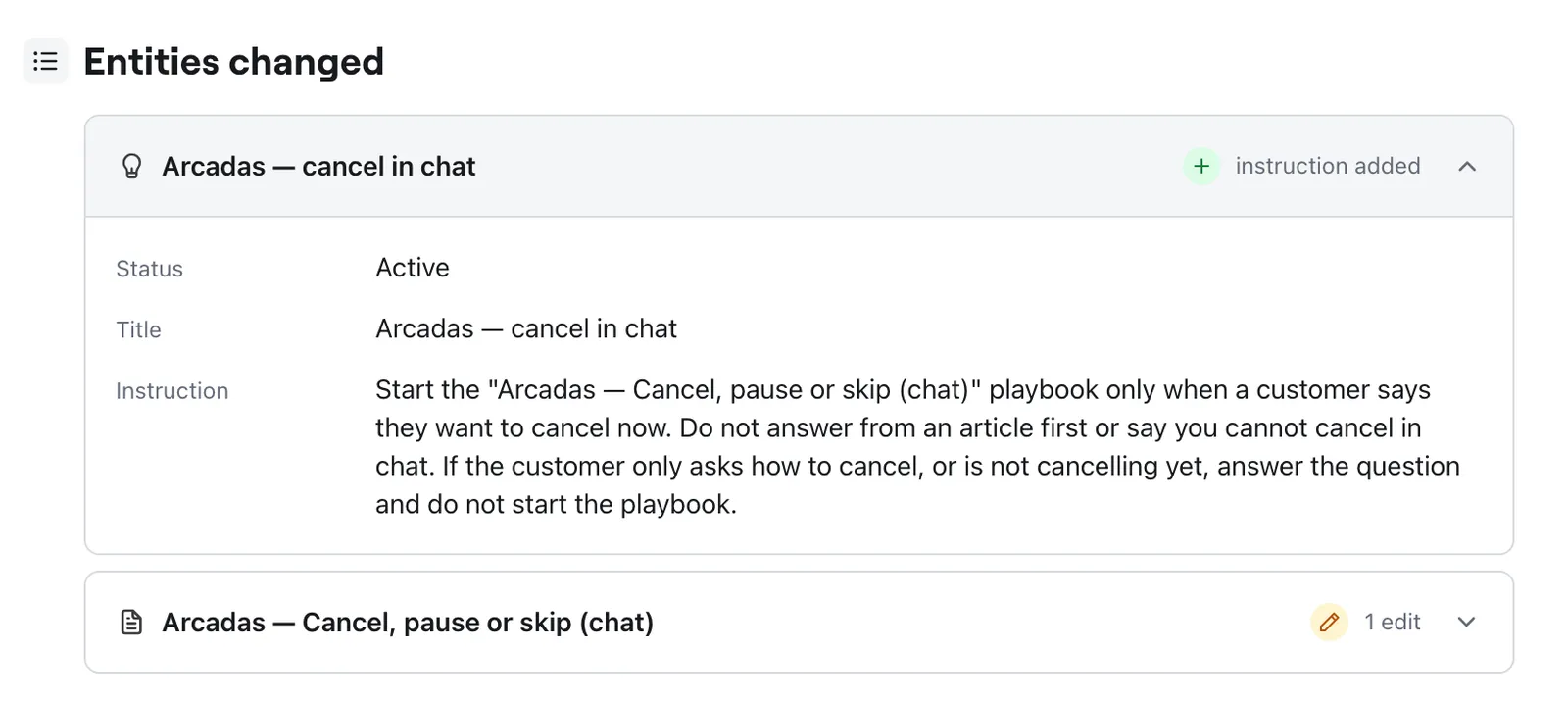
Read each edit on the change set page before you approve the tests. The assistant says which cause each edit fixes.
Test it
The assistant tests the change set before any end user sees it. It follows steps 7 and 8 of the improvement loop steps, and the tests run in Simulations.
Roll out and track
After you approve the simulated conversations, the assistant recommends a live test or a promotion. A live test sends a percentage of new conversations to the change set, up to a set number of conversations.
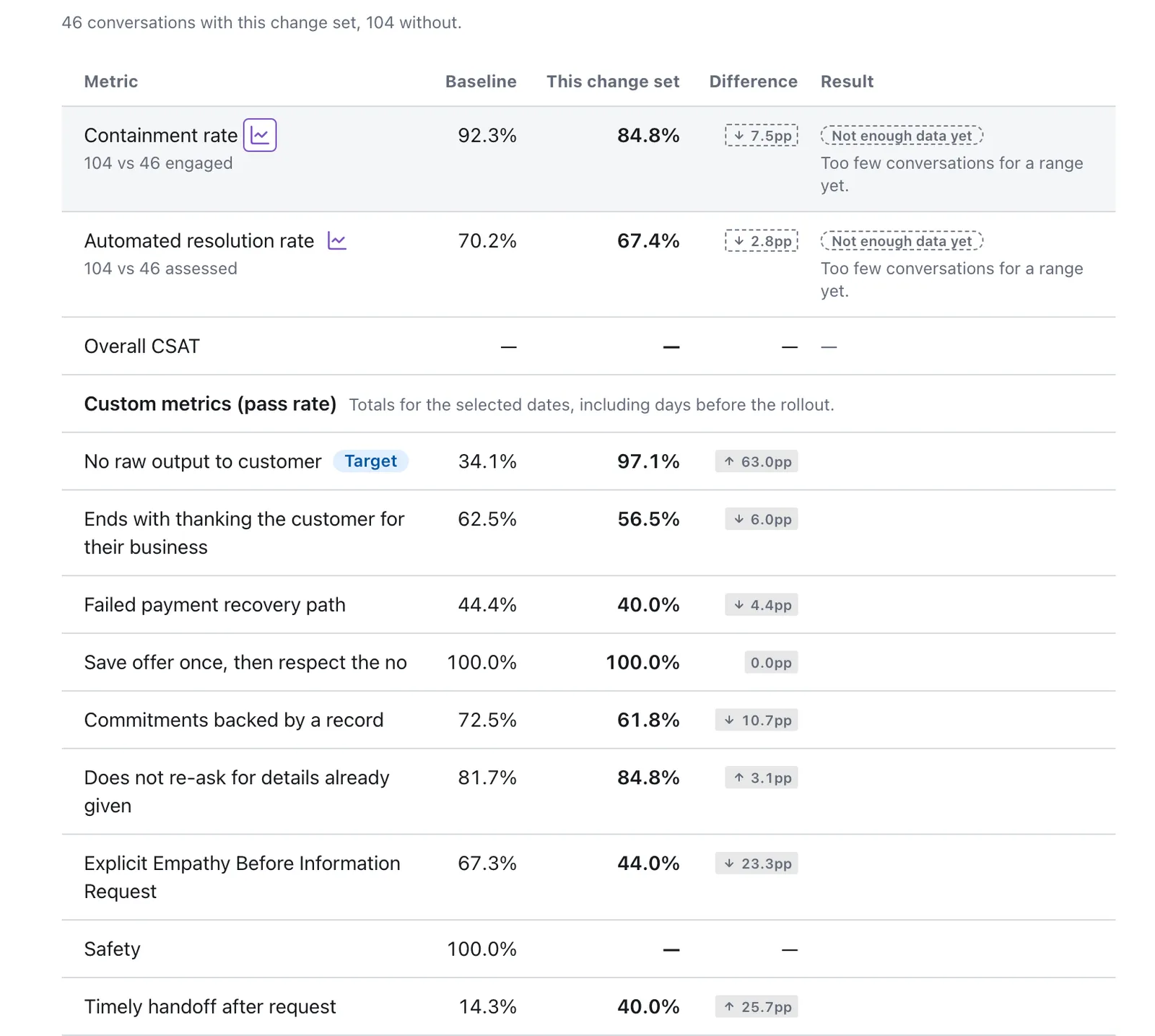
The change set page compares the conversations that the change set served with the conversations that no change set served.
To compare a live test with the live AI Agent:
- Open the change set page. For more information, see Change sets.
- Under Rollout performance, set Date range to start on the day the live test started. The custom metric rows are totals for the selected dates. Earlier days add conversations to the baseline that the change set could not serve.
- Under Custom metrics (pass rate), read the metric’s row: Baseline, This change set, and Difference. A Target badge marks each metric that the change set is for.
When the difference is clear, ask the assistant to promote the change set. A promotion makes the edits live for every conversation. After the promotion, track the metric’s Pass rate over time on its page.
Manage metrics
Change, copy, or remove a metric from its page.
To edit a metric:
-
On the metric’s page, click Edit.
-
Change the fields, then click Run quality check.
If the fields hold the live text, the form shows This is the live text, so the quality check did not review it.
-
Resolve each blocking issue, then click Save changes. Until you do, the form shows N issues detected. Acknowledge or fix before saving.
If the check refuses the saved edit, the edit waits, and the live definition keeps scoring. The metric’s details show An edit is waiting for the quality check. The waiting edit keeps the issues you kept as written. Open the metric again to see them as kept, then click Save changes to apply the edit.
Next to the metric’s name, the Status toggle activates or deactivates the metric. A deactivated metric keeps its past verdicts.
- If the quality check refuses an activation, the page shows This metric cannot be activated. Click Review the definition to see the issues.
- The toggle is locked when the metric needs revision and you did not keep it as written. It is also locked on every inactive metric when 20 custom metrics are active. Point at the toggle to see why.
- If an edit waits for the quality check, activating the metric publishes the edit, so the page asks you to confirm.
The More actions menu has these options:
- Export CSV: downloads the metric’s results for the current filters. The file has the results by day, or by week for a date range over 90 days, then the results by Intent.
- Duplicate: copies the metric. Change the copy, then save it as a draft or activate it.
- Discard edit: drops an edit that waits for the quality check.
- Run in simulation: opens Simulations. Test runs there score your active metrics. The option shows for active metrics only.
- View failing conversations: opens Conversations, filtered to the conversations that failed the metric.
- Score past conversations: starts a backfill. For more information, see Score past conversations.
- Delete: removes the metric. Its verdicts stop showing on the conversations it judged. You can’t undo a delete.
Manage metrics with the Ada CLI
The Ada CLI creates, reviews, and activates metrics from the command line.
Install the Ada CLI and see its commands
Use version 1.10.1 or later. The improvement loop needs it to read the version history of a metric and of the judge.
To install or upgrade the Ada CLI, see Getting started with the Ada CLI.
To install the ada-optimize skill in your AI assistant, run the command below. It also installs the other skills that ada-optimize uses.
The adacli <instance> custom-metrics commands are:
No command option sets variable conditions. To scope a metric to variable values, use the dashboard.
To keep a reason on a draft, add --override-reason and --override-checks to create --draft or update. --override-checks names the blocking checks the reason covers. get shows the names. activate then needs no --override-reason.
To list the test cases, test runs, or change sets linked to a metric, add --custom-metric <id> to testing cases list, testing runs list, or changesets list. For example:
To draft a metric from a description, run draft "<description>". The command saves nothing. To save a draft, run create --draft with the draft’s fields and --subject ai_agent.
Best practices
Write metrics that the judge applies the same way on every conversation, and know what to expect from the loop.
Example metrics
Copy one of these metrics, then change the details to fit your AI Agent. Each metric goes through the quality check with no issues.
No raw output to customer
What it measures. The AI Agent tells the end user what a lookup found in plain sentences. It doesn’t paste the record, show an internal code, or leave an empty slot from a template.
When to use it. Your AI Agent reads order, account, or booking data with an API tool, and then reports the result to the end user.
What to change. The scoring guidance quotes an order record, raw codes, and opening phrases from the example AI Agent. Replace them with a record, codes, and phrases from your own AI Agent. The scoring guidance also names French and Spanish. Change them to the languages of your AI Agent.
Why it works.
- It measures one behavior: how the AI Agent presents a lookup result.
- The fail criteria are the exact opposite of the pass criteria.
- The scoring guidance names the unit, and says that one failing turn fails the conversation.
- The scoring guidance puts each middle case on one side. A reply that walks through every field fails. An exact tracking number inside a normal sentence passes.
- The scoring guidance asks the judge to quote the turn that decides the score.
Failed payment recovery path
What it measures. After a payment fails, the AI Agent gives the end user the full recovery path: when the next retry happens, how to update the card, and what happens to the order.
When to use it. One of your policies has several parts, and the end user needs all of them. For example, a failed payment, a return, or a warranty claim.
What to change. The pass criteria name the retry days, the billing page, and the monthly box of the example AI Agent. Replace them with the parts of your own policy. For the scope, select the Intent of your AI Agent that covers the same topic.
Why it works.
- It measures one behavior: the AI Agent gives the complete recovery path.
- The pass criteria name each part and the words that count for it.
- The scope gives a verdict only to conversations with the Intent, so other conversations don’t change the pass rate.
- The scoring guidance says that the parts can come from different turns. It also names an answer that doesn’t count: “Contact your bank” alone.
- When this metric does not apply describes the end user’s situation, not an action of the AI Agent.
Write for the judge
Write each field for the checks in Checks, and the metric goes through the quality check with fewer issues.
- Measure one behavior. Split a metric that checks two behaviors into two metrics.
- Describe what the transcript shows. Write criteria that a reader can check against the conversation alone.
- Make fail the opposite of pass. Start the fail criteria from the pass criteria. Put each middle case in Scoring guidance, and say which side it belongs to. For example, a metric passes when the first reply offers a replacement, and fails when the AI Agent refuses one. If the AI Agent asks for a photo first, the conversation fits neither, so it gets undecided. Write “The AI Agent’s first reply after the report does not offer a replacement.”
- Fill in When this metric does not apply with the end user’s situation. Don’t use an outcome or an action of the AI Agent. “The AI Agent hands the conversation to a human agent” gives N/A to each handoff, and those are the failures you want to find. Write “The end user does not ask where their order is.”
- Match the direction to the pass criteria. If the pass criteria describe a risk, select Lower pass rate is better, and name the metric for the risk.
- Use Scoring guidance as the judge’s instructions. Name the unit, say how the turns add up, say where each middle case goes, and ask the judge to quote the deciding turn.
- Write each sentence once. Don’t repeat a sentence in two fields, and don’t point one field at another.
The first metric gets blocking issues, which include Not applicable stated and Single behaviour. It can also get advisory issues, such as Undecided case. The second measures one behavior that the transcript shows, and fail is the exact opposite of pass.
What to expect from the loop
These lessons come from metrics that ran through the full loop.
- One cause often explains most fails. On one metric, 70 of 71 fails came from one Playbook step.
- The judge makes some errors. The assistant lists the suspected ones.
- Tests take more than one round. You reword some expected outcomes.
- A live test does not always reach 100%. A move from 67.1% to 83.5% is a real gain.
Troubleshooting
Use these entries when a metric or the improvement loop doesn’t work as you expect.
The metric shows no results
A metric scores the conversations that end after you activate it, and past conversations only after a backfill. Check that the metric is Active. Check that conversations in its scope ended after you activated it. Check that Date range covers those days. Simulated conversations don’t count in Analytics. Conversations from test users do count.
A metric from before November 2026 is a draft
Some metrics created before November 2026 moved to draft, and a draft metric doesn’t score conversations. To score a metric again, open it and select AI Agent under Subject. Resolve each blocking issue, then activate the metric. The judge now reads more than the messages, so the pass rate can change after you activate the metric again.
The metric shows Needs revision
The last quality check found a blocking issue, and the metric is inactive. On the metric’s page, click Review the definition. The issues show under their fields. Resolve each blocking issue, then click Activate Metric.
Activate Metric is not available
Activate Metric shows only after you click Run quality check on the current text. It stays unavailable while a blocking issue is open. The fifth quality check in the dialog keeps each open blocking issue as written, so Activate Metric is then available. If the quality check fails in less than 10 seconds, the form runs it one more time. If the form says The quality check could not run, click Run quality check again. If 20 metrics are active, deactivate one first.
If the quality check refuses when you enable the Status toggle, the metric’s page shows This metric cannot be activated. It also says why:
- The number of blocking issues. Click Review the definition to see them.
- Fill in every field first. A required field is empty.
- Shorten the long fields first. A field is too long for the quality check.
The AI assistant doesn't run the loop steps
The assistant gets the loop steps from the get_improvement_guide tool of the Ada MCP server. Check that the Ada MCP server is connected, and start a new conversation with the assistant. If you connected the Ada MCP server before Custom Metrics turned on for your account, disconnect it and connect it again. The assistant reads the list of tools once, when it connects. If the assistant still doesn’t follow the steps, contact your Ada team.
If you use the Ada CLI, check that the ada-optimize skill is loaded in your assistant. Then ask: Improve the <metric name> metric with adacli.
No improvement opportunities show
Top improvement opportunities shows active metrics with failing conversations in the selected Date range, and follows the search and the filters. Widen Date range, or clear the search and the filters.
Related features
These features work with Custom Metrics and the improvement loop.
- Change sets: Test, roll out, and promote the edits that the improvement loop stages.
- Conversations: Review the conversations that a metric judged.
- Simulations: Test metrics on test conversations before a change goes live.
- Intent Intelligence: Understand the Intents a metric can be scoped to.
- MCP server: Run the improvement loop with an AI assistant.