

Upgrade to the Ada chatbot feature
If you have an existing Dixa handoff that predates the Ada chatbot feature, upgrade it to use the newer feature. These steps only need to be completed once per Dixa instance.
Support for the Ada chatbot feature must be enabled by the Dixa team before you continue. Contact your Dixa representative to request it.
Create an Ada chatbot in Dixa
Create a chatbot of type Ada in Dixa to generate the token used by the upgraded handoff.
To create the chatbot:
- In your Dixa instance, go to Settings → Chatbots.
- Click Connect chatbot.
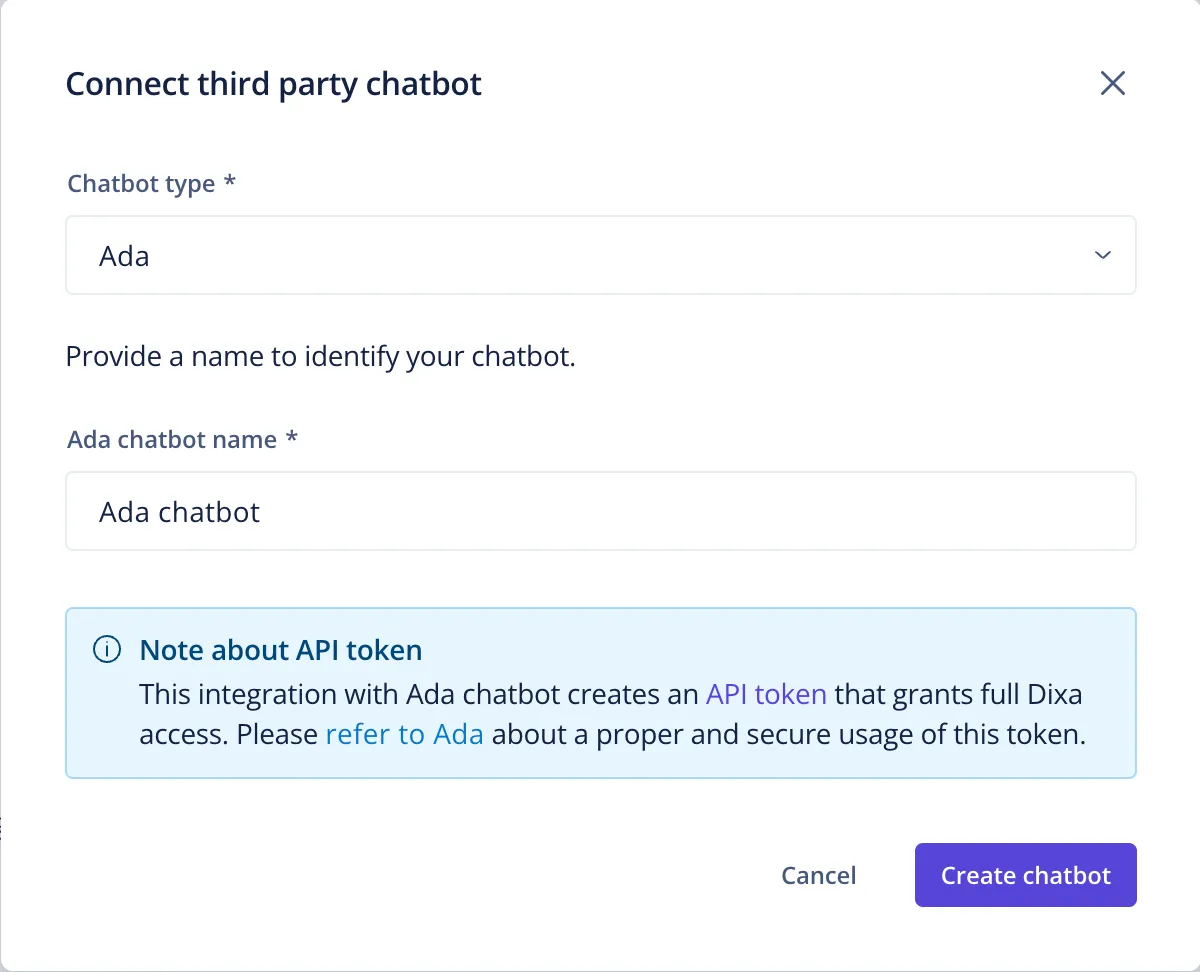
- Select Ada as the chatbot type, enter a name for the chatbot, and click Create chatbot.
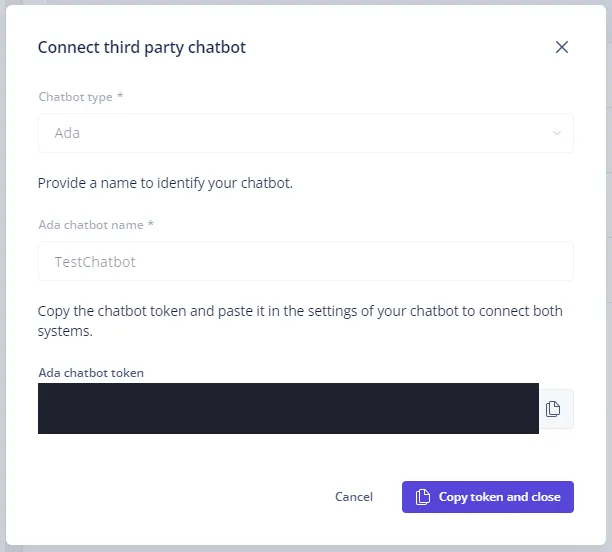
- Copy the generated token and store it in a safe place.
Set an optional queue on the handoff action
(Optional) Add a Queue ID to the Handoff to agent action to transfer the conversation to a specific queue. If it is not set, the conversation is transferred to the default queue.

Update the Dixa token
After the new chatbot token is created, the handoff configuration and the Dixa Utilities app must be updated with it.
Your Ada team will update the Dixa token on the handoff configuration and in the Dixa Utilities app during the upgrade. Contact your Ada representative to proceed.