

Configure the handoff
After you complete the initial configuration and share your credentials, your Ada team sets up the backend integration. When that is complete, you can add the Gladly handoff block to your AI Agent and configure how each handoff behaves.
Your Ada team will complete the backend integration setup. Contact your Ada representative to confirm this step is finished before you configure the handoff block.
Add the Gladly handoff block
Each handoff starts a conversation on your Gladly custom channel and routes it to the inbox mapped to the entry point you specify. In Gladly, every conversation is tied to a customer identified by email, so the end user’s email address is required on every handoff.
To add the Gladly handoff block:
- In your handoff answer, add the Gladly block with action Handoff to Gladly agent.
- Confirm the required Ada ID fields —
conversation_idandend_user_id— which are pre-populated by the block automatically. - Set the Entrypoint Address to the entry point that should route the conversation to the correct inbox.
- Map the User Email Address field to the end user’s email.
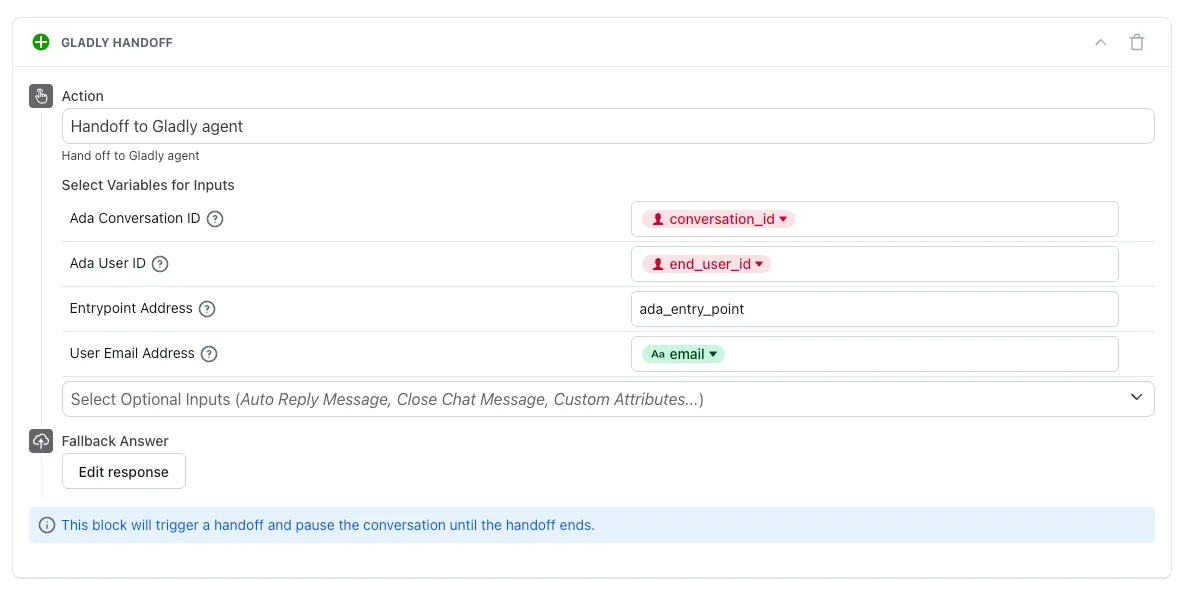
When a handoff connects to Gladly, the following meta-variables are set on the conversation and can be used for troubleshooting or reporting:
agent_system_gladly_conversation_id— set when the handoff is initiated.agent_system_gladly_agent_id— set when the first agent message is received.
By default, the Gladly conversation is closed when the end user closes the Ada window. To keep the Gladly conversation open instead, provide a Close Chat Message. When set, closing the Ada window posts this message as a note and leaves the Gladly conversation open.
Handoff input fields
The Gladly block accepts the following input fields. The email address identifies the customer in Gladly, so it is always required.
Route conversations to topics
You can associate a handoff with Gladly topics to organize conversations. Regular topics and freeform topics are set through different fields.
- For regular topics, set
gladly_topic_idsto a comma-separated list of topic IDs. Invalid IDs are ignored. - For freeform topics, use a field named
gladly_freeform_topic_<topic name>— for example,gladly_freeform_topic_billing. The topic name must already be defined in Gladly, or the freeform topic is ignored.
Add custom attributes
Custom attributes let you pass additional data to Gladly on each handoff. Because adding fields to the block requires a change on Ada’s side, your Ada team configures them for you.
To add custom attributes or additional input fields to the Gladly block, contact your Ada team. You can request more fields at any time.
Custom attributes are set on the Gladly customer record and added as an internal note on the conversation. They are not displayed directly in the Gladly dashboard — see Limitations.
Test the handoff
The Gladly handoff can run at the same time as your existing handoff integrations, so you can test it without downtime.
To test the handoff:
- Add the Gladly handoff block to a separate test handoff answer rather than a live one.
- Trigger a handoff from the AI Agent so a conversation is created on your Gladly custom channel.
- In Gladly, confirm the conversation appears in the inbox mapped to the entry point you used.
- As the agent, send a reply. The message appears in the Ada conversation.
- Resolve the conversation in Gladly, or close the Ada window. The end user can then start a new conversation with the AI Agent.
Once you have verified the handoff, add the block to your live handoff answers and disconnect any previous handoff integration you are replacing.