

Playbooks (Classic)
Overview
After adding some Knowledge to your AI Agent, you can start building structured workflows to manage more advanced interactions. AI Agents can follow Playbooks to guide conversations through specific, multi-step scenarios. Playbooks are structured instructions that help the Agent manage nuanced tasks like troubleshooting, verification, or service changes.
They work alongside API tools, Handoffs, and Variables to ensure the AI Agent can perform backend operations and integrate with external systems, escalate when needed, and maintain consistent logic throughout a conversation. Playbooks enable your AI Agent to execute clear, reliable workflows that mimic how a human agent would approach complex cases.
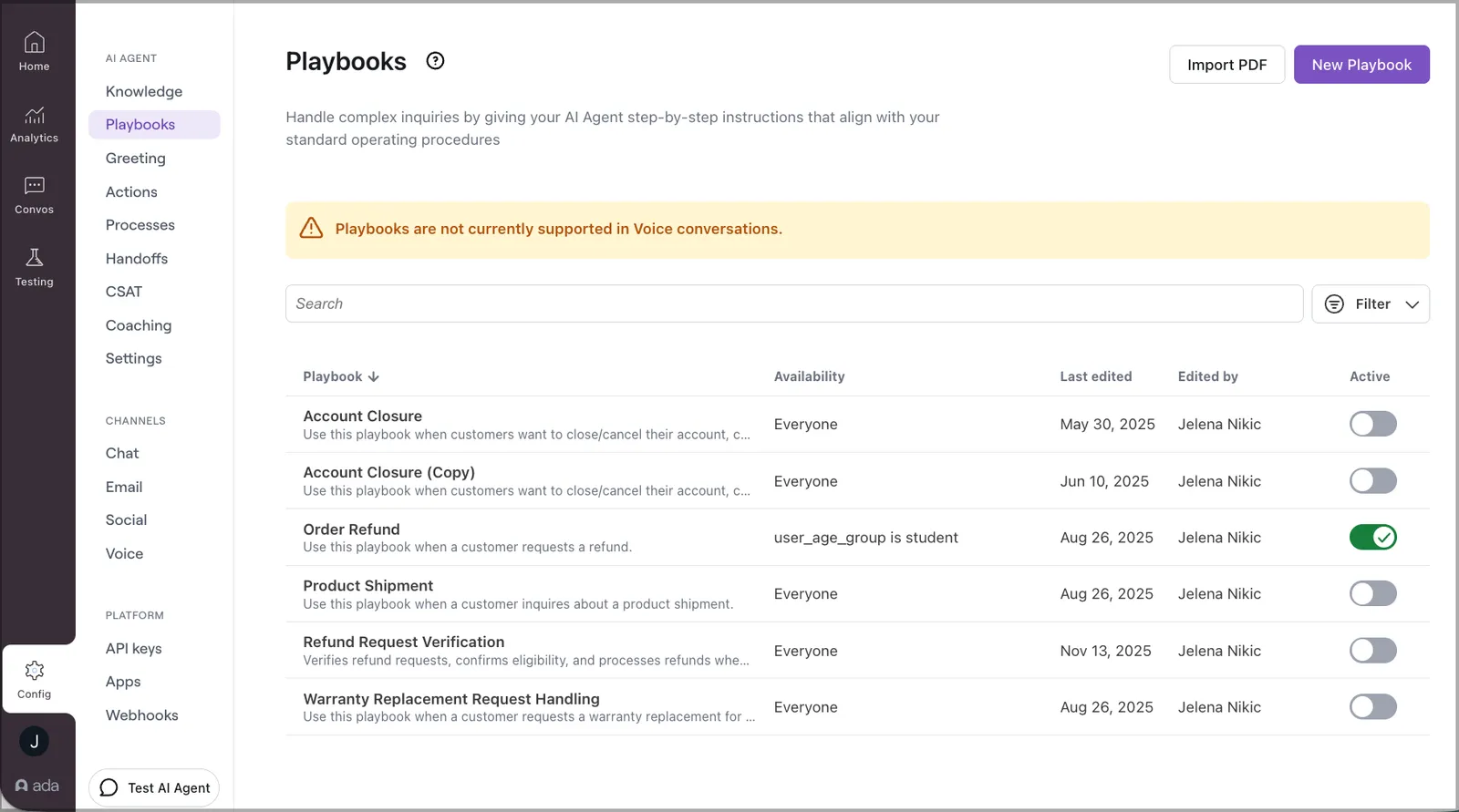
Playbook management
Playbooks are structured, natural-language instructions that teach AI Agents to handle complex, multi-step inquiries. Like internal standard operating procedures (SOPs) for human agents, they guide AI to interpret and act in real time, using context to decide what to do next.
Traditional automated solutions can’t handle this — they break when processes change. Playbooks address this limitation by enabling AI Agents to follow your procedures with logic and adaptability, supporting automation for complex workflows.
Playbooks provide AI Agents with clear, step-by-step guidance for managing complex end user interactions. AI Managers can create them using structured lists that resemble traditional operating instructions, which AI Agents are expected to follow sequentially. Sections can also be added to organize and clarify the workflow.
The following examples illustrate how a Playbook is configured and how that configuration is experienced by end users during a live interaction.
Playbook configuration example
This configuration shows how an AI Manager structures a Playbook. Each step defines a specific action or message that the AI Agent will deliver, creating a clear and consistent workflow for managing end user interactions.
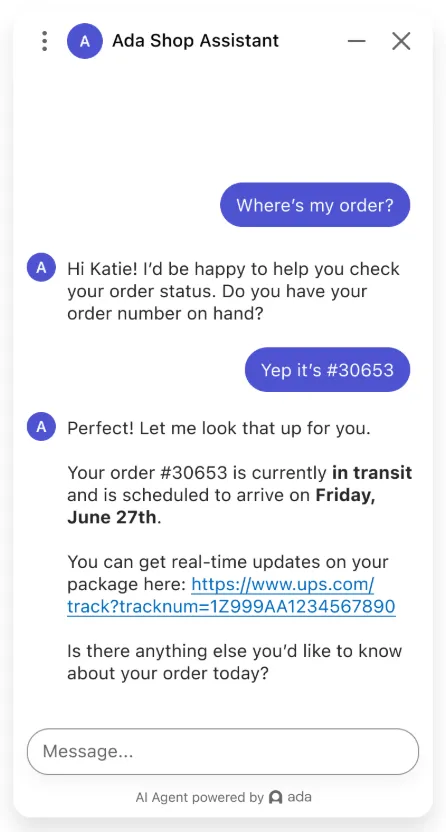
Customer experience example
Here, the Playbook is shown from the end user’s perspective during a live interaction. The AI Agent presents the content according to the defined steps, guiding the end user through the interaction in a structured and coherent way.
Limitations
Playbooks have the following constraints:
-
Not supported on Ada Voice: Playbooks currently only work with Messaging and Email channels.
-
Limited Coaching support: While you can coach the AI Agent on when and which Playbook to use, Coaching is not considered once the AI Agent is executing a Playbook. The exception is Use knowledge base Coaching: when the Agent searches Knowledge during a Playbook, it still uses the article that the Coaching points to, in conversations similar to the one you coached. You can add this Coaching to a Knowledge search that runs during a Playbook. You cannot coach other steps or messages taken during a Playbook. To adjust the AI Agent’s behavior in these cases, edit the Playbook directly.
-
Knowledge reference limitations: When referencing Knowledge in Playbooks, the following constraints apply:
- Articles cannot be referenced by URL. Use the
@ArticleNamemention or a natural-language search instruction instead. - The AI Agent will not autonomously search Knowledge during a Playbook. All Knowledge lookups must be explicitly included in the Playbook instructions.
- Knowledge references do not override availability rules.
- Articles cannot be referenced by URL. Use the
-
Language support: English is the only supported authoring language for Playbooks.
- Authoring in other languages is not supported.
- Technical Support cannot troubleshoot or guarantee functionality for Playbooks written in languages other than English.
- At runtime, conversations are supported in any language the AI Agent otherwise supports. Fixed message
SENDsteps are translated automatically into the end user’s language.
Use cases
Playbooks can be used across a variety of scenarios. The following examples demonstrate how they support AI Agents in practice:
- Problem resolution: Focused on troubleshooting issues and handling complaints.
- Examples: Tracking an order, replacing a lost or stolen card.
- Processing requests: Assisting end users with straightforward tasks.
- Examples: Updating an address, upgrading an account.
- Gathering information: Collecting details from end users to support follow-up actions.
- Examples: Qualifying leads, capturing preferences.
- Security & verification: Confirming user identity before making sensitive changes.
- Examples: Authentication flows, investigating potential fraud.
Capabilities & configuration
Designed to support complex workflows, the following capabilities can help AI Agents to handle interactions with structure, flexibility, and consistency:
- Instruct the AI Agent with natural language: Playbooks provide structured, natural-language instructions that guide the AI Agent through each step of a process, similar to how a human agent would follow operating procedures.
- Reference API tools and Handoffs: Playbooks can incorporate references to specific API tools (like API calls) and Handoff flows, allowing the AI Agent to seamlessly perform tasks and escalate conversations to a human agent when needed.
- Reference Global and Metavariables: Playbooks support referencing both Global and Metavariables, and also allow writing to Global variables. This enables AI Agents to make decisions and update values dynamically based on specific conditions.
- Reference Knowledge: Playbooks can search and use content from connected Knowledge sources — including third party knowledge bases, Ada-created articles, and web-scraped content. Reference specific articles directly using
@, or instruct the AI Agent to perform a general search at runtime. - Multi-channel support: Playbooks are supported on both Messaging and Email channels, ensuring consistent, high-quality interactions across communication modes.
Create a Playbook
You can create a Playbook using one of three methods: Generate a Playbook, Import an existing procedure, or Start from scratch.
Generate a Playbook
You can use AI to help you quickly create a Playbook by providing a short description of the task or procedure you want to automate. Select from a list of prompt suggestions or describe your own use case to generate the first draft of your Playbook.
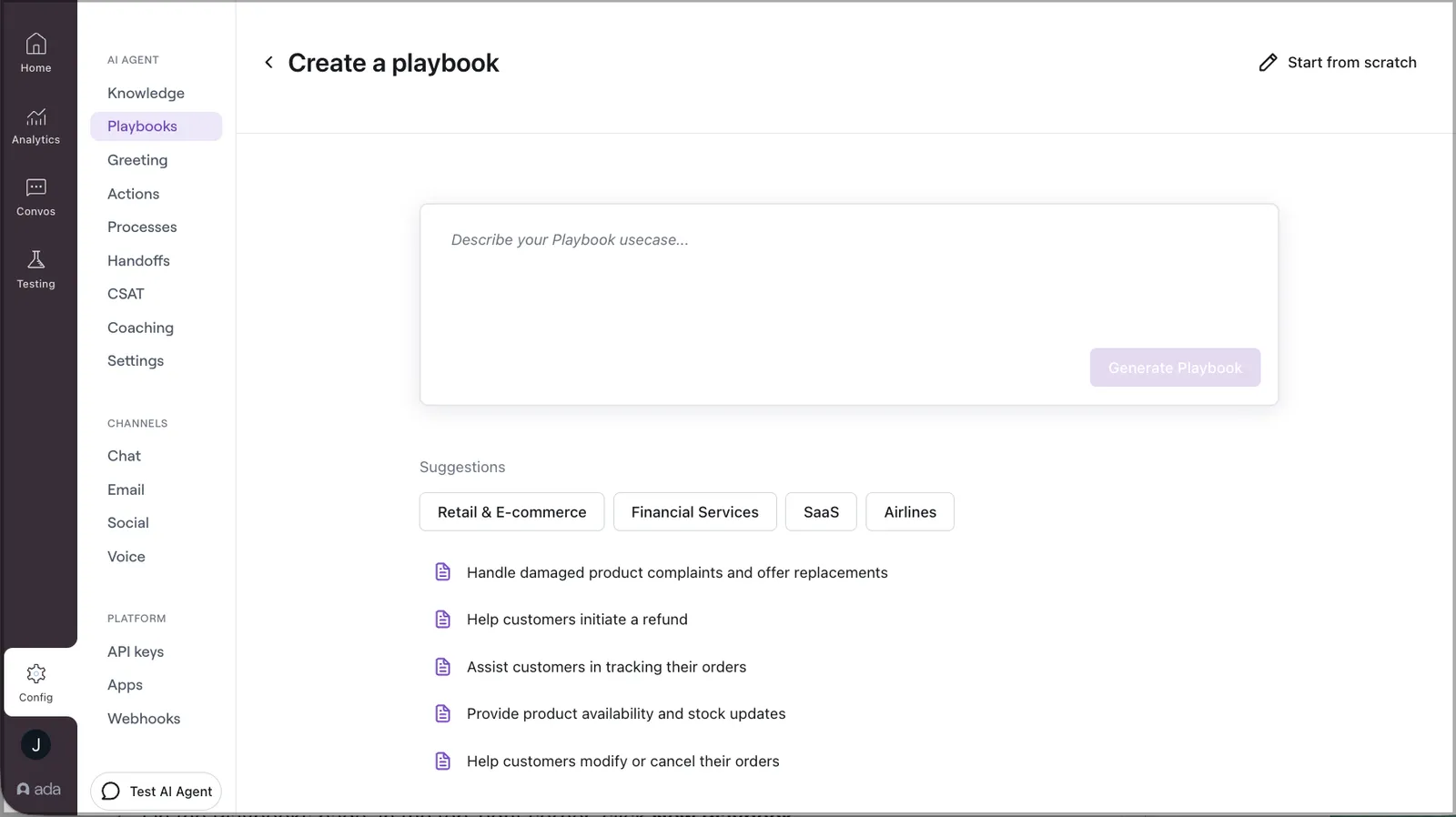
To generate a Playbook:
- On the Ada dashboard, go to Config > AI AGENT > Playbooks.
- On the Playbooks page, in the top-right corner, click New Playbook.
- On the Create a Playbook page, describe the procedure you want your AI Agent to handle, or select from a list of common use cases.
- Review and update your Playbook, as needed.
Import an existing procedure
If you already have an SOP — such as a customer support workflow saved as a PDF — you can import it directly into Ada to jump-start your Playbook.
To import an existing procedure:
- On the Ada dashboard, go to Config > AI AGENT > Playbooks.
- On the Playbooks page, in the top-right corner, click Import PDF.
- Select and upload your PDF file.
- Once the upload is successful, review and update your Playbook, as needed.
Start from scratch
If you already know how you want your Playbook to work, you can build it manually from the ground up.
To start from scratch:
- On the Ada dashboard, go to Config > AI AGENT > Playbooks.
- On the Playbooks page, in the top-right corner, click New Playbook.
- On the New Playbook page, in the top-right corner, click Start from scratch.
- Fill out the required fields, including the Playbook’s name, usage guidance, and instructions.
Configure a Playbook
Name and describe your Playbook
Every Playbook begins with a name and a short description that explains when it should be used. These details provide important context to the AI Agent, helping it understand the purpose of the Playbook and when to apply it.
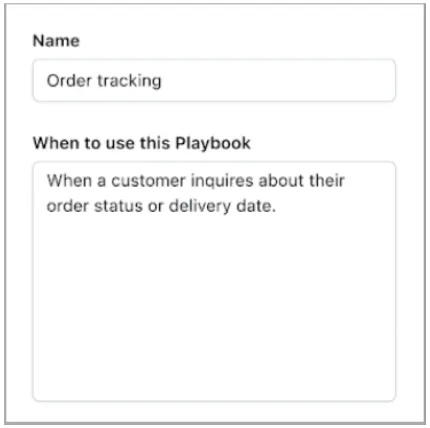
- The Playbook Name should be specific and clearly reflect what the Playbook is designed to handle — for example, Handle refund requests or Verify account details.
- When to use this Playbook should outline the situations where the Playbook is appropriate, much like how you would explain its use to a human agent.
Control who can access your Playbook
If required, you can restrict Playbooks to certain users, based on information your AI Agent collects about your users and saves in variables.
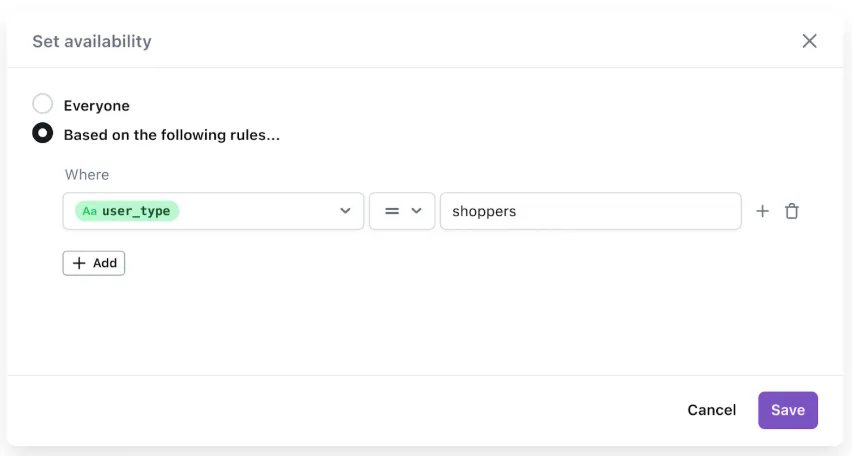
- Under Availability, choose which end users you want the Playbook to apply to:
- To make the Playbook available to all users, select Everyone.
- To restrict the Playbook to certain users, select Based on the following rules and configure your conditions.
Write your Playbook
A Playbook consists of structured instructions that guide the AI Agent through a specific workflow. The body of a Playbook is organized into sections, each representing a stage of the end user journey. Within each section, outline the steps the Agent should follow using a numbered list.
Quick reference for formatting:
| Icon | Purpose |
|---|---|
 | Top-level heading |
 | Sub-heading |
 | Bold text |
 | Bulleted list |
 | Numbered list |
 | Links |
Reference API tools, Handoffs, Exits, and Variables
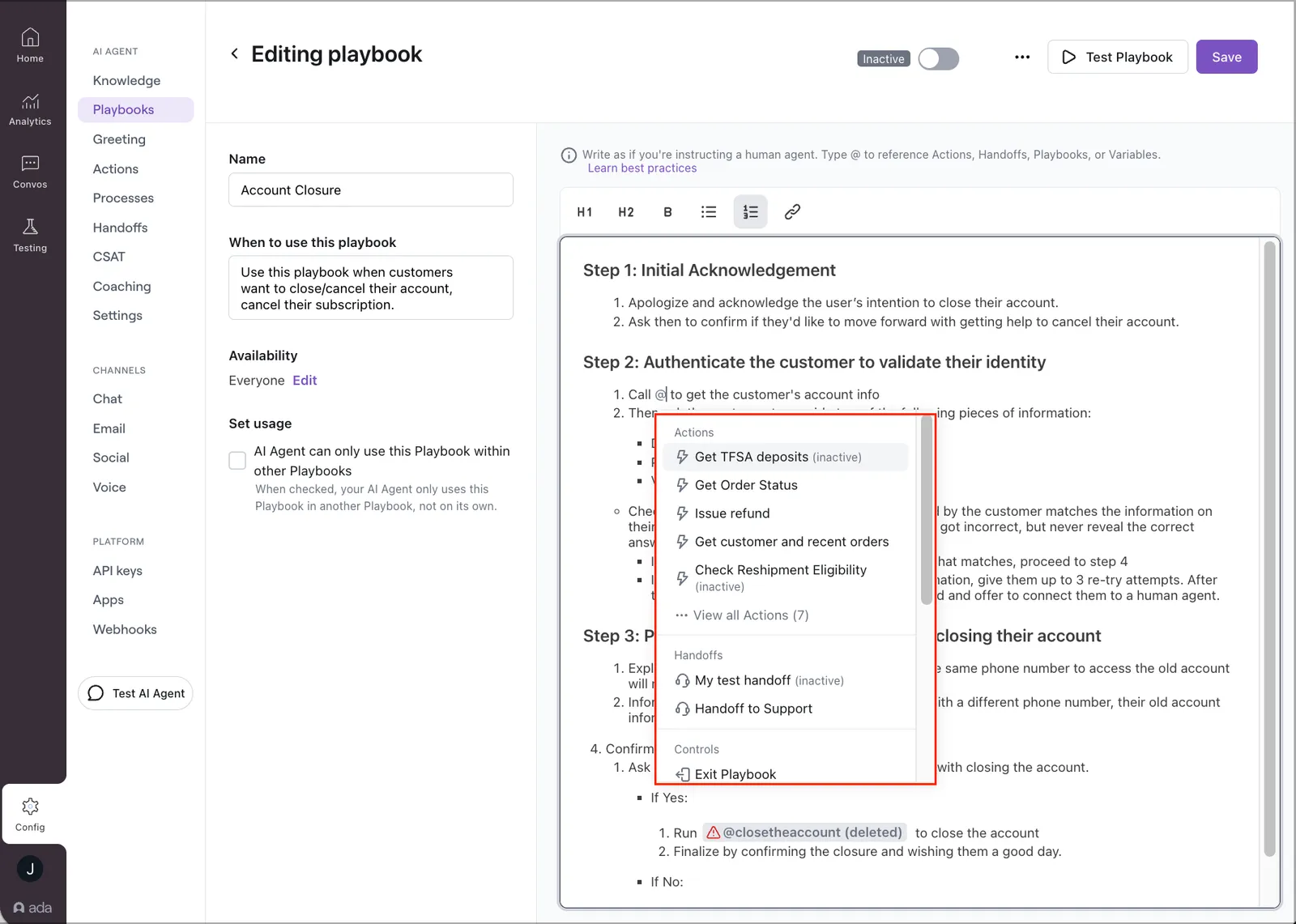
Playbooks can reference API tools, Handoffs, Exits, and Variables to create dynamic, intelligent workflows.
API tools and Handoffs: Type @ to bring up a searchable menu of existing API tools and Handoffs. If typing the name doesn’t return results, click + Create API tool or + Create Handoff to define a new item without leaving the editor.
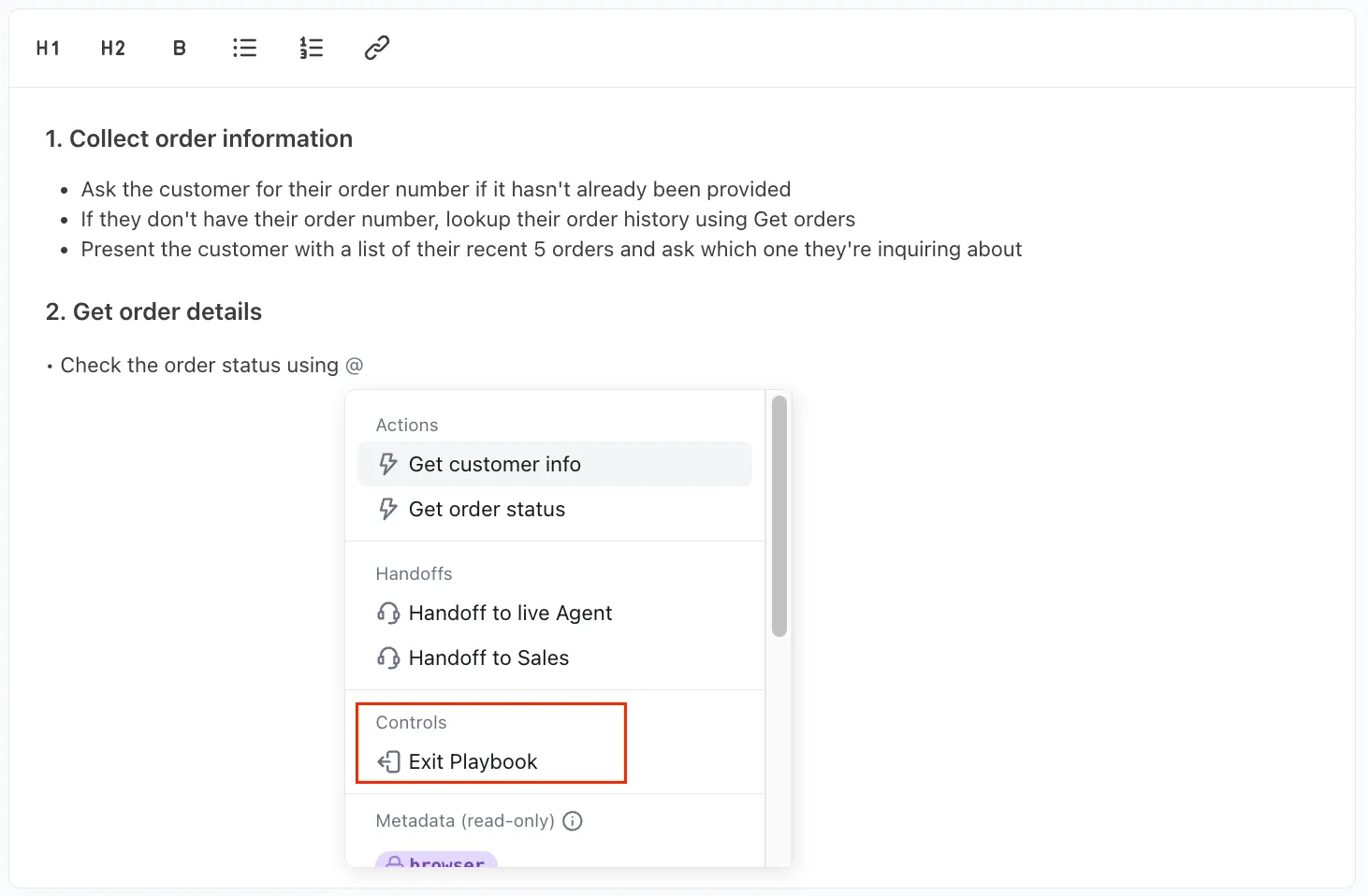
Exits: Type @Exit while editing. The Exit Playbook option appears in the same dropdown as API tools and Handoffs, in the Controls section.
Global and Metavariables: Playbooks support referencing Global and Metavariables. Variables can be used in conditionals to guide the Agent’s behavior.
- Reading variables: Reference a variable to shape the logic of your Playbook.
- Writing to variables: Playbooks can write only to Global Variables.
Knowledge: Playbooks can search and reference Knowledge sources connected to your AI Agent.
- Direct Knowledge reference: Reference a specific article by name using
@in the editor. - General Knowledge search: Add a natural-language instruction telling the Agent to search the Knowledge base.
Link a Playbook
Linked Playbooks let you break large workflows into smaller, reusable components. Instead of duplicating common steps, design a dedicated Playbook once and call it from any parent Playbook.

Linked Playbooks use call-and-return logic: the parent calls a child, the child completes and exits, then returns control to the parent.
Insert a reference to another Playbook using the editor’s @ menu. The parent pauses while the linked Playbook runs, then continues once the child exits.
When a Playbook exists only to support another, enable the AI Agent can only use this Playbook within other Playbooks option to prevent accidental triggering.
@exit Playbook call to explicitly end execution.Test your Playbook
Start by walking through the most common flows and expand your testing to cover edge cases. Test from the perspective of different types of users to evaluate how the Playbook adapts based on context, permissions, or intent.
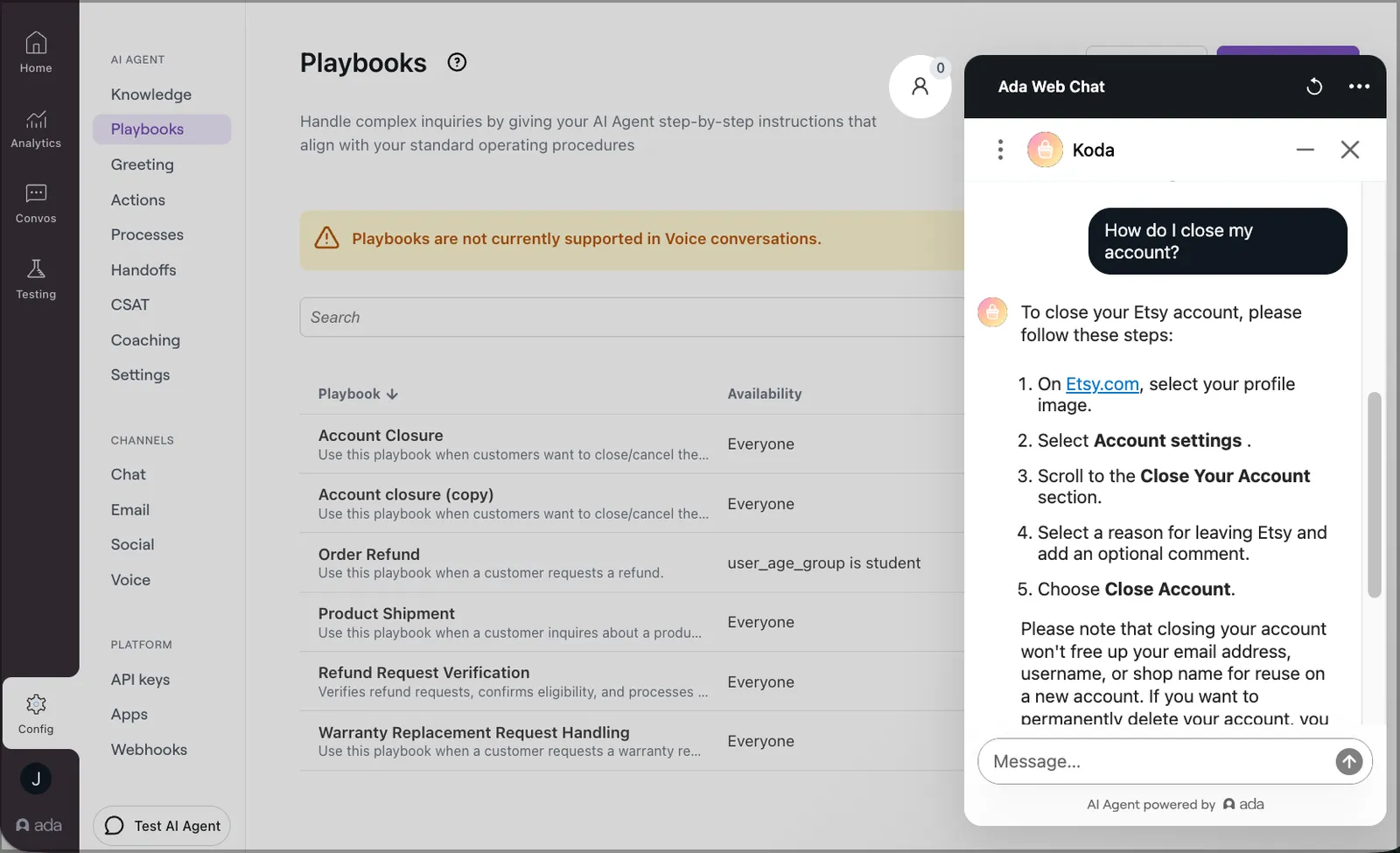
You can preview the Playbook in isolation using Test Playbook, or simulate a full conversation using Test AI Agent to confirm that it triggers under the right conditions. Note that Test AI Agent is only available for live Playbooks — inactive Playbooks can only be tested using the Test Playbook button.
Monitor Playbook execution
When reviewing conversations in the Ada dashboard, AI Managers can see the reasoning behind each step the AI Agent takes while executing a Playbook.
To view step-level reasoning, click the information (ℹ) icon beside any Playbook event in the conversation view.
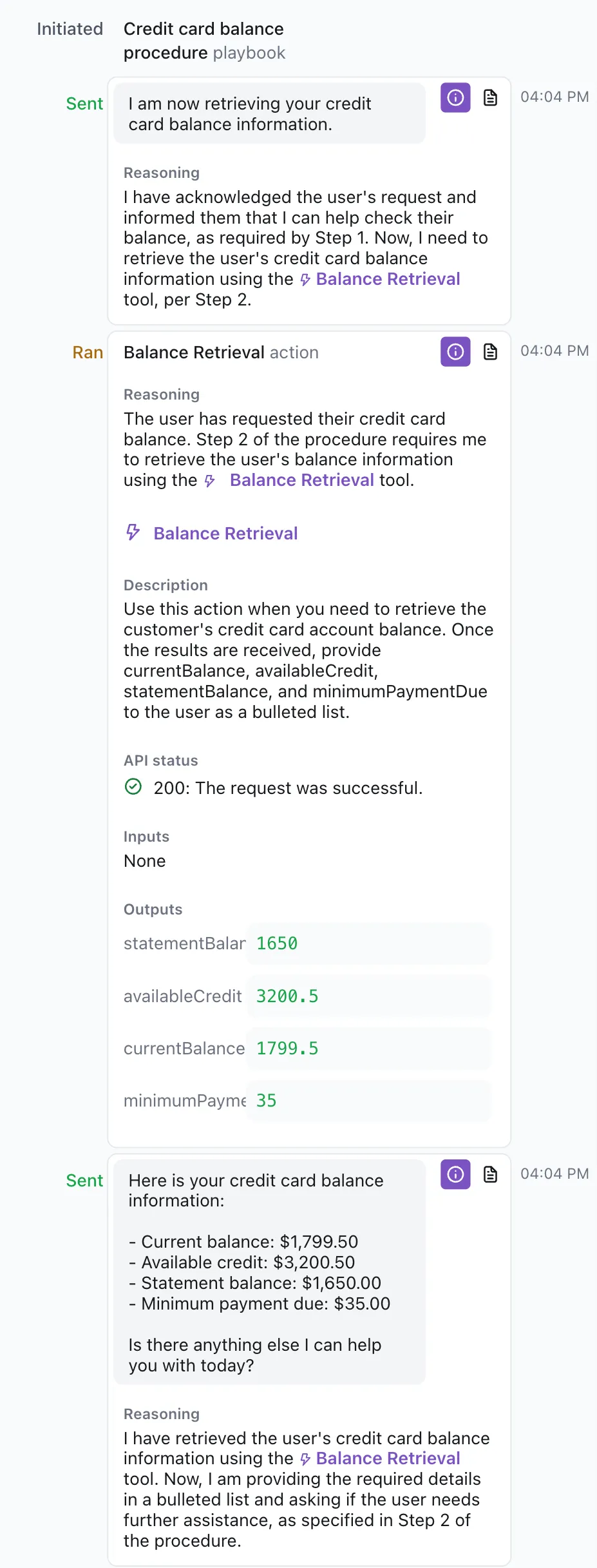
The reasoning panel shows:
- The step selected by the AI Agent and the reasoning behind that selection.
- Inputs and outputs from any API tools run during that step.
Manage Playbooks
Save and publish
Playbooks can be saved in one of two states: inactive or active.
- Saving as inactive keeps the Playbook in draft mode.
- Saving as active makes the Playbook immediately available in live end user interactions.
Duplicate an existing Playbook
To reuse the structure or content of a Playbook, you can create a copy using the Duplicate option.
Edit or delete a Playbook
To make changes or remove a Playbook, go to Config > AI AGENT > Playbooks in the Ada dashboard, then open the Playbook you want to manage.
- Edit the content and choose to save it as active or inactive.
- Delete the Playbook by selecting Delete Playbook from the More options menu at the top of the page.
View Playbook dependencies
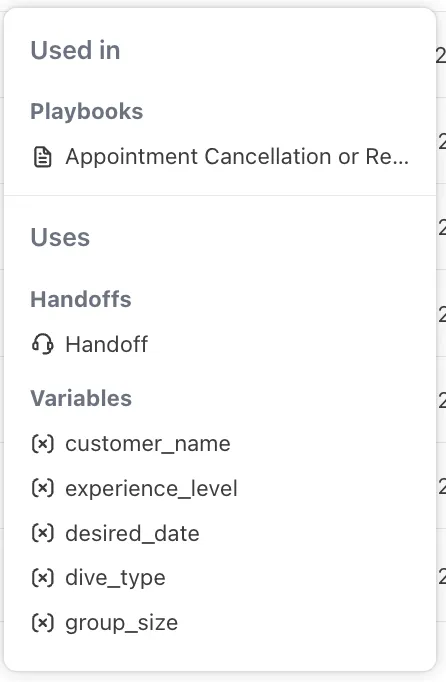
In the Playbook list, each row displays a dependency summary showing counts of linked Playbooks, API tools, Variables, and Handoffs referenced by that Playbook.

In the detail panel, select a Playbook to see its full dependency breakdown:
- Used in shows which parent Playbooks reference this one.
- Uses lists the Handoffs and Variables this Playbook references.
Dependency safeguards
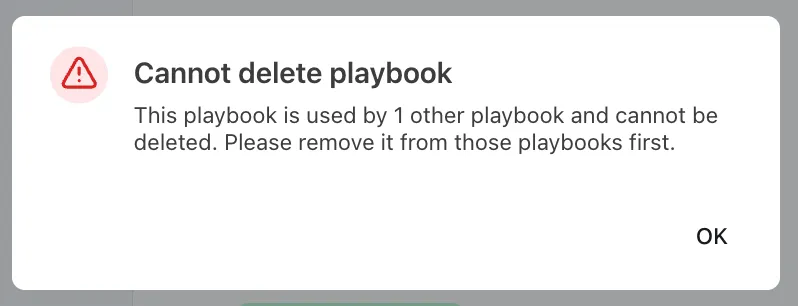
- Deletion protection: You cannot delete a Playbook that is referenced by an active parent Playbook. Remove the reference first, then delete.
- Circular dependency prevention: Playbooks cannot reference each other in a loop. If saving a Playbook would create a circular dependency, the save fails and a notification displays the dependency chain causing the conflict.
Best practices
General guidelines
Let Ada create a first draft
The Generate a Playbook feature helps you quickly create a first draft based on a simple prompt or an existing PDF file. To get the best results, clearly define your goal and the scenario or task you want the Playbook to address.
Write like you’re writing for human agents
Write your Playbook as if you’re creating a standard operating procedure for a human agent. Use clear, straightforward language that feels natural and conversational, rather than overly technical or robotic.
Peer review your Playbooks
As the author, you might overlook missing details or unclear instructions. Having someone with limited context review your Playbook can go a long way in helping identify gaps and areas needing clarification.
Specific writing guidelines
Use rich formatting to make Playbooks easy to read and follow
- Use headings to structure the Playbook into clear, high-level steps.
- Break down instructions into short, clear lists rather than long paragraphs.
- Use numbered lists for sequential actions.
- Use bulleted lists for parallel actions or options.
- Highlight critical details with bold text.
- Use quotations to indicate specific messaging the AI Agent should use.
Write well-structured Playbooks
- Avoid deep, multi-level lists. Keep steps flat and easy to scan.
- Use flat bullets or numbered steps with clear, single-level items.
- Trim general guidance to essentials.
- Use a consistent scheme for H1 step titles (for example, 1, 2, 3 or 2A, 2B, 2C).
- Provide a short Flow Overview at the top.
- End each step with an explicit outcome and next-step cue.
Working with API tools, Handoffs, Exits, and Variables
Use intuitive names and descriptions
Incorporate API tools and Handoffs
To keep handoff logic consistent and easy to maintain, route escalations to a single dedicated handoff section rather than placing handoff steps throughout the Playbook.
Avoid giving excess information
When configuring API tools for the AI Agent to use, optimize for giving only the required information. Leverage JMESPath in the API tool Output settings to filter out unnecessary fields.
Use explicit Exits to control the flow
Choose an explicit Exit when:
- You need guaranteed flow termination.
- A Playbook should always stop at a specific decision point.
- Reliability is more important than flexibility.
Let Playbooks end automatically when:
- The conversation may branch flexibly.
- You want smoother, more natural endings.
- Your flows benefit from reduced manual exits.
Use Variables correctly
Your AI Agent can read variable values that you explicitly reference within a Playbook to personalize the experience. You can also instruct the Agent to save specific attributes to Variables.
@variable pill when reading or writing variables. Typing variable names manually will not be recognized by the system.Communicating your procedure
Clearly define conditional logic
Explicitly mention conditions and corresponding actions, using indentation to show branching paths. Avoid combining multiple conditions into one sentence.
Handle exception scenarios
Always provide clear instructions for handling exceptions, including:
- An explicit otherwise/else clause for
ifconditions - Guidance for situations when API tools return no information or fail
Include Additional guidelines for general instructions
Use an Additional guidelines section for general instructions or important guardrails, such as:
- Tone and formatting expectations specific to this Playbook
- What not to do, or boundaries that shouldn’t be crossed
- How to handle edge cases
Use Custom Instructions carefully
Custom Instructions influence how the AI Agent interprets and executes a Playbook. Avoid referencing handoffs in Custom Instructions unless a handoff is explicitly intended.
Best practices for Playbooks in Voice
Avoid duplicate acknowledgments
Your Voice AI Agent automatically provides quick acknowledgment messages to users before entering a Playbook and after most user responses during it. Avoid instructions that duplicate these acknowledgments.
Avoid multiple backend steps without a user message
Setting a variable, running an API tool, or performing another backend operation takes time. Provide the user with a short, spoken message between backend steps to prevent silent gaps.
Optimize for spoken responses
On Voice channels:
- Provide instructions about how the Agent should speak information returned by API calls.
- Instruct the Agent about how to spell out dates and email addresses.
End with a natural closing
Never leave Voice users hanging. End Playbooks with a clear question before exiting.
Keeping Playbooks up to date
Review before publishing
Maintain and update regularly
Related features
- API tools: Connect your AI Agent to external systems and APIs.
- Processes: Build structured, block-based workflows for interactions requiring exact wording and flow.
- Handoffs: Escalate conversations to human agents when needed.
- Variables: Store and reuse information collected during conversations.
Playbooks vs Processes
Like Playbooks, Processes also use structured instructions for guiding AI Agents through multi-step workflows but serve different purposes.
- Playbooks handle complex, dynamic inquiries where your Agent adapts based on input, context, or channel.
- Processes are for specific, structured interactions that require specific wording and flow using predefined blocks.
Default to a Playbook when:
- The flow may change based on end user input or channel.
- You need to gather information or handle multiple paths to resolution.
- Tone or wording should adapt based on context.
Use a Process when:
- The response must be scripted word for word.
- It contains compliance-sensitive or legally approved language.
- Any deviation could cause confusion or risk.