

Topic analysis
Overview
Reviewing and analyzing conversation Topics data can provide insight into trends in your end users’ behavior. Understanding these trends helps you identify opportunities and come up with actions you can take to improve your AI Agent’s performance.
How Topics work
Your AI Agent analyzes each conversation to assign a topic, which it can then use to group similar conversations.
By default, the list of topics you see is sorted by automated resolution (AR) opportunity, which represents the total opportunity that topic has to affect your overall automated resolution rate. Topics containing the largest number of unresolved conversations will have the greatest AR opportunity. You can drill into any topic and get even more details.
Use cases
Topics help you understand conversation patterns and prioritize improvements to your AI Agent.
- Prioritize high-impact improvements: Identify topics with the greatest AR opportunity to focus your efforts on areas that will most improve your overall automated resolution rate.
- Uncover knowledge gaps: Review unresolved conversations within a topic to find missing or unclear content in your knowledge base.
- Monitor customer satisfaction trends: Track CSAT scores by topic to identify areas where end users are dissatisfied and investigate root causes.
- Analyze conversation volume patterns: Understand which topics drive the most inquiries and how volume changes over time.
- Organize reporting by business area: Group related topics into categories to align conversation data with your team structure or product areas.
Capabilities & configuration
Topics provides metrics, multilingual support, and configuration options for managing how topics are generated and organized.
Multilingual support
Topics is a multilingual feature that supports every language enabled for your AI Agent.
Example: If you have an AI Agent that supports French and Spanish, as well as English, and a topic called price is generated, then prix and precio would also track the keyword in French and Spanish.
Though Conversation Topics offers multilingual support, topic labels, summaries, and descriptions are only in English.
Topic metrics
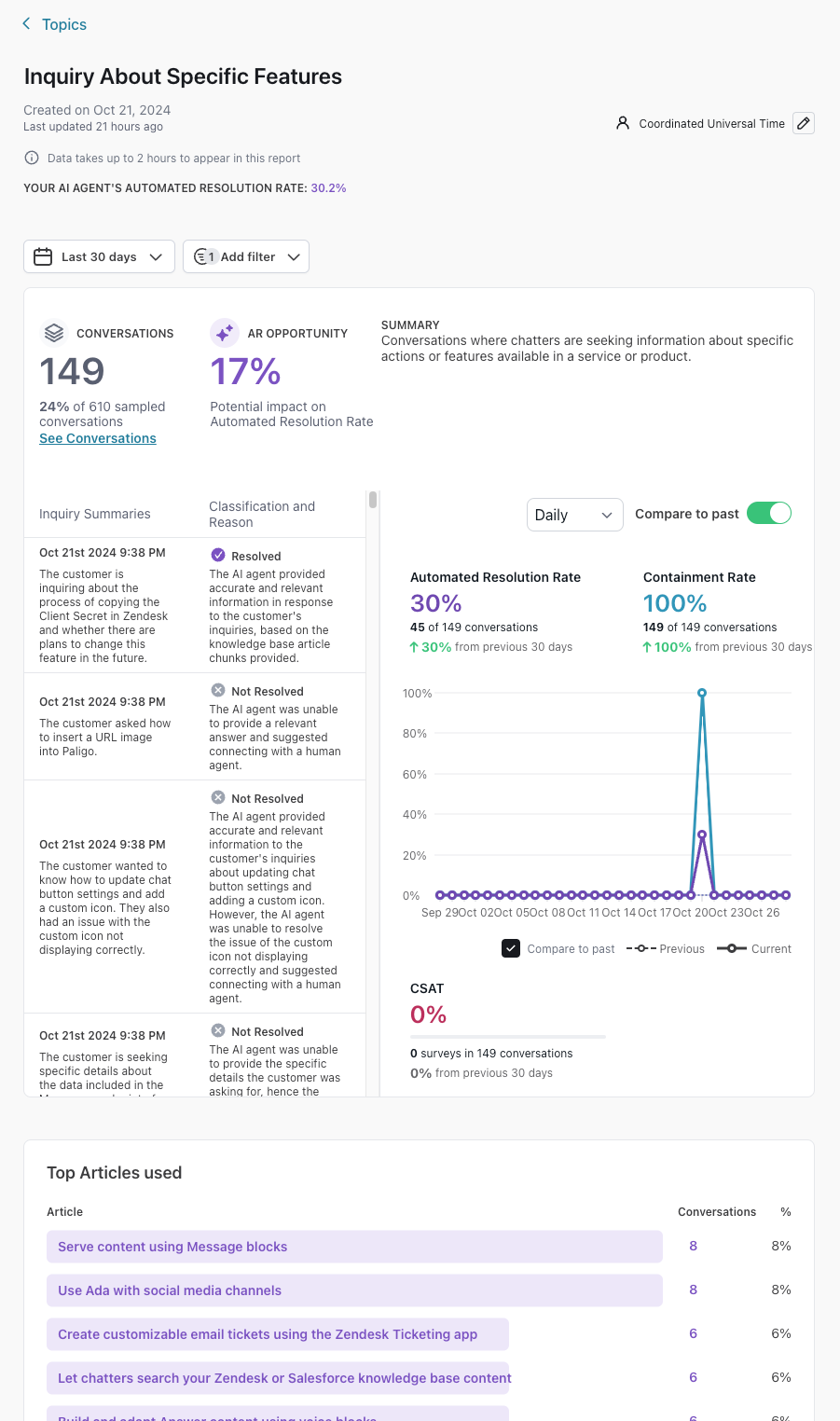
You can click any topic to view a more detailed breakdown of the data collected for that topic, then use this information to:
-
Explore volume, handoff, and customer satisfaction (CSAT) trends to help understand the topic’s performance
-
Review inquiry summaries to quickly get an understanding of the key points of a conversation
-
Uncover opportunities for AI Agent improvements based on unresolved inquiries related to this topic
-
Review conversations that meet specific criteria using the available filters
-
View top articles and actions used per topic, drill into relevant conversations
AI-generated topics
By default, Ada automatically generates new Topics based on conversation trends. If you’d prefer to only use manually created Topics, you can disable AI-generated topic creation.
When the toggle is disabled:
- Ada stops creating new AI-generated Topics.
- Conversations that don’t match any of your active Topics are sorted into one of two system Topics:
- Other Inquiries – Used when the end user’s intent is understood, but doesn’t match any Topic.
- Unclear or Incomplete Inquiries – Used when the customer’s message is ambiguous or incomplete.
These system Topics are always active and cannot be renamed or set as inactive, to ensure that every conversation is captured in your reporting.
When the toggle is enabled:
- Ada continues generating new Topics when it detects emerging patterns.
- Ada attempts to match conversations to both active and inactive Topics. If it finds a match in an inactive Topic, that Topic will be automatically reactivated.
Quick start
Review Topics and identify improvement opportunities in a few steps.
For detailed instructions on managing topics, see Implementation & usage.
Implementation & usage
Use Topics to review insights, manage topic organization, and export performance data.
Topic insights
Gain visibility into conversation patterns and performance metrics across your Topics.
To view all Topics:
- On the Ada dashboard, go to Analytics > Topics.
Related conversations
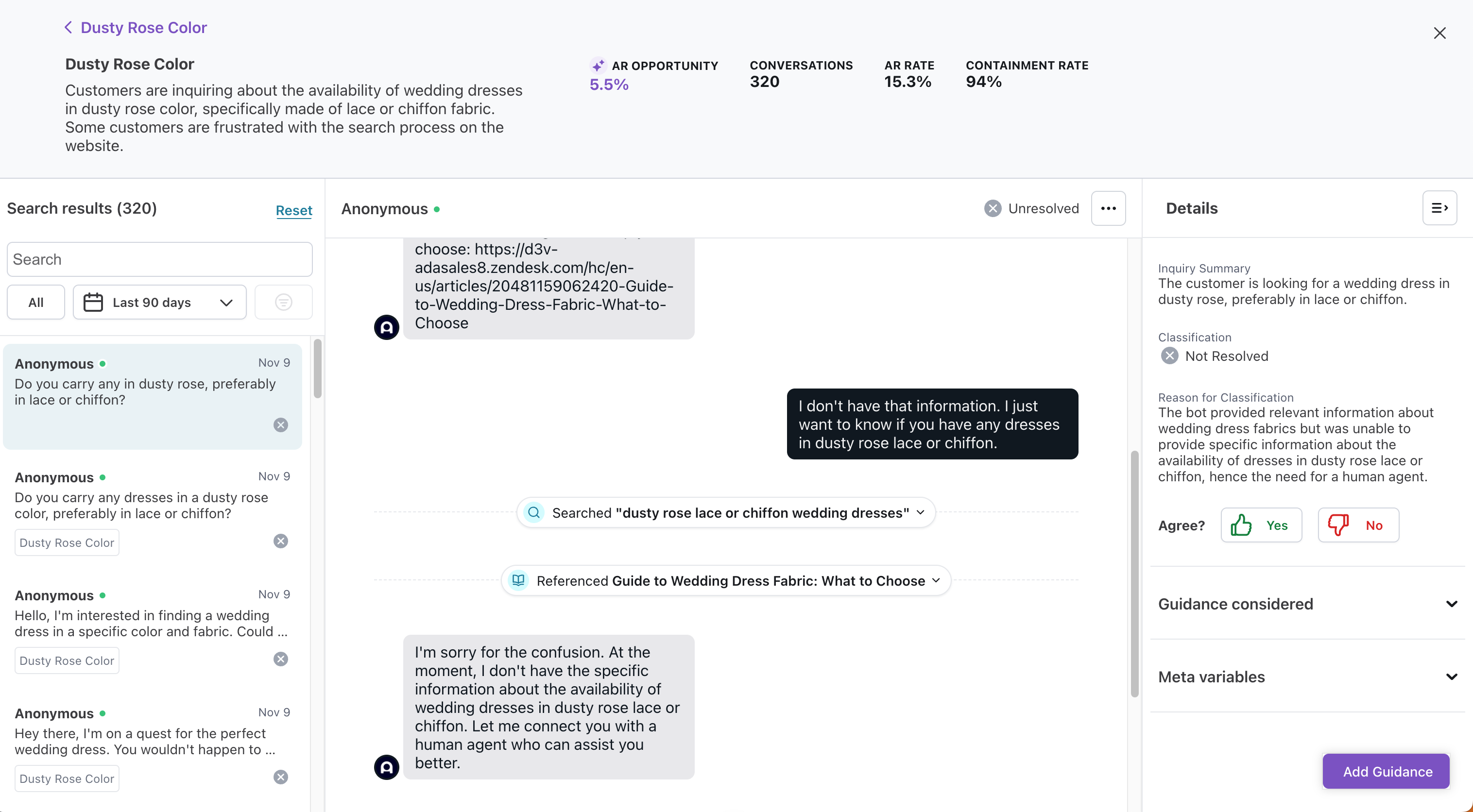
From an individual topic, you can review example conversations from the topic cluster, so you can better identify relevant actions to take to improve your AI Agent.
To see conversations related to a specific topic:
From the relevant topic page, click See Conversations. You’ll be taken to the Conversations view, with the relevant filters applied so you only see conversations for that specific topic.
Manage topics
Adjust Topics and organize them into categories to help manage and organize the topics most relevant to your business.
AI-generated topics toggle
Control whether Ada automatically generates new Topics based on conversation trends.
To disable AI-generated Topics:
- On the Ada dashboard, go to Analytics > Topics.
- In the upper-right corner, disable the Generate new topics automatically toggle.
Edit a topic
You can change the name or description of a topic. Moving forward, your AI Agent will take the updated name and description into account when assigning new conversations to that topic.
To edit a topic:
- On the Ada dashboard, go to Analytics > Topics.
- For the topic you want to rename, click the More options button
 , then click Edit.
The editing dialog opens.
, then click Edit.
The editing dialog opens. - Edit the topic’s name and description as required, then click Save.
Topic visibility
If you no longer want to monitor a topic regularly, you can set it as inactive to hide it from the main view. You can set it as active again if you change your mind. Additionally, if your AI Agent detects new conversations that match the topic, the topic will automatically become active again for your review.
To set one or more Topics as inactive:
- On the Ada dashboard, go to Analytics > Topics.
- Select the topics you want to remove from your main Topics table.
- Click the Set as inactive button that appears.
If you have hidden topics, you’ll see a notification that tells you how many you have.
To set one or more Topics as active:
- On the Ada dashboard, go to Analytics > Topics.
- Click View (x) hidden topics to show a list of your AI Agent’s inactive topics.
- Select the topics you want to set as active again.
- Click the Set as active button that appears.
Topic categories
You can create topic categories to group similar topics together. You can have up to a total of 40 active topics and categories, and each category can contain up to 40 topics.
To create a topic category:
- On the Ada dashboard, go to Analytics > Topics.
- Click New Category. The Create a category dialog opens.
- Enter a Name and Description for the category, then click Save. Your AI Agent will take the name and description into account when assigning new conversations to a category and then to a topic within that category. The dialog closes and your new category appears in your Topics table, ready for you to move topics under it.
You can click any category to view a more detailed breakdown of the data collected for all the topics under that category. This page operates the same way as the individual topic insights page, but aggregates data for all the topics under that category.
Category assignment
You can move up to 40 topics under a given category.
To move Topics between categories:
- On the Ada dashboard, go to Analytics > Topics.
- Select the topics you want to move under a category.
- Add or remove the selected topics from a category:
- To add the topics to a category, click the Move to button that appears. In the window that opens, select a category, and click Move. The dialog closes and the selected topics appear in the category you chose.
- To remove the topics from a category, click the Ungroup button that appears. The selected topics appear outside of any categories.
Conversation reassignment
You can move individual conversations out of an automatically assigned topic into one you think is more relevant.
You can only reassign conversations that your AI Agent has already assigned to a topic. You can’t change the topic for a conversation that your AI Agent hasn’t assessed.
To move a conversation between Topics:
- On the Ada dashboard, go to Convos, then select the conversation you want to reassign to a different topic.
- In the conversation’s header, click the conversation’s current topic to open a list of your AI Agent’s existing topics, and select the one you want to assign instead.
Data export
You can export the Topics performance table to a CSV file. This exports the current view (including category aggregations), so if you’ve applied filters, the exported file reflects those changes.
For guidelines on creating effective topic titles and descriptions, as well as examples of using Topics to improve your AI Agent, see Best practices.
Related features
Explore additional analytics and optimization options.
- Conversations: View individual conversations and their topic assignments.
- Performance reports: Access detailed analytics on AI Agent performance.
- Coaching: Improve AI Agent responses based on topic insights.
- Knowledge: Update content to address gaps identified through Topics.
- CSAT: Measure customer satisfaction across topics.