

Multiple participant conversations
By default, your Email AI Agent supports multiple participant conversations, allowing it to reply within threads that include multiple recipients in the To and CC fields.
Multiple participant conversations allow your AI Agent to handle email threads with multiple recipients. Learn how to configure or disable this feature and use the available system variables for managing multi-participant email threads.
Overview
When multiple participant conversations is enabled (the default), the AI Agent:
- Replies to all participants in the same conversation thread
- Accepts and responds to messages from any participant in the thread
- Maintains a single, unified conversation visible to everyone involved
When handing off these conversations to your support platform, pass the correct participant data—like the most recent sender and the full list of current recipients—so that human agents can respond with the full context. For configuration steps and setup guidance, see Implementation & usage.
Limitations
Multiple participant conversations have the following constraints.
Recipient limit
The AI Agent supports up to 25 recipients in the To and CC fields (not including the original sender):
- If a message includes more than 25 recipients, the Agent prioritizes those listed in the To field.
- Any recipients beyond the 25th—starting with those in the CC field—are excluded from the Agent’s reply.
- As long as the total number of recipients remains within the limit, the Agent continues to reply to all participants in the thread.
Metadata association
In Conversations involving multiple participants (via the To or CC fields), the AI Agent may receive messages from different senders within the same thread. However, any metadata shared with the Agent—such as global variables, system variables, or data passed through the API—is always tied to the original sender who initiated the conversation.
This means:
- Even if another participant replies later in the thread, metadata does not shift to that person.
- The Agent continues to reference the original end user’s profile and metadata throughout the Conversation.
Why this matters:
- Consistent context: The Agent maintains a clear association with the original end user, ensuring metadata like preferences, account details, or escalation logic isn’t mistakenly linked to someone else in the thread.
- Predictable logic: You can safely design rules, flows, and Handoff behaviors based on a single end-user identity, even when others are CC’d or join the Conversation later.
If your use case involves personalized experiences, sensitive workflows, or profile-based decisions, this behavior prevents the Agent from switching context mid-thread.
Use cases
Multiple participant conversations are useful in the following scenarios:
- Team collaboration: When multiple team members need visibility into support requests or inquiries, enabling all participants to see the conversation thread and responses.
- Group inquiries: Handling support requests where multiple stakeholders (e.g., customer and their manager, or multiple departments) need to be kept in the loop.
- Handing off with full context: When handing off conversations to human agents, you can pass the correct participant data—including the most recent sender and the full list of current recipients—so that human agents can respond with the full context.
Capabilities & configuration
Configure multiple participant conversations and use the available system variables to build rules and workflows.
Configuring multiple participant conversations
Use this setting to control whether the AI Agent responds to all recipients in an email thread or only the original sender. This toggle is enabled by default.

To configure multiple participant conversations:
-
On the dashboard, go to Channels > Email, then select the email channel you want to configure.
-
Select the Customization tab.
-
Locate the Include CC’d participants in responses toggle.
This setting is enabled by default and is configured per email channel.
When enabled (default)
When multiple participant conversations is enabled, the AI Agent:
- Replies to all participants in the same conversation thread
- Accepts and responds to messages from any participant in the thread
- Maintains a single, unified conversation visible to everyone involved
When disabled
When multiple participant conversations is disabled, the AI Agent:
- Replies only to the original sender of the email
- Starts a separate conversation if another participant (someone in the To or CC fields) replies to the thread
- Does not share visibility into the exchange between the original sender and the Agent with other participants
System variables behave the same regardless of this setting. If the original sender’s email includes additional participants:
has_multiple_participantsis set toTRUEemail_latest_CC_listcontains the additional participants from the most recent message
This allows you to continue using these variables to gate rules and workflows regardless of this setting.
System variables
When the AI Agent detects additional participants in an email Conversation, it sets the following system variables. Use these variables to configure rules and workflows—for example, to restrict sensitive Knowledge articles or Processes when more than one end user is present.
has_multiple_participants
A boolean value that is:
TRUEif the message includes more than one participantFALSEif only a single sender is involved
email_from_address
The email address of the person who sent the most recent message.
- May be the original sender or a CC’d participant
- Should be passed as the requester in your ticketing system
email_latest_CC_list
A list of the To and CC recipients from the most recent message in the thread.
- This list reflects only the latest message, not the full history of participants
- If recipients are added or removed over time, the content of this variable includes only the email addresses of the most recent recipients
Implementation & usage
Configure multiple participant conversations to handle email threads with your support platform.
Configuring Handoffs
To properly escalate multiple participant email threads:
- Set the appropriate requester field (e.g., requester or user email, as applicable) using
email_from_address - Populate the relevant CC or participant list field (as supported by your platform) using
email_latest_CC_list
Platform notes
- Zendesk Support block: Automatically handles CCs and participant lists. No setup required.
- Create a custom field to pass the list of additional participants into the tickets - this is just so that Human Agents can see the complete list of participants they’re replying to.
- Map the
email_latest_CC_listsystem variable into the custom field in the Zendesk Support handoff block.
- Zendesk Ticketing: Use the Email CCs input field with the
email_latest_CC_listvariable to pass CC’d recipients directly into the ticket—no custom field required. All CC’d participants will automatically receive replies from human agents.- Use the
email_from_addressvariable to populate the Chatter’s Email field in the Zendesk Ticketing block.
- Use the
- Salesforce: Does not automatically process CCs from incoming emails. To ensure multi-participant visibility and agent replies:
- Create a custom field to pass the list of additional participants into the ticket.
- Map system variables (
email_from_address,email_latest_CC_list) into those fields in the appropriate handoff block.- Use the
email_from_addressvariable to populate the “Email address” field in the Salesforce case block. - Set up an automation to populate the “To Address” and the “CC Address” fields when the human agent is replying in the case.
- Use the
- Other platforms / Email App block:
- Use the
email_from_addressvariable to populate the “Reply-To Email” address for the Email app block, andemail_latest_CC_listto populate the “CC Email(s)” address. - If the agent platform supports standard email headers, Ada’s Email App block will automatically pass the
Reply-ToandCCheaders. No custom fields or automation are needed—CCs will be preserved in the outgoing message and replies will include all participants.
- Use the
Managing CCs in support tickets
When a Conversation with multiple participants is escalated to a human agent via an Email Handoff, it’s important to ensure that all current recipients—listed in the latest To and CC fields—are included in both the support ticket and any related replies.
Automatic CC handling
If you’re using the Zendesk Support block, Human agent replies in the ticket are sent to all participants who were included in the last message that triggered the handoff.
This is the only handoff block that provides full multi-participant support out of the box.
email_latest_CC_list variable to it within the optional Zendesk Fields of the Zendesk Support block.Manual CC handling
For other handoff blocks (like Zendesk Ticketing, Salesforce, or Email App). Ada does not automatically populate the CC field in your agent platform. To replicate this functionality:
-
Zendesk Ticketing and Salesforce only. Create custom fields.
You’ll need two fields:
- One to store the email address of the original sender
- One to store the email addresses of participants in the latest CC list
These can be new custom fields or existing fields already available in your ticketing platform.
-
Pass system variables into the appropriate handoff block.
Use the following system variables to populate the custom fields:
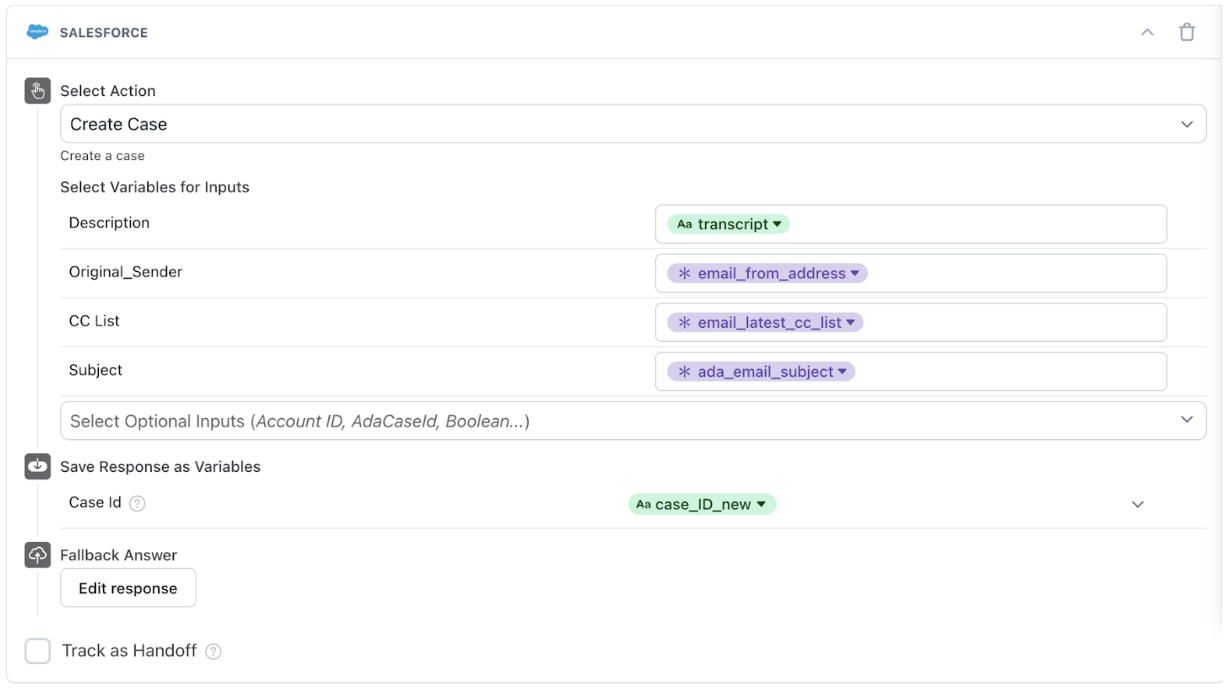
Salesforce
- Map
email_from_addressto the existing Email Address field. - Map
email_latest_CC_listto the field representing the CC participant list on the case (e.g., CC List). You may need to create that field in Salesforce if you don’t already have one.
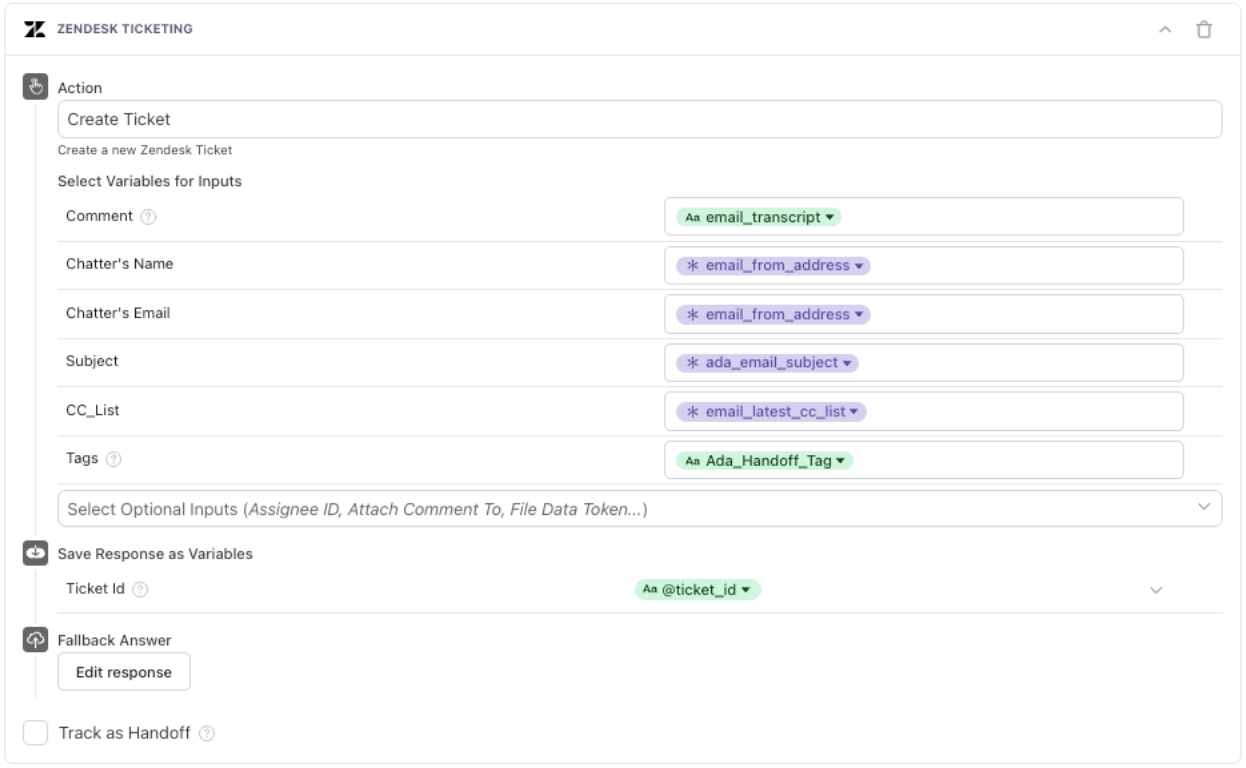
Zendesk Ticketing
- Map
email_from_addressto the Chatter’s Email field. - Add the Email CCs input field and map
email_latest_CC_listto it. This passes CC’d recipients directly into the ticket without requiring a custom field.
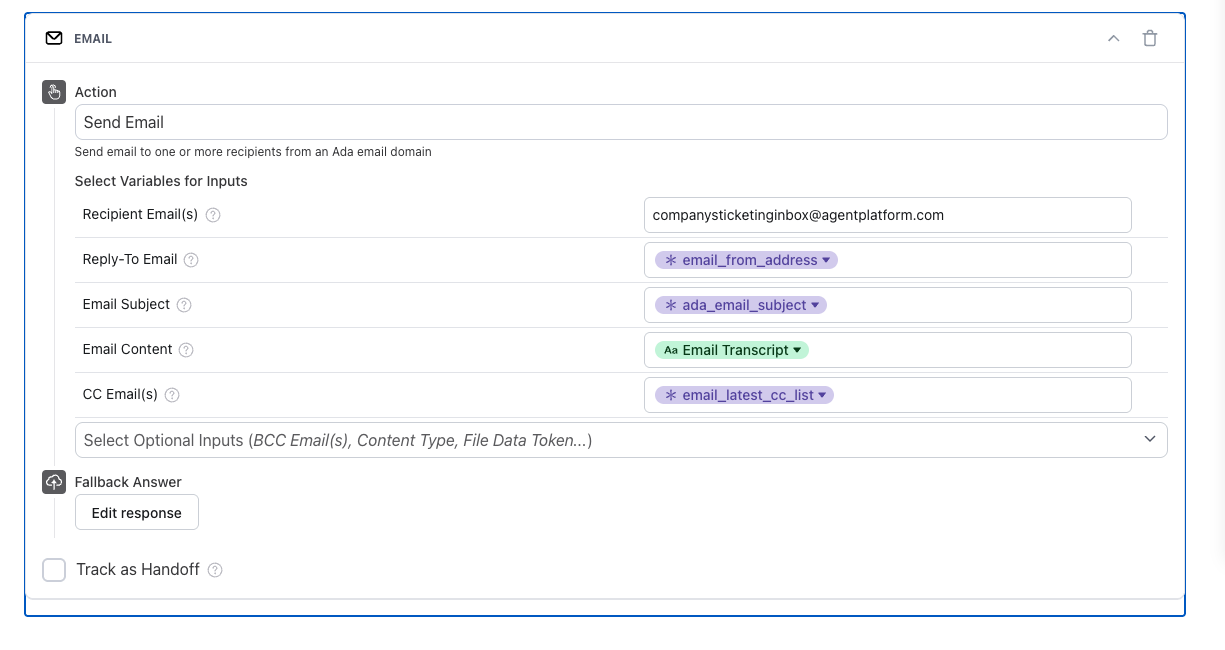
Other platforms / Email App block
- Map
email_from_addressto the Reply-To Email field so that the end user appears as the sender in the ticket. - Map
email_latest_CC_listto the CC Email(s) field so that all current To and CC recipients are included in the ticket and automatically receive replies.
- Map
-
Ensure human agents can reply to all participants.
Salesforce
Set up an automation to populate the To and CC fields on the case using the custom fields. This allows agents to reply to all participants without manual copying.
-
In Salesforce, go to the Object Manager for the Case object.
-
In the left navigation, select Buttons, Links, and Actions, then click the Email action.

-
In the Email action screen, scroll to the Predefined Field Values section. Next, add two new predefined field mappings—one for the CC Address field and one for the To Address field on the case.

Here’s an example of what those field mappings might look like:


Zendesk Ticketing
When using the Email CCs input field with the
email_latest_CC_listvariable, CC’d participants are automatically included on the ticket and will receive replies from human agents—no manual copy-paste required.Other platforms / Email App block
If the platform respects standard email headers, it will automatically display the sender and CC’d participants in the ticket, and agent replies will include everyone—no mapping or custom fields required. Ada simply passes the data via the outbound email itself.
-
Without this setup, replies will only go to the requester, not the full participant list.
Platform summary
Best practices
Follow these recommendations when working with multiple participant conversations.
Restricting sensitive flows
When the AI Agent engages in conversations with multiple participants, anything it says or collects is visible to everyone in the thread. If the Agent asks for private or sensitive details—like account numbers, refund reasons, or authentication—restrict those flows to single-participant conversations.
Gate the applicable Actions, Processes, or Knowledge so they are only available when there is a single participant.
To restrict sensitive flows, use has_multiple_participants:
Where has_multiple_participants is NOT TRUE
or
Where has_multiple_participants is FALSE
This ensures sensitive actions are only triggered when there’s a single participant on the thread.
Handoff recommendations
- Always pass
email_from_addressto represent the requester - Include
email_latest_CC_listif your platform supports CCs - Use
has_multiple_participantsto prevent sensitive flows - Avoid using sensitive content (like account data, refunds, or personal questions) in threads with multiple participants
- Only the Zendesk Support block passes the latest list of participants automatically into the ticket.
- If you’re using the Zendesk Ticketing block, Salesforce Case block, or Email App block, configure the
email_latest_CC_listvariable manually in your handoff block by creating a custom field in your agent platform.
Related features
Explore additional Email configuration and related options.
- Email configuration: Activate and configure your Email channel.
- Email handoffs: Configure how your AI Agent escalates conversations to human agents.
- Conversations: View and manage AI Agent conversations.
- Actions: Create automated actions for your AI Agent.
- Processes: Build guided conversation flows.
- Knowledge: Add content for your AI Agent to reference.