

Zendesk SMTP Connector
Overview
The SMTP Connector is a configuration in your Ada dashboard that connects Ada directly to Zendesk via SMTP. This integration gives Ada visibility into Zendesk’s inbound and outbound email traffic, allowing both your AI Agent and human agents to send emails from the same support email address.
With the SMTP Connector enabled, conversations that begin in Ada—whether through Messaging or Email—and escalate to Zendesk via Handoff can continue seamlessly over Email using the same shared support address. This ensures that human agents can reply to escalated conversations or send proactive messages from Zendesk without triggering any AI Agent interjections or confusion.
For AI Agents configured with multiple email channels, SMTP credentials are scoped per BYOD domain. Inboxes that share a domain share the same SMTP configuration; each new BYOD domain requires its own setup. SMTP settings are surfaced on each inbox’s Channel Settings page.
For a full list of supported use cases and scenarios, visit the Use cases section.
Before setting up the SMTP Connector, review the prerequisites to ensure your configuration meets all requirements.
Use cases
With the SMTP Connector enabled, human and AI Agents can use the same shared support address across:
- Email Handoffs via the Zendesk Support block
To use the Zendesk Support block with the SMTP connector integration you will need to update your Zendesk triggers to avoid sending duplicate emails to end users. See step 3 for instructions.
- Email Handoffs via the Zendesk Ticketing block
With the SMTP Connector configured, human agent replies to escalated email conversations can continue in the same email thread as the original end-user conversation. This ensures a more consistent experience for end users and reduces confusion caused by broken or split threads.
- Messaging Handoffs via Zendesk Messaging (ZDM) that continue over email
This is a channel switch made by human agents in the Zendesk agent platform when replying to the ticket.
- Messaging Handoffs via the Zendesk Ticketing block that continue over email
- Proactive emails sent from Zendesk to end users without Ada involvement
When this connection is active, Ada will not interject or reply to end-user messages that belong to Zendesk-originating threads.
Capabilities & configuration
The SMTP Connector provides the following Handoff capabilities:
- Use a single shared support email address for both human agents and your AI Agent
- Escalations that start on Ada’s Messaging channel can switch to continue over email using the same support email address set up with your Email AI Agent (via BYOD)
- Human agents can start new conversations with end users from Zendesk using the same support email address used by the Email AI Agent
This connector is required if you have implemented the Email channel (and/or other channels) and want your human agents to use the same support email address configured for your AI Agent (BYOD).
Quick start
Complete these steps to configure the SMTP Connector. See Implementation & usage for detailed instructions.
Start configuring the SMTP Connector
Go to Config > CHANNELS > Email, click the relevant email address, scroll to the bottom of the email customization page, and click Configure in the Zendesk SMTP Connector section.
Exchange credentials between Ada and Zendesk
Follow the prompts in the modal to add your BYOD domain to Zendesk, copy Zendesk credentials to Ada, and add Ada credentials to Zendesk.
Implementation & usage
Configure the SMTP Connector to enable Handoffs that share a support email address between your AI Agent and human agents.
Prerequisites
Before you begin, ensure that:
- Email is enabled in your Ada AI Agent instance
- Your BYOD email address is configured in the Ada Dashboard
The option to configure the SMTP Connector only appears on the Handoff Integrations page in the dashboard when the Email Channel is activated in your instance.
Setup recommendations
Review these recommendations based on your current implementation stage.
If your AI Agent is already using the Zendesk Support block for Email
If your AI Agent currently uses the Zendesk Support block for Email to let human agents reply to escalations from the same BYOD address configured with your Email AI Agent, you may not need to configure the SMTP Connector.
Only proceed with SMTP Connector setup if you:
- Need messaging escalations to continue over email using the same shared support Address
OR
- Want human agents to send or reply to emails directly from Zendesk using that shared address.
If your Email AI Agent is already live with end users and handling conversations
- Complete the SMTP setup during low-volume hours (when you typically receive few escalations) to ensure a smooth transition for human agents using the shared BYOD address.
- You do not need to disable your existing forwarding rules that route end-user inquiries to your Email AI Agent.
If your Email AI Agent is mid-implementation
If you want to set up the SMTP Connector but aren’t ready for your AI Agent to handle production traffic, use Launch Controls to route all email traffic to your Zendesk instance while you complete and verify the SMTP configuration.
The Inbound SMTP verification in Step 2f requires your forwarding rules to already be in place, so it can’t be completed before forwarding is configured. To verify the SMTP connection without exposing end users to your AI Agent, direct traffic to Zendesk with Launch Controls first:
- Configure Launch Controls to direct 100% of your traffic to your Zendesk instance before you configure mail forwarding. All emails continue to route to Zendesk while inbound SMTP verification proceeds.
- Verify the SMTP connection by completing the inbound verification in Step 2f.
- Finish your implementation.
- Remove the Launch Controls once you’re ready for your AI Agent to handle production traffic.
Because Launch Controls keep directing all traffic to Zendesk, end users continue to be served by your Zendesk instance throughout setup—no end-user inquiries reach your AI Agent until you remove the Launch Controls.
Configuration steps
Complete the following steps to configure the SMTP Connector.
Start configuring the SMTP Connector
On the Ada dashboard, go to Config > CHANNELS > Email, click the relevant email address, and scroll to the bottom of the email customization page. In the Zendesk SMTP Connector section, click Configure.
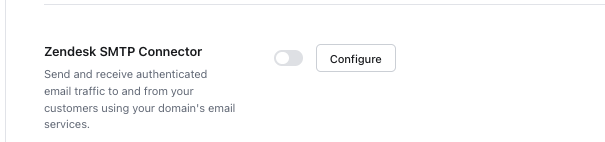
When you click Configure, a modal will pop up in the Ada dashboard, guiding you through the configuration process.
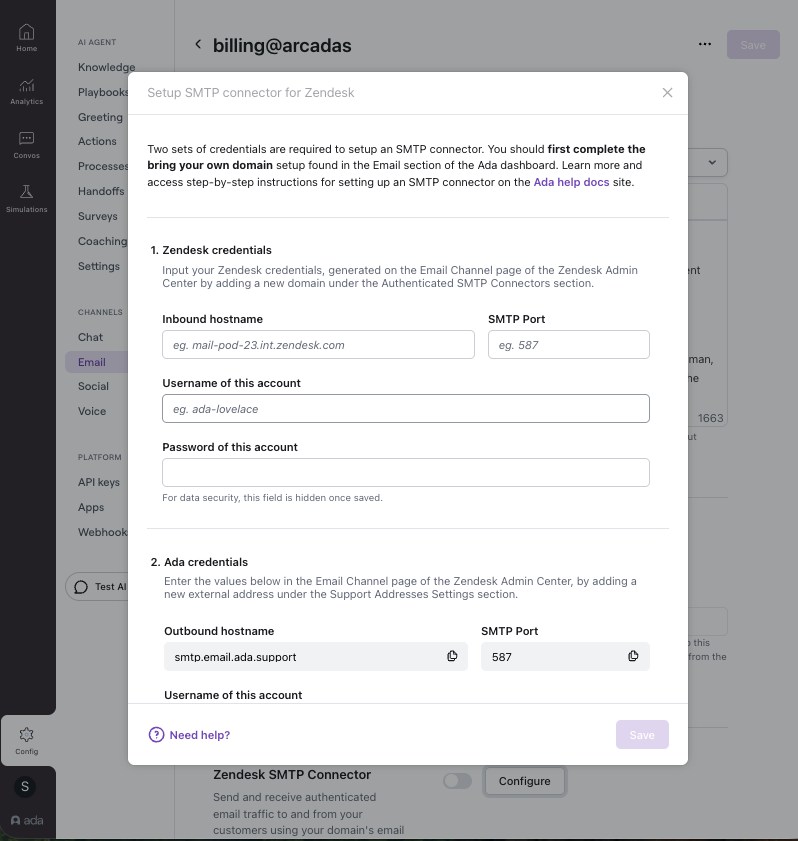
Follow the prompts in the modal
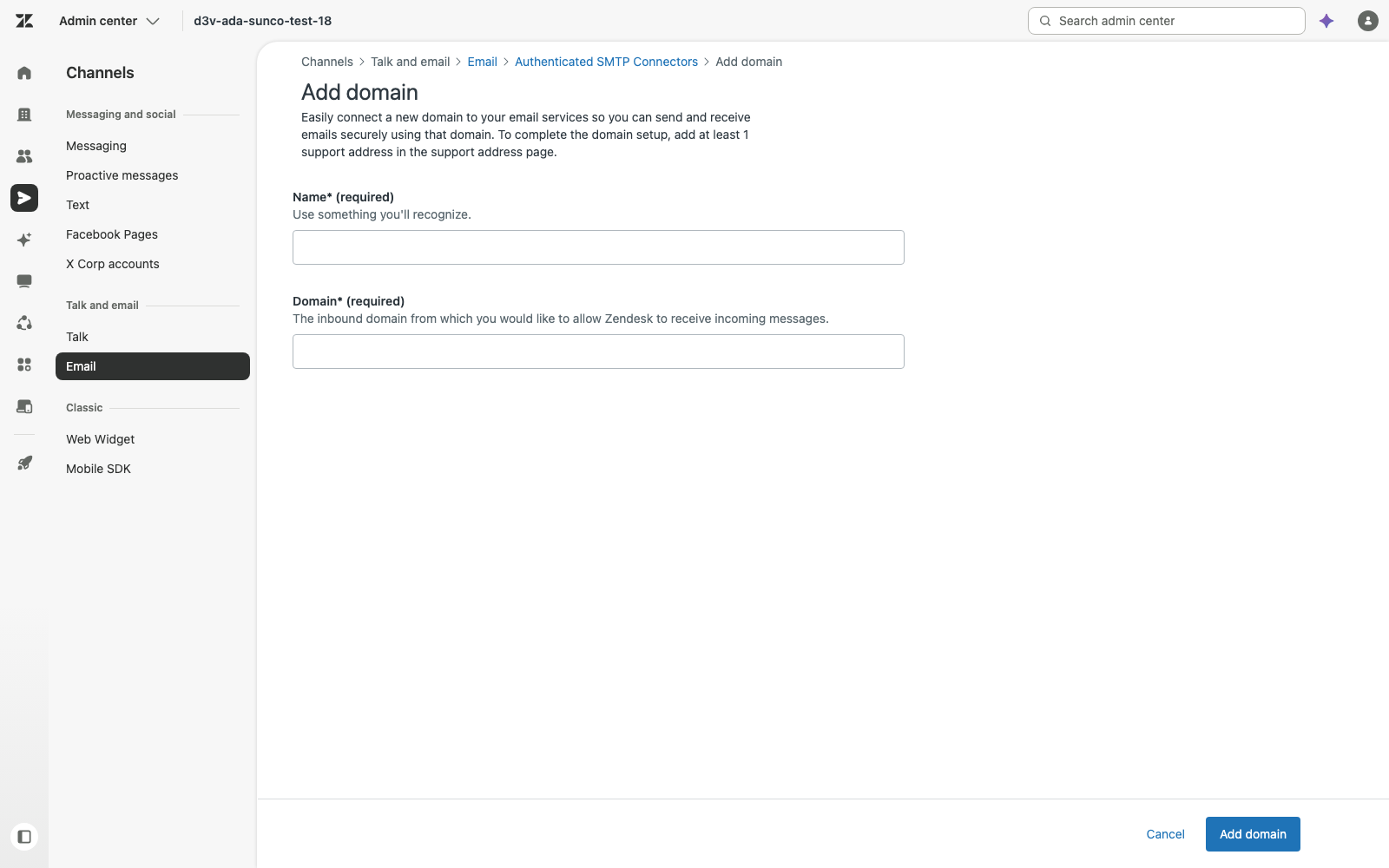
a. In Zendesk, go to Admin Center > Channels > Email, and in the Authenticated SMTP Connectors section, click Edit Authenticated SMTP Connectors. Click Add domain, enter a name and the BYO Domain that you’ve used for the BYOD address in the Ada dashboard, then click Add domain to save.
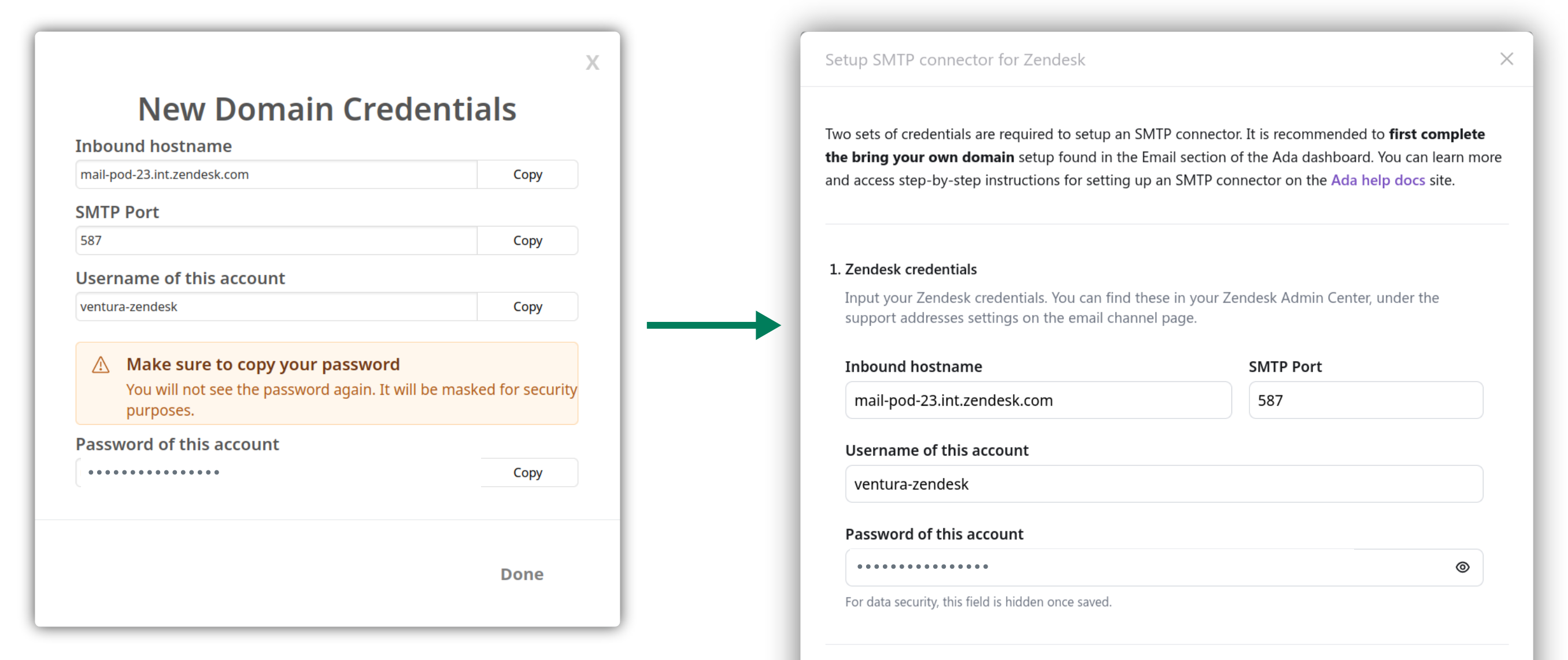
b. Copy the credentials that appear after you add the domain in Zendesk into the first section of the Ada modal called Zendesk credentials, to match the corresponding fields.
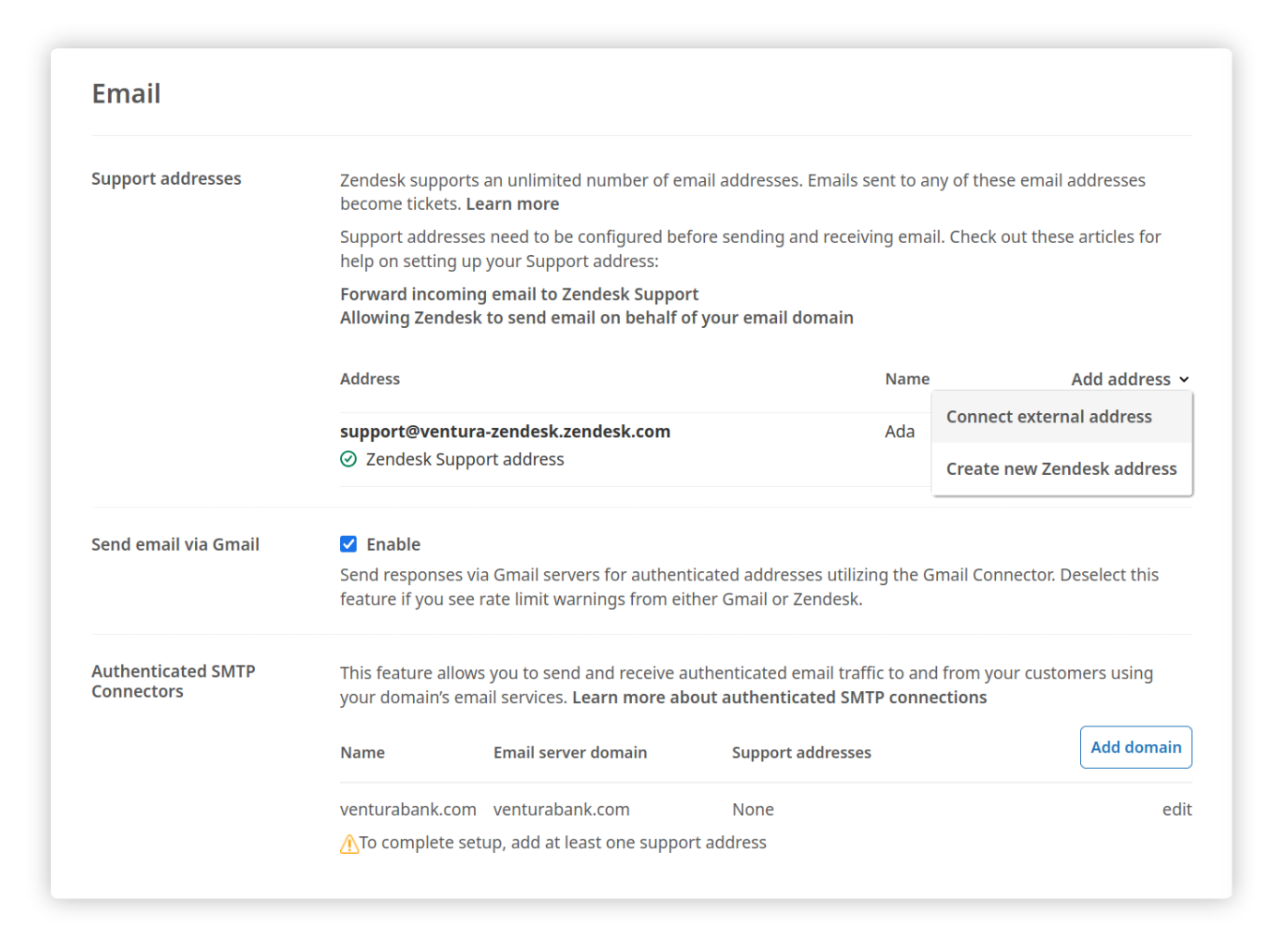
You are now ready to move on to the second section of the pop-up modal to finalize your SMTP Connector set up. Keep your Zendesk Admin Console open on the Email Channel page as you proceed. c. In the Zendesk Admin Console, select the option to connect an external address from the Support addresses section.
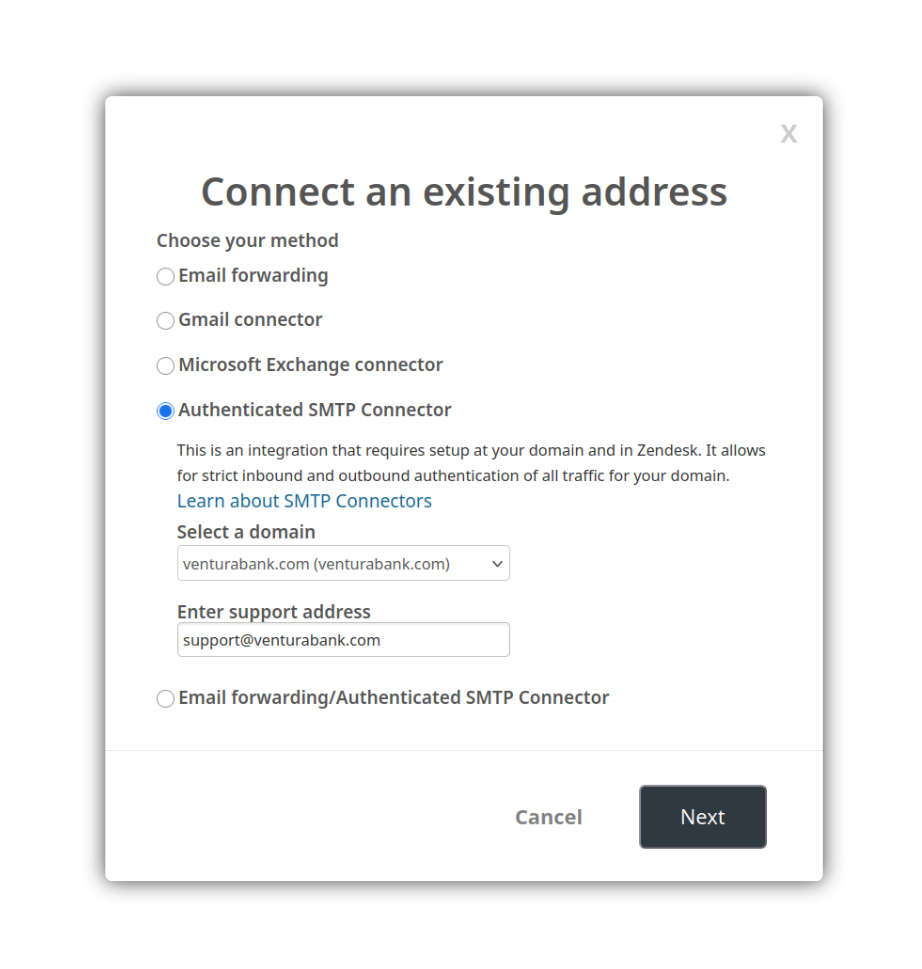
d. Select the Authenticated SMTP Connector option from the list, and choose the domain you set up in Step 2a.
Then, click Next, and return to the Ada pop-up modal, section 2.
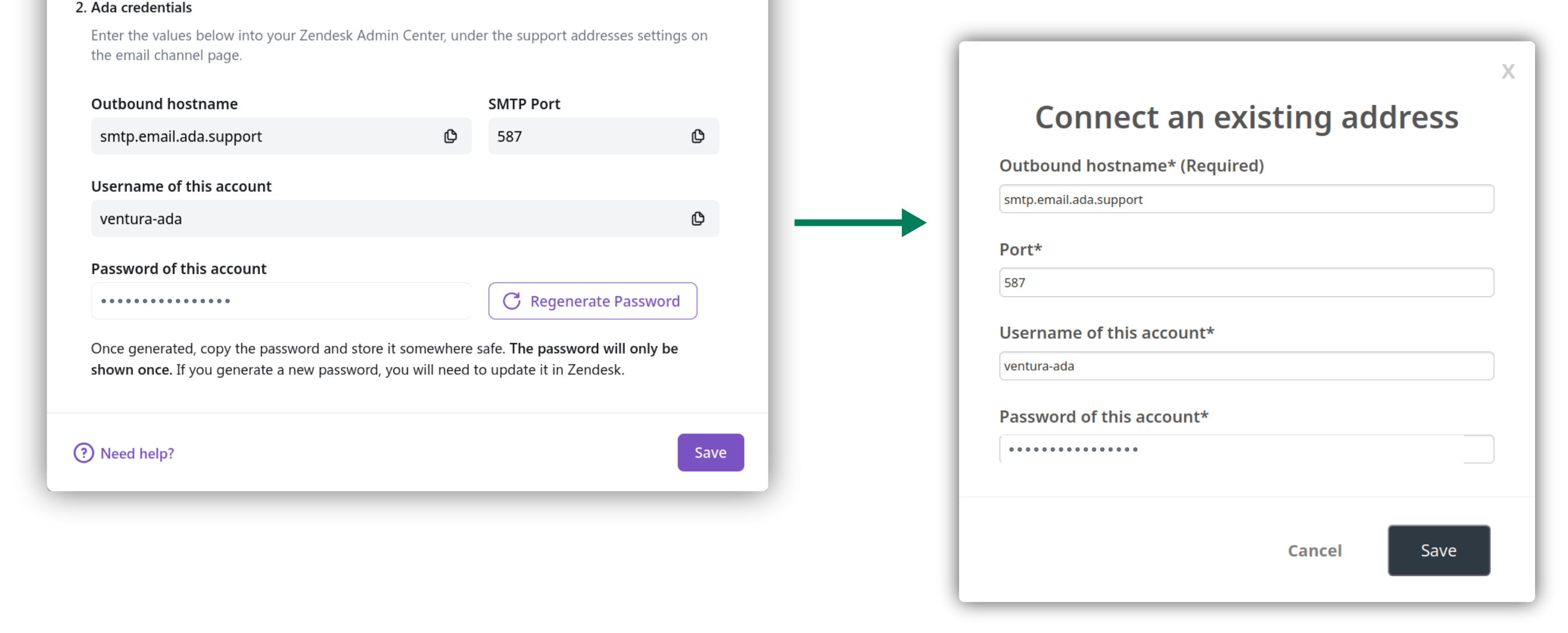
e. Add the corresponding Ada credentials provided in the Ada pop-up modal, into the Connect an existing address pop up in Zendesk. Click Save on both pop up modals.
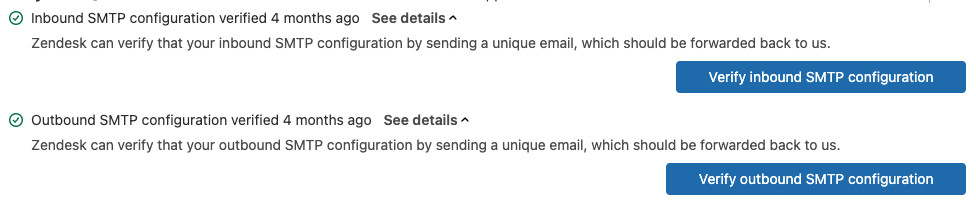
f. Click the verify buttons that appear for both the Inbound and SMTP configuration options.
(Optional) Tag Handoff block and update Zendesk trigger
- In the Ada dashboard, add a static tag
your_tag_namei.e.ada_email_handoffto the Zendesk Support block used in your Email Handoff flow. - In the Zendesk admin console, modify your Notify Requestor and CC’s of comment update trigger:
- In the Conditions section, add the above static tag to the rule (Ticket > Tags contains none of the following
your_tag_name). - In the Actions section, update the action email body to
{{ticket.latest_public_comment_html}}.
- In the Conditions section, add the above static tag to the rule (Ticket > Tags contains none of the following
Set Zendesk default support address to match your shared AI Agent / Human Agent email
In Zendesk, navigate to Admin Center > Channels > Email, and set your default support address to the same email address that you’ve configured for your AI Agent in Ada (your BYOD address).
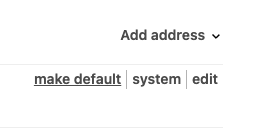
Zendesk uses this default address for all outgoing emails from human agents. Ensuring it matches your SMTP Connector configuration allows your human agents to reply to handed off conversations using the same support email address as your AI Agent. To learn more about default addresses in Zendesk read here.
Configure SMTP for additional BYOD domains
Each BYOD domain on your AI Agent maintains its own SMTP Connector configuration.
To configure SMTP for an additional BYOD domain:
- Go to Config > CHANNELS > Email and select any inbox on the new domain.
- Open the Zendesk SMTP Connector section in the channel’s settings.
- Repeat the configuration flow above, providing credentials for that domain.
Inboxes that share an already-configured BYOD domain auto-fill the existing SMTP credentials — no re-entry needed. Toggling SMTP off on one inbox affects all inboxes on the same domain, since the configuration is shared per domain.
Best practices
Recommendations for verifying and managing your SMTP Connector configuration.
Verify SMTP Connector
After you’ve completed the configuration steps:
- Both Inbound & Outbound SMTP configurations should have a green check mark. (It can take a couple minutes and webpage refreshes).
- Test all your Handoff scenarios where the human agent is replying to an Ada Handoff via email:
- The human agent’s reply should be sent from the BYOD address you configured with the SMTP connector set up (should be the same email address configured with your Email AI agent).
- End user replies should update as a comment in the Zendesk ticket created by the Handoff.
- AI Agent should not intervene in the conversation between end user and human agent.
- Test a proactive email scenario, where the human agent creates a new ticket to send an email to an end user:
- End user should receive a new email from the support email address now associated with both the AI agent and human agent.
- End user replies should update as a comment on the Zendesk ticket.
- The AI Agent should not reply back to the end user.
Default address considerations
Understand how Zendesk’s default support address affects your SMTP Connector configuration.
What is the default support address in Zendesk?
Zendesk designates a default support address for all outgoing emails. This is the address that appears in the From field when agents reply to end users. For example, if your default address in Zendesk is support@yourcompany.com, Zendesk will use this address for all outbound replies from your agents.
Aligning your Zendesk default address with SMTP Connector settings
When configuring the SMTP Connector, ensure that your default support address in Zendesk is set to the same email address you want to share between your AI Agent and human Agents (your BYOD email).
Why it matters
If the default Zendesk address doesn’t match the address configured in your SMTP Connector, your Human Agent’s replies may:
- Fail to send correctly OR
- Appear to come from the wrong email address
Disable the connector
In the event you need to turn off or discontinue the use of the SMTP Connector, take the following steps:
-
In Zendesk’s dashboard, delete the address and domain connected to Ada’s SMTP Connector.
-
In Ada’s dashboard, go to Config > CHANNELS > Email, select an inbox on the BYOD domain whose SMTP configuration you want to disable, and toggle the Zendesk SMTP Connector off in the channel’s settings. With this toggle disabled, Ada will not forward messages from inboxes on this domain to Zendesk over SMTP, and the AI Agent will reply using the existing Handoff mechanisms. Repeat for each BYOD domain you want to disable.
Forwarding
Forwarding is still required in order for Ada to be able to receive the emails that your end users send to the BYOD address. Forwarding does not need to be turned off for you to be able to configure the SMTP Connector.
FAQs
Common questions about the SMTP Connector.
Do I need to update my Zendesk triggers?
You will need to update your Zendesk triggers only if you’re using the Zendesk Support block. You’ll need to update your Notify Requestor and CC’s of comment update trigger in Zendesk to avoid sending duplicate emails to end users. See instructions in step 3.
What credentials are required to set up the SMTP Connector?
- In Ada: Your Zendesk SMTP credentials (server, port, and authentication details).
- In Zendesk: Your Ada SMTP credentials (provided in the dashboard during setup).
What’s the threading experience my end user has on the Email channel when I configure the SMTP Connector, does it change?
The email threading experience your end user has is dependent on the Handoff block you have configured. You can find more information on this here. SMTP connector just allows your human agents to be able to use the same support email address as your AI agent.
What if I use the Zendesk Ticketing or Messaging block instead of the Zendesk Support block?
You can still use the SMTP Connector. It is compatible with all three Handoff blocks: the Zendesk Ticketing block, Zendesk Messaging Block, and Zendesk Support block.
Can human agents start new conversations over email from the same address?
Yes. When the SMTP connector is configured, human agents can send proactive emails directly from Zendesk, and Ada will not respond to subsequent end user replies.
Why don’t I see the SMTP Connector integration on my Handoffs Integrations page?
First, confirm that Email is activated in your instance (instructions). With per-domain SMTP configuration, the Zendesk SMTP Connector lives on each email channel’s settings page rather than on the global Handoff Integrations page. Go to Config > CHANNELS > Email, select an inbox, and look for the Zendesk SMTP Connector section at the bottom of the email customization page.