

Glossary
Overview
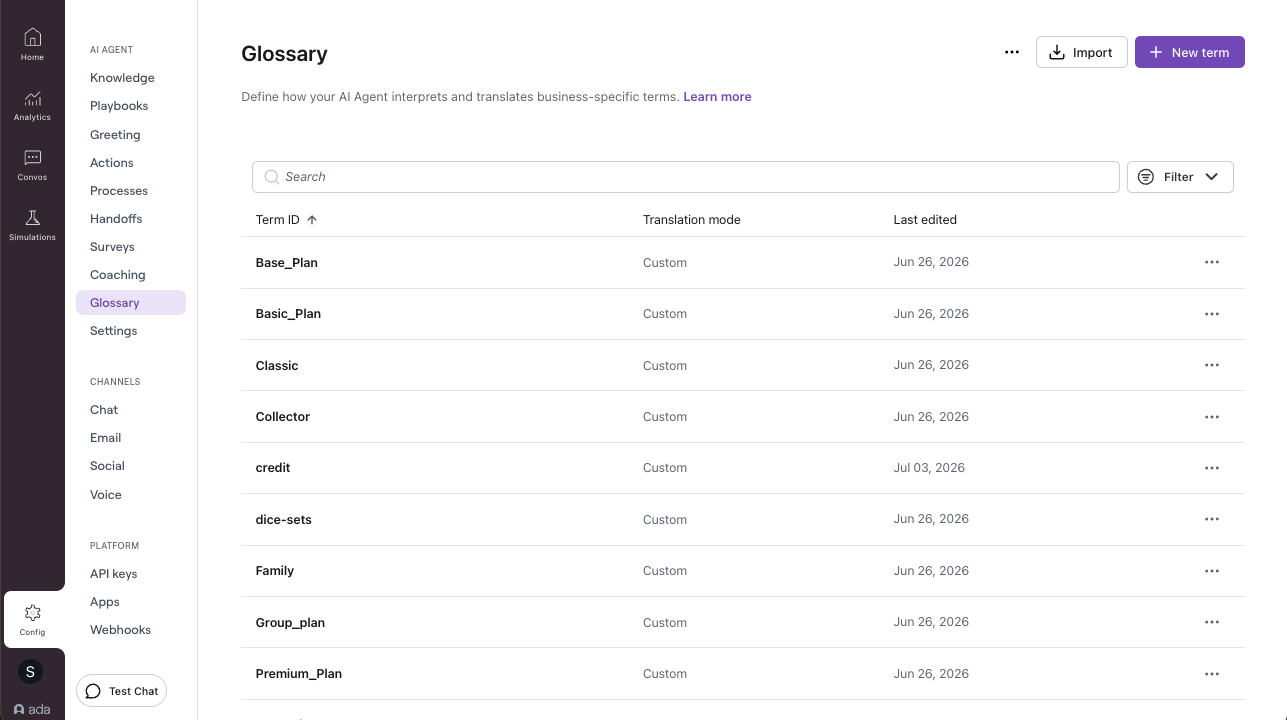
Glossary lets you teach your AI Agent your business’s vocabulary. When an end user uses one of your defined terms, the AI Agent is guided to use your preferred wording — both in its reply and when it looks up available entities like Playbooks and Knowledge articles. Your AI Agent terms are also always on. Whenever an answer draws on knowledge content related to a term, the Agent is guided to use your wording, even if the end user never used the term. It works across every language you support, and just as well within a single language (for example, guiding the AI Agent to respond with “top up” when an end user says “add money”).
You can also attach a plain-language definition to a term to give the AI Agent business context — helping it disambiguate terms, understand internal naming, and respond accurately.
How it works
Glossary matches terms every turn, from two directions:
- From the end user’s message: when the message contains a User term you’ve defined, the AI Agent is guided to use your corresponding AI Agent term. A language can hold several User terms for one entry. See User term aliases.
- From knowledge content, always on: when the answer draws on knowledge content related to one of your AI Agent terms, the Agent is guided to use that term even though the end user never used a User term. See Always-on AI Agent terms.
- Two effects: when a term matches, the AI Agent is guided to use your wording both in its reply and in what it looks up — Playbooks, Knowledge articles, and other entities — including content written in another language.
- Playbooks output: when a Playbook sends an AI-generated (“dynamic”) message to the end user, that output is shaped by the glossary too. Scripted or quoted Playbook content is not, and Playbooks (Classic) output isn’t eligible — see When not to use Glossary.
- Definitions add context: if a matched term has a definition, that business context is given to the AI Agent to shape its reply and its lookups, and to distinguish between terms that could mean more than one thing.
- Availability rules gate a term: if a term has an availability rule, it only takes effect when that rule matches the current conversation. A term whose rule doesn’t match is skipped entirely that turn — as if it weren’t defined.
- A strong nudge, not a hard override: the AI Agent is guided toward your wording but still chooses the final phrasing naturally (the reply might not require your term to be used).
Use cases
Glossary helps in a few common situations:
- Preferred wording: map what end users say to the wording you want back — across languages (e.g. an end user’s “add money” or “alimentation” maps to “top up” and “rechargement” respectively).
- Brand and product names: keep names consistent and untranslated. The most valuable use is normalizing casual or non-official wording back to the official term (for example, “basic plan” → “classic plan”).
- Aliases for one concept: end users rarely stick to one name for a product (“UDM-Pro”, “UDM Pro”, “UDMP”). List every phrasing as User terms on a single entry, all mapping to the same AI Agent term.
- Multilingual recognition and retrieval: capture the different ways end users say a term across languages, all mapped to your wording.
- On-brand answers, however the question is asked: when an answer draws on knowledge content related to a term, the AI Agent uses your wording even if the end user never used one of your User terms.
- Business definitions: attach a definition to give the AI Agent context it
can’t get from wording alone —
- Disambiguation: clarify a term that has more than one meaning (for example, “credit” as referral credit versus a gift card).
- Private or transitional context: supply context that doesn’t belong in public content, such as an old brand name still used by end users following a rebrand.
- Correcting a misleading framing: override a term whose common meaning conflicts with how your business uses it (for example, a “Family Plan” that has no child-specific benefits).
- Voice accuracy: flag important terms so speech-to-text is more likely to recognize them in Voice conversations.
Capabilities & configuration
-
Two translation modes:
- Custom — you define the User term (what end users say) and the AI Agent response term (what the AI Agent replies with) per language.
- Default — the AI Agent keeps its native translation of the term; use it to attach a business definition and/or flag the term for voice detection. A Default term must have a definition or voice detection enabled.
-
Definitions: attach a short, plain-language definition (up to 1,000 characters) to a term in either mode. The AI Agent treats it as the authoritative meaning of the term, using it to shape replies and lookups and to disambiguate. Definitions are context, not commands.
Examples:
- Rename — reassure the end user that an old and new name are the same thing: “The Family Plan was previously sold as the ‘Group plan’ and was renamed in 2025. It is the same plan. When a customer refers to the ‘group plan,’ confirm it is now called the Family Plan so they know they’re in the right place.”
- Disambiguation — one word with more than one meaning; the definition tells the AI Agent how to choose: “‘Credit’ has two meanings: (1) referral credit — earned by referring friends, applied automatically to the next invoice, no code or action needed; (2) gift card / store credit — redeemed by entering a code at abc.ca/redeem. If the customer mentions a code or gift card, treat as gift card; otherwise default to referral credit and briefly note both.”
-
Per-language terms: a term spans as many languages as you need. Each language can hold several User terms (up to 20) mapping to that language’s single AI Agent response term. In the dashboard, User terms are grouped in a card per language, and AI Agent response terms take one row per language. In a bulk CSV, a single row holds the whole term across languages: semicolon-separated User terms in each
user_term:<lang>cell, and oneai_agent_term:<lang>value per language (see the template). -
Always-on AI Agent terms: AI Agent terms apply whenever the answer draws on related knowledge content, even when nothing in the end user’s message matches a User term. There is no setting to configure (see Always-on AI Agent terms).
-
Availability rules: restrict a term to specific end users based on variable conditions — the same rules engine used for Knowledge articles. A term with an availability rule is only considered when the rule matches the current conversation; a term with no rule is always available. Set a rule per term in the create/edit modal, or apply one to several terms at once with multi-select.
-
Voice detection: turn on per term to improve speech-to-text accuracy in Voice conversations. Available on any term regardless of translation mode, but only when your AI Agent has the Voice channel configured — if Voice isn’t set up, the voice detection option is hidden and terms can’t be voice-enabled. Up to 30 terms per AI Agent can have voice detection on.
-
Voice vocabulary in Glossary: voice key terms are managed here in Glossary. The AI Agent’s former Vocabulary tab no longer lists terms — it links to the Glossary tab, where you manage them with the Voice detection setting.
-
Manage with MCP: list, create, and update glossary terms through Ada’s MCP server, and run a guided conflict audit against the rest of your configuration (see Manage and audit with MCP).
-
Import and export (CSV): bulk-create or update terms by importing a CSV, and export your full glossary to CSV from the three vertical dots menu beside the Import button. That menu also offers Download template — an empty CSV with a
user_term:<language>andai_agent_term:<language>column for each language your AI Agent has enabled — to start a fresh import from. -
Delete all: clear every term at once from that same three vertical dots menu — useful for starting over from a fresh import.
-
Search, filter, and sort: search by Term ID (aka “external_id” from the CSV), User terms, AI Agent terms, and definitions; filter by language and availability; and sort by when they were last edited and Term ID.
-
See usage in conversations: the conversation transcript shows which terms the AI Agent applied in a turn, and a Glossary term filter finds conversations where a term was used (see Visibility in Conversations).
-
Limits: up to 5,000 terms per AI Agent (across all channels); up to 20 User terms per language on a term; Term IDs and terms up to 100 characters; definitions up to 1,000 characters; CSV uploads up to 4 MB; voice detection on up to 30 terms.
Preferred wording, definitions, or both
Glossary has two levers, and they don’t compete. Preferred wording changes
the word the AI Agent uses and searches with (a Custom term’s user_term →
ai_agent_term). A definition changes what the AI Agent understands a term
to mean. Which one to reach for depends on what’s wrong:
- Preferred wording alone — the word is off, but the meaning is clear. Use it for translations, brand and product preservation, or normalizing a casual or outdated name to the official one.
- A definition alone — the word is fine, but the AI Agent is missing context. Use it for a term with more than one meaning (for example, “credit” could refer to store credit and gift card ‘credit’), or a term whose public description could steer the Agent the wrong way.
- Both together — the word is off and context is needed. For a rebrand, map the old name to the current one to fix the word, and add a definition such as “renamed last year, same plan” so the AI Agent acknowledges the rename instead of silently swapping the word.
Always-on AI Agent terms
Your AI Agent terms apply in every answer that draws on related knowledge content. The end user’s message doesn’t need to contain a User term. There is nothing to turn on; it’s part of how Glossary works.
When the AI Agent retrieves knowledge content to answer, Glossary also checks that content for your AI Agent terms (and for Default-mode terms with a definition). Matched terms and their definitions guide the reply. The Agent answers in your terminology no matter how the question was phrased. The end user’s conversation language is always included in the match, so an answer drawn from English-only articles still surfaces your wording in a non-English reply. Matching ignores trademark symbols like ™ and ®.
Because matching runs against knowledge content, your articles are the signal:
- Align your articles with your AI Agent terms. Content that uses your preferred terminology gives the strongest signal. If a term isn’t applied consistently, updating the related articles to use it is the highest-leverage fix.
- Serving several languages with mostly-English content? Give every term an English AI Agent term (it doesn’t need a matching User term). The English term is what connects non-English conversations to the right wording.
- A term that appears nowhere in your knowledge content isn’t applied this way. User terms and aliases still cover the input side. Add them for wording your content doesn’t mention.
As everywhere in Glossary, matched terms guide the reply; they don’t mechanically rewrite it. Turns whose answers don’t draw on knowledge content are unaffected.
User term aliases
End users rarely stick to one name for a product or policy. A language can hold several User terms, all mapping to that entry’s single AI Agent response term. List every phrasing you can predict. For example, one entry can list “Apple gift card”, “iTunes card”, and “App Store card” as English User terms that all resolve to “Apple gift card”.
Aliases keep one concept on one entry: a single Term ID, definition, and availability rule to maintain, instead of a duplicate row per phrasing.
- In the dashboard, each language is a card in the User terms section. Click Add term to list more phrasings, up to 20 per language.
- In a CSV, separate the terms in a
user_term:<language>cell with semicolons (see Import terms from a CSV). - AI Agent response terms are unchanged: one per language. A User term
can’t contain a semicolon, because
;separates terms in the CSV.
Implementation & usage
Create a term
To create a term:
- Go to Config > AI Agent > Glossary, then click New term.
- Enter a Term ID — a unique identifier (letters, numbers, hyphens, and underscores; no spaces). Use it to update or remove the term later.
- (Optional for Custom, required for Default unless voice detection is on) Add a definition — a short, plain-language description of what the term means in your business.
- Choose a translation mode:
- Custom — to map what end users say to your preferred wording.
- Default — to keep the AI Agent’s native translation and add a business definition and/or voice detection.
- For a Custom term, in the User terms section, add a language and enter the words or phrases end users use. Click Add term to list every phrasing (up to 20 per language; a User term can’t contain a semicolon).
- In the AI Agent response terms section, enter the wording the AI Agent should reply with, one per language. Across the two sections you must provide at least one User term and at least one AI Agent response term. Languages can be asymmetric, such as User terms in one language and the response term in another.
- (Optional) In the Availability section, add an availability rule to limit the term to specific end users (see Restrict term availability).
- (Optional) Turn on Voice detection enabled to improve speech-to-text accuracy for this term in Voice conversations. This option only appears when your AI Agent has the Voice channel configured.
- Click Create.
To preserve a brand or product name that is currently not being preserved (test first), use the same AI Agent term across all languages and the relevant variable User terms (i.e. “forfait de base” and “base plan” → “Classic Plan”).
If end users say it several ways in the same language, add each phrasing as a User term on the same entry. They all map to that entry’s AI Agent response term (see User term aliases).
Import terms from a CSV
Import treats your CSV as the single source of truth for the glossary: it replaces the current glossary with exactly the rows in your file. Each row is matched to an existing term by Term ID — a matching ID updates that term, a new ID creates one, and any term that isn’t in the CSV is deleted. After a successful import, the dashboard confirms the result (for example, “12 terms imported, 3 deleted”).
Import is a full replace, not a merge. Uploading a partial file removes every term that file leaves out. To make edits, export the current glossary first, change that CSV, and re-import the complete file.
To import terms:
- On the Glossary page, click Import and choose your CSV file.
- The file is validated on upload. Validation is all-or-nothing: if any row has an error, the whole file is rejected and nothing is imported (your existing glossary is left unchanged).
- The dashboard lists the rows to fix, with row numbers. For long lists, download the error log, correct the rows, and import the file again.
Your CSV uses these columns: external_id, translation_mode (custom or
default), user_term:<language> and ai_agent_term:<language> (for example,
user_term:en, ai_agent_term:fr), definition, and voice_detection_enabled.
Any columns that aren’t recognized are ignored on import.
A user_term:<language> cell can hold several User terms separated by
semicolons, up to 20 per language (see User term aliases).
For example: apple gift card;iTunes card;App Store card. Each term is
trimmed. Empty entries and exact duplicates within a cell are dropped on
import. Because ; separates terms, a User term itself can’t contain one. An
ai_agent_term:<language> cell still holds exactly one term.
Start from a template. On the Glossary page, open the three vertical dots
menu beside the Import button and choose Download template to get an empty
CSV — headers only — with a user_term:<language> and ai_agent_term:<language>
column for each language your AI Agent has enabled. It’s available even before you
add any terms, so you can fill it in and import (empty columns will be dropped).
You can also download a static example template with sample custom rows to
replace:
Export your glossary
On the Glossary page, open the three vertical dots menu beside the Import button (top right) and click Export to download your full glossary as a CSV file. A language’s User terms export semicolon-separated, in the same format import accepts. Exporting, editing, and re-importing a glossary preserves aliases.
Edit or delete a term
On the Glossary page, find the term — search by Term ID, User term, AI Agent term, or definition, or filter for specific column values. Click the row (or use its three vertical dots row menu) to edit it, or choose Delete from that row menu to remove it.
Restrict term availability
By default a term is always available. Add an availability rule to limit a term to specific end users based on variable values — the same rule builder used for Knowledge articles. A term whose rule doesn’t match the current conversation is skipped that turn, as if it weren’t defined.
You can only use variables your AI Agent can collect through your browser, or that you collect in a block and allow to be available outside that block. You can’t use variables your AI Agent collects using Actions.
To set a rule on a single term: open the term in the create/edit modal, and in the Availability section choose Based on the following rules. Add one or more conditions (a variable, an operator, and a value), then save. See Restrict article availability for the full operator list.
To set a rule on several terms at once: select the terms with the row check boxes, click Set availability, define the rule, and save. The rule replaces any existing rule on each selected term.
To see which terms a rule affects, filter the glossary list by Availability. Choose Is or Is Not and a value. It’s the same filter used for Knowledge articles.
Delete all terms
To clear the entire glossary at once, open the three vertical dots menu at the top beside the Import button and choose Delete all terms, then confirm. This removes every term and can’t be undone, so export a backup first if you might need it.
Visibility in Conversations
Glossary usage is visible directly in the Conversation View. When the AI Agent applies glossary terms in a turn, the transcript records which terms it used, and you can filter conversations by glossary term. Use this to confirm that terms trigger where you expect, understand why the Agent chose a particular wording, and review how a term behaves after you add or change it.
Glossary events in the transcript
When the AI Agent applies one or more glossary terms in a turn, the transcript shows an in-line event: I used N glossary terms.
Click the event to open the Glossary terms pane, which lists each term the Agent applied on that turn. Click a term to see the configuration that applied:
- Translation mode — whether the term is Custom or Default.
- User terms and AI Agent term, per language — the wording matched (in the end user’s message, or in the knowledge content the answer drew on) and the wording the Agent was guided to use.
- Definition — the business context the term gives the Agent, if the term has one.
- Availability — who the term is available to.
- Voice detection — whether the term is flagged for speech-to-text recognition in Voice conversations.
To adjust a term you’re reviewing, click Edit in its detail view to open the term on the Glossary page.
Filter conversations by glossary term
To find every conversation where a term was applied, filter the Conversation View by Glossary term. The filter lists the terms in your glossary by Term ID (the term’s external ID) — start typing to narrow the list — and supports four conditions:
- is / is not — conversations where specific terms were, or were not, applied.
- is set — conversations where at least one glossary term was applied.
- is not set — conversations where no glossary term was applied.
The same filter is available in Analytics reports, so you can scope a report to conversations that used specific terms.
Reviewing usage in conversations pairs well with the best practices: after adding or changing a term, filter for it and read a few conversations to confirm the before/after you expected.
Manage and audit with MCP
You can manage the glossary through Ada’s MCP server as part of your end-to-end agentic improvement loop, letting connected tools and AI assistants review and maintain terms:
- List terms:
list_glossary_termsreturns your terms — including their translation mode, user and AI Agent terms, definition, voice detection setting, and any availability rules. - Create and update terms:
propose_changesupports theglossary_termentity to create a new term or update an existing one, including setting its availability rules. - Audit for conflicts:
get_glossary_conflict_guidereturns a step-by-step recipe for cross-referencing the glossary against the rest of your configuration — custom instructions, company description, coaching, and knowledge — to surface terms that contradict, duplicate, or undermine each other. It covers definitions as well as term wording. This is a guided audit the assistant runs on demand, not automatic detection.
Best practices
- Start small. Add a term only when you can point to a real before/after it fixes. Every term is something to maintain.
- Source terms from real transcripts, not a hypothetical word list — end-user wording rarely matches internal wording.
- Update when issues arise, rather than on a fixed schedule.
- Prove each definition with a real before/after. Reproduce the weak answer first, add a one-sentence definition, then re-test — if the answer isn’t clearly better, refine or remove it.
When not to use Glossary
- Wording your knowledge content never mentions — always-on applies AI Agent terms through the knowledge content an answer draws on. A term that appears nowhere in your content, and isn’t triggered by a User term in the message, isn’t applied. Align your articles with the term, or use Coaching or Custom Instructions for standing wording rules.
- “Do not say” rules — you can’t map a term to nothing to suppress it. Use custom instructions, Coaching, or “Don’t talk about competitors” (in AI Agent Settings).
- Automatic translation — the glossary guides wording using the translations you provide; it doesn’t generate them.
- Scripted content — greetings, handoffs, processes, and List Option blocks aren’t affected. In general, any script text output you’re providing won’t have access to the glossary when translated, as these are still processed via Google Translate. To preserve wording there (for greetings and handoffs only), use manual translations. (Dynamic, AI-generated Playbook messages are covered — see How it works. Playbooks (Classic) output is not eligible.)
Glossary, Coaching, and Custom Instructions
Glossary is one of a few tools that shape how the AI Agent responds, and it’s easy to confuse them. Each changes something different:
The key distinction: a glossary term — including its definition — describes what a word means; it never tells the AI Agent what to do. A rule like “if a customer mentions a refund, always escalate” is behavior, not meaning — put it in coaching or custom instructions. Definitions ignore embedded behavioral instructions by design.
As your configuration grows, the same terminology can end up defined in more than one place and drift apart. Use the MCP conflict audit periodically to surface terms that clash with your coaching, custom instructions, company description, or knowledge before they reach a live conversation.
Frequently asked questions
Does Glossary work when an end user doesn't use my terms?
Yes. AI Agent terms are always on. When the answer draws on knowledge content related to a term, the AI Agent is guided to use your wording, even though nothing in the message matched a User term. See Always-on AI Agent terms.
Why isn't my AI Agent term applied in every answer?
Always-on matching runs against the knowledge content the answer draws on. If your articles don’t use the term, there’s nothing to match. Align the related articles with your AI Agent term. Matched terms also guide rather than dictate; the Agent still phrases its reply naturally.
How do I handle several ways end users say the same thing?
Add each phrasing as a User term on the same entry. A language can hold up to 20, all mapping to that entry’s AI Agent response term. In a CSV, separate them with semicolons in the user_term:<language> cell. See User term aliases.
When should I use a definition instead of preferred wording?
Preferred wording changes which word the AI Agent uses; a definition changes what it understands. Reach for a definition when the word is fine but the AI Agent can’t tell what a term refers to — see Preferred wording, definitions, or both.
How do I write a good definition?
Reproduce the miss first: ask the real customer question and capture the weak answer. Then write one plain-language sentence describing what the term means (1–1,000 characters), attach it, and re-test against that “before.” Good definitions describe rather than dictate, avoid internal jargon, and are specific to your business. Only add one when the knowledge base alone won’t answer and a wording change wouldn’t fix it.
Can a definition tell the AI Agent what to do?
No. Definitions describe meaning, not behavior, and embedded instructions are ignored. For behavior, use coaching or custom instructions.
Does Glossary apply to scripted content like greetings and handoffs?
No. Glossary applies to non-scripted answers and AI-driven retrieval only. That includes dynamic “send message” steps in Playbooks, where the AI Agent generates the wording — those are shaped by the glossary. Scripted or quoted Playbook content, greetings, and handoffs are not, and Playbooks (Classic) output isn’t eligible. To preserve wording in greetings and handoffs, use manual translations.
How many terms can use voice detection?
Up to 30 terms per AI Agent are sent to the speech engine. If you have more, prioritize your most important brand and product names.
Does voice detection change how the AI Agent pronounces words?
No. Voice detection helps the speech engine recognize terms it hears on a call (so “Ouigo” isn’t heard as “we go”); it doesn’t change how the AI Agent speaks words back.
What happens to my existing Voice Vocabulary terms?
They move into Glossary automatically — nothing is lost. The former Vocabulary tab links to Glossary, where you manage voice terms with the Voice detection setting and can filter by them.
Can I limit a term to certain end users?
Yes. Add an availability rule to a term to restrict it based on variable values — the same rule builder used for Knowledge articles. A term whose rule doesn’t match the conversation is skipped that turn; a term with no rule is always available. Set rules per term in the create/edit modal, or on several terms at once with multi-select. See Restrict term availability.
How do I keep my glossary from conflicting with the rest of my setup?
As your configuration grows, terms can overlap or clash with coaching, custom instructions, company description, or knowledge. Use the MCP conflict audit periodically — not just at initial setup — to surface and resolve them.