

Zendesk Ticketing
Overview
The Zendesk Ticketing app enables end users to create email support requests that are sent to your Zendesk Support team as Handoff tickets. This integration gives you control over the information shared with your Zendesk Support environment and allows you to customize tickets directly from your AI Agent.
Capabilities & configuration
The Zendesk Ticketing Handoff provides the following capabilities for creating and customizing support tickets.
Email channel threading
When using the Zendesk Ticketing block for Email channel Handoffs, you can configure the SMTP Connector to allow human agent replies to continue in the same email thread as the original end-user conversation. This provides a more consistent experience for end users and reduces confusion caused by broken or split threads.
- With the SMTP Connector configured: Human agents can reply from the same BYOD address as the AI Agent, and replies continue in the same email thread.
- Without the SMTP Connector: Human agents must use a different email address than the BYOD address configured for the AI Agent. Replies to escalated conversations are sent in a separate email thread.
If the Ticket Recipient optional input field is set to a different email address than the BYOD address used by the AI Agent, and you expect human agents to reply from that address in the same thread, you must configure the SMTP Connector for both addresses. Both addresses must be on the same domain (for example, taxes@example.com and legal@example.com). Addresses on different domains are not supported for same-thread behavior.
Ticket customizations
The Zendesk Ticketing app supports the following ticket customizations:
- Set the ticket Subject
- Set the Request Type
- Update the Ticket Status
How a Zendesk Ticketing Handoff works
The primary goal of a ticketing Handoff is to collect information from the end user to share with your support team. You need to capture the end user’s contact information and their issue details. Once this is done, the Zendesk Ticketing app can complete the process by sharing that information with your Zendesk environment.
The Zendesk Ticketing app is a passive block. This means that it does not capture any data from the end user by itself. Any end user information you wish to pass to your Zendesk environment using the Zendesk Ticketing app must be collected separately as variables.
The following blocks are necessary to build a Zendesk Ticketing Handoff.
Capture blocks
Capture blocks capture information directly from the end user and save it as a variable.
You can capture anything you think is relevant for the support request ticket; however, there are three pieces of end user information you must capture for an effective ticketing experience:
- Name
- Support issue
The Name and Email variables are critical requirements. Without them, the Ticketing app is not considered complete and the Save button won’t illuminate. Though Support Issue is not a block requirement, in most cases it is essential that you capture this information. Without it, the Zendesk agent assigned to the ticket may not know what the support request is about.
-
The Name and Email variables must be titled exactly as listed above so that Zendesk recognizes them as end user profile variables and maps them correctly.
-
Set the Capture block Validation to email when capturing the end user’s email address. This ensures the end user enters a valid email address by allowing the block to reject an entry that is not formed in an email address format.
The Fetch Chat Metadata block
The Fetch Chat Metadata block is necessary to capture conversation transcript and metadata, and save it as a local, global, or sensitive variable.
Attaching the end user info and the chat transcript to a Handoff dialog is only possible by using the Fetch Metadata block.
The Zendesk Ticketing app
The Zendesk Ticketing app is the main component of a Zendesk Support request Handoff, also known as a ticketing Handoff. Once triggered, a ticketing Handoff gathers the support request information from an end user. This information is then used to create a support ticket in your Zendesk environment. The Zendesk Ticketing app’s job is to connect with the Zendesk API, which in turn takes that information and creates the ticket.
Quick start
Complete these steps to set up a Zendesk Ticketing Handoff. See Implementation & usage for detailed instructions.
Configure the Zendesk Ticketing app
Authorize your Zendesk subdomain via Config > Apps > Zendesk, then configure the Zendesk Ticketing integration. See Connect your Zendesk account.
Implementation & usage
Configure the Zendesk Ticketing app and set up the Handoff block by completing the following steps.
Step 1: Configure the Zendesk Ticketing app
Connect Ada with your Zendesk Support account to use the Zendesk Ticketing app.
To connect your Zendesk account:
Follow the steps in Connect your Zendesk account to authorize your Zendesk subdomain.
To configure the Zendesk Ticketing integration:
- On the Ada dashboard, go to Config > AI AGENT > Handoffs. Then, on the Integrations tab, beside Zendesk Ticketing, click Connect.
- Confirm that your Zendesk subdomain is pre-populated in the configuration modal. If it is not, select it from the drop-down.
- Click Finish.
Step 2: Gather required information
Gather the end user information required to create a Zendesk ticket.
The following end user information is necessary to create a Zendesk ticket:
- The end user’s name
- The end user’s email
- The chat transcript
You can gather the end user’s name and email address by using Capture blocks to ask them for it directly. Remember to place the Capture blocks before the Zendesk Ticketing app block.
The chat transcript, however, must be captured using the Fetch Chat Metadata block to save it as a variable. This variable can then be attached to the ticket, typically in the Comment field.
Configure the Fetch Chat Metadata block
Add the Fetch Chat Metadata block to capture conversation data.
To configure the Fetch Chat Metadata block:
-
Click the Select Action drop-down menu, then click Fetch Chat Metadata.
-
Under Select Variables for Inputs, add the chatter_token metavariable to the Chatter Token field.
-
(Optional) Under Save Response as Variables, click the Select Optional Variable drop-down menu, and select the options you’d like to capture in variables.
Unlike the original Zendesk Ticketing block, this new block does not automatically capture the chat transcript or end user info (i.e., the metadata that is immediately recorded from an end user’s browser/device). You must select the optional variables in this step in order to pass them to the Zendesk ticket.
-
Assign variables to the options you selected in step 3.
It is best practice to give variables the same names as the field titles. Use chat_transcript and chatter_info, respectively.
-
Under Fallback Answer, click Edit response to update the Error Fallback dialog to serve your end users in case of a connection error with the Zendesk API.
-
Click Save.
Step 3: Use the Zendesk Ticketing app block
Add the Zendesk Ticketing app block to your Handoff to create support tickets.
To add and configure the Zendesk Ticketing app block:
-
On the Ada Dashboard, drag and drop the Zendesk Ticketing App block into your Handoff Answer.
-
Click the Select Action drop-down menu, then click Create Ticket.
The Select Variables for Inputs section appears.
-
Complete the mandatory input fields, and any optional input fields as needed. Use the following tables to understand the requirements for each field.
You may see more inputs in your Optional Inputs drop-down menu than the three constant options listed in the table below. The menu populates with additional input options dynamically, based on what is available in your Zendesk Support environment.
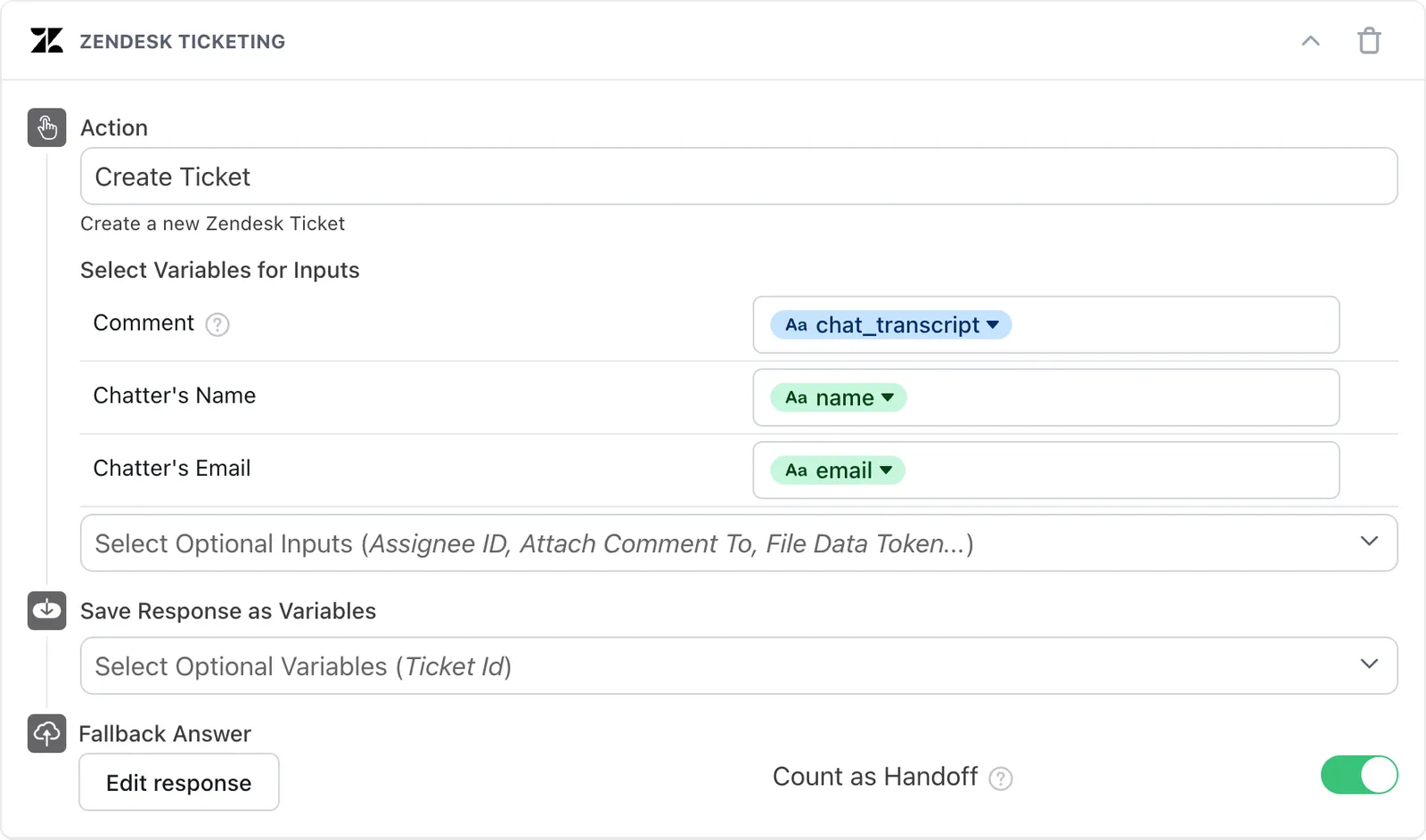
-
Under Save Response as Variables, click the Select Optional Variables drop-down menu, then select Ticket ID.
-
Click Choose a Variable, and select an existing variable, or create a new variable, to capture the Zendesk ticket’s Ticket ID.
-
Under Fallback Answer, click the Choose an Answer drop-down menu, then select a variable to display if an error occurs during the block’s operation.
-
Beside Count as Handoff, enable the toggle to include these Handoffs in your AI Agent’s reporting.
-
Click Save.
You’re done! The Zendesk Ticketing App block is now configured for creating support tickets.