

Managing connections
The MCP Server page in the Ada dashboard (Platform > MCP Server) shows every AI assistant connection authorized for your instance and lets admins revoke access at any time.
Viewing connections
When someone authorizes access from their AI assistant using OAuth, their connection appears in Platform > MCP Server. Each connection shows the AI assistant application (for example, Claude or Cursor), the date and time it was authorized, and the email of the person who authorized it.
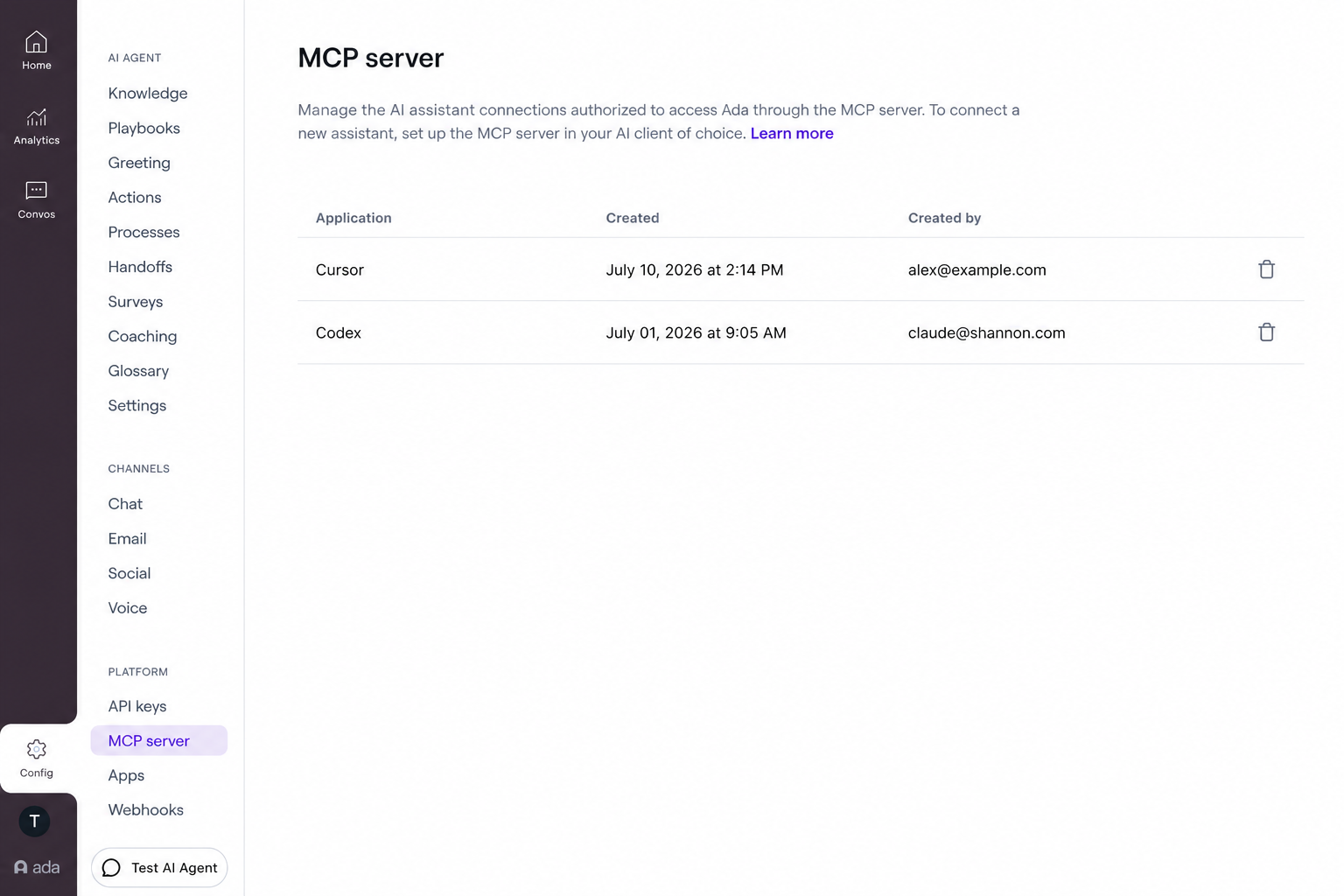
The list appears once at least one connection is authorized. A person who connects more than one AI assistant appears once per application, so each assistant’s access can be managed on its own.
Revoking a connection
Revoking a connection stops that AI assistant from using the MCP Server. Its current session keeps working for up to 5 minutes, until the session token expires; after that, access stops. To restore access, the person must authorize again.
Revoking affects only the selected application. If the same person has other AI assistants connected, those keep their access.
Revoking a connection affects OAuth access only. API key access is managed separately on the Platform > API Keys page — see Authentication for details on the two methods and how each is managed.