

Saved views and filter improvements
Save the filters you check often as a saved view, and open them again with one click. Your whole team sees every saved view, and the page link keeps the view, so you can share it as a link.
Saved views
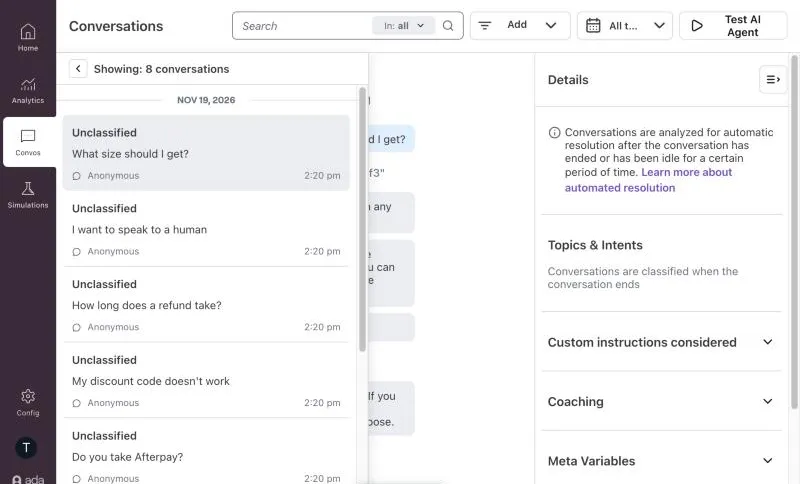
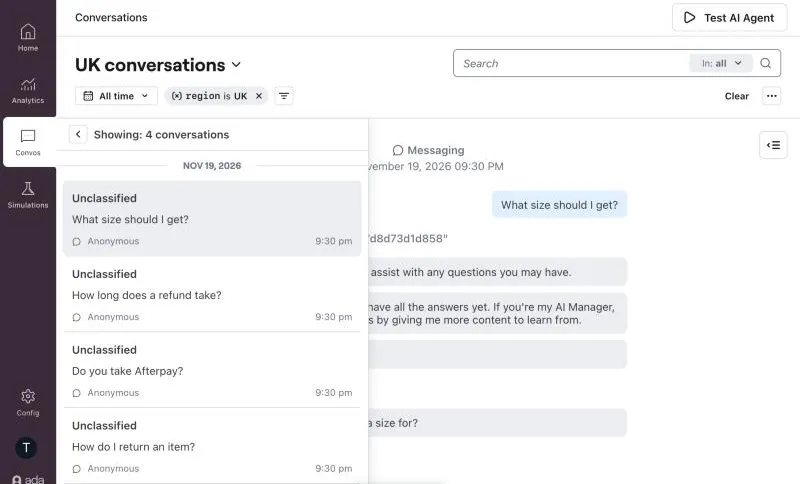
Saved views come in two kinds, so a view shows only where its filters apply.
- Shared views: A shared view filters on conversation attributes, such as Channel or Handoff. Home, Conversations, and every Analytics page show it.
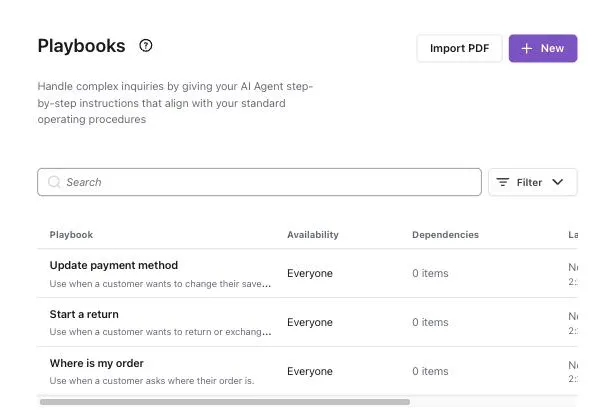
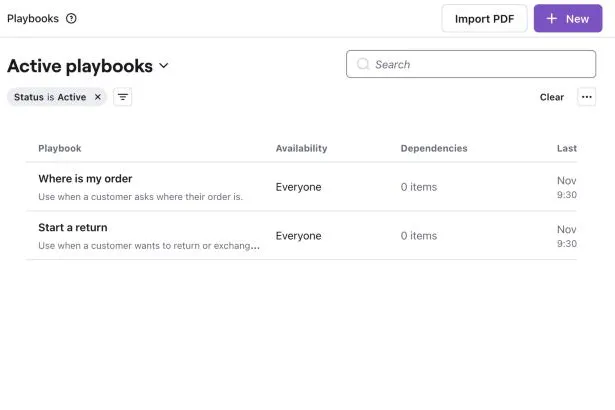
- Page views: Save filters on Knowledge, Playbooks, or Tools, or the metric filters on Metrics. The view shows only on that page.
- Updates: An update to a shared view changes it for your whole team, so the page asks you to confirm first.
- One menu on Metrics: The page title shows both selected views, and one menu holds the shared views and the Metrics views.
- Built-in views: A lock in the view menu marks each view that every account has. No one can change or delete it.
- Relative dates: A view with “Last 7 days” shows the last 7 days on the day you open it.
Conversations, before and after saved views:
Playbooks, before and after saved views:
For the setup steps and the limits, see Saved views.
Filter improvements
Filters change on several pages to work with saved views.
- Filter chips: Each filter on the page shows as a chip in the toolbar. Click a chip to change its value. A gray chip matches the selected view, and a purple chip is a change that you did not save. On Conversations and the Analytics pages, a row shows at most 2 lines of chips. The rest go into a “+N more” chip.
- Test users: Conversations no longer shows test user conversations by default. To see them, pick the built-in “Include test users” view.
- Grouped filter menu: The add-filter menu on Conversations and the Analytics pages has groups, in this order: Metrics, Conversation, Content, AI Agent, and Releases. A search hides each group with no match.
- Playbooks: The All and Event-triggered buttons are now a Trigger filter, so a view can keep it. Old links still open the same list.
- Metrics: A new Created by filter shows the metrics that a person created.
Zendesk Chat: a chat that ends in the queue no longer runs the blocks after the Handoff
A Zendesk Chat Handoff whose chat session ends while the end user waits in the queue no longer runs the dialog blocks that follow the Zendesk Live Agent Block. Before, the end user got those blocks as messages from the live agent, even though no agent had joined.
- If the session drops or the end user goes idle before an agent joins, the AI Agent routes the end user to the Off-Hours dialog.
- If the chat window reconnects and finds that Zendesk already closed the queued chat, or the end user’s network drops while queued, the AI Agent shows a “Live Chat Ended” notice. The end user can ask for a live agent again.
- If an agent bans the end user while queued, the AI Agent shows a “Live Chat Ended” notice and does not route the end user to the Off-Hours dialog.
When a chat ends after an agent joins, the dialog blocks that follow the Zendesk Live Agent Block still run. They now show as messages from the AI Agent, not from the live agent.