

The Shopify block helps you to create powerful interactions between Ada and Shopify. With the Shopify block, you can:
Look up Shopify shipment details using an order number.
Get last order and Shopify customer info using the customer’s email address.
This feature may not be included with your organization’s subscription package. For more information, see Ada’s Pricing page, or contact your Ada team.
Before using the Shopify block in your bot, you should do two things:
Set up a Capture block to capture the order number from your chatters before they reach the Shopify block. Then, you can easily reference that variable in the Shopify block.
Think about how you want to verify chatters to ensure that the wrong people don’t access sensitive information or perform sensitive actions. For your chatters’ security, it’s a good idea to verify and/or authenticate chatters. For more information, see Protect chatter data using verification and authentication.
Configuring the Shopify block requires you to create what Shopify calls a custom app. For more information about custom apps, refer to Shopify’s custom app documentation.
Before you can create a custom app for your Shopify store, you need to enable custom app development. You need to be the store owner or a staff member with the Enable app development permission to enable custom app development.
When creating your app, under the Admin API section, ensure that the following permissions are all set to read access:
Customers
Fulfillment services
Orders
Shipping
To configure the Shopify block in Ada:
On the Ada dashboard, go to Settings > Integrations. Next to Shopify, click Configure.
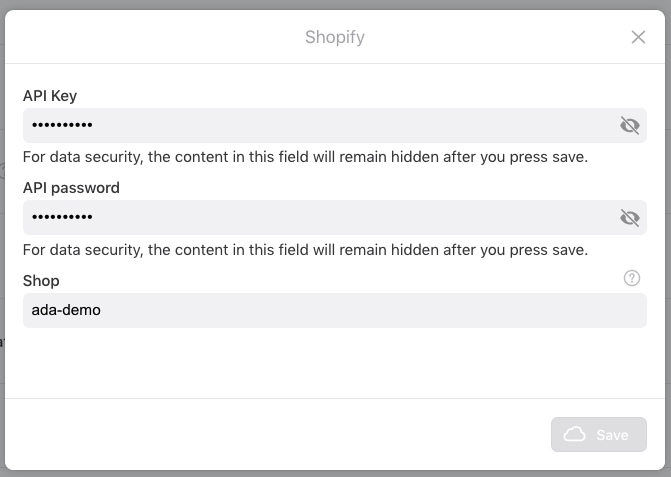
In the dialogue window that appears, enter the API Key, API password, and your Shopify shop name that you copied from your Shopify dashboard.
Click Save. This would successfully connect your Shopify account with your Ada bot.
Refresh your webpage.
To use the Shopify block, drag it from the block drawer, into the appropriate Answer, and select an action.
With the Shopify block, you can perform two actions:
Look up shipment details by order number
Get last order and customer info using email address
Select this action if your Answer flow involves chatters sharing their Order Number and using it to track orders.
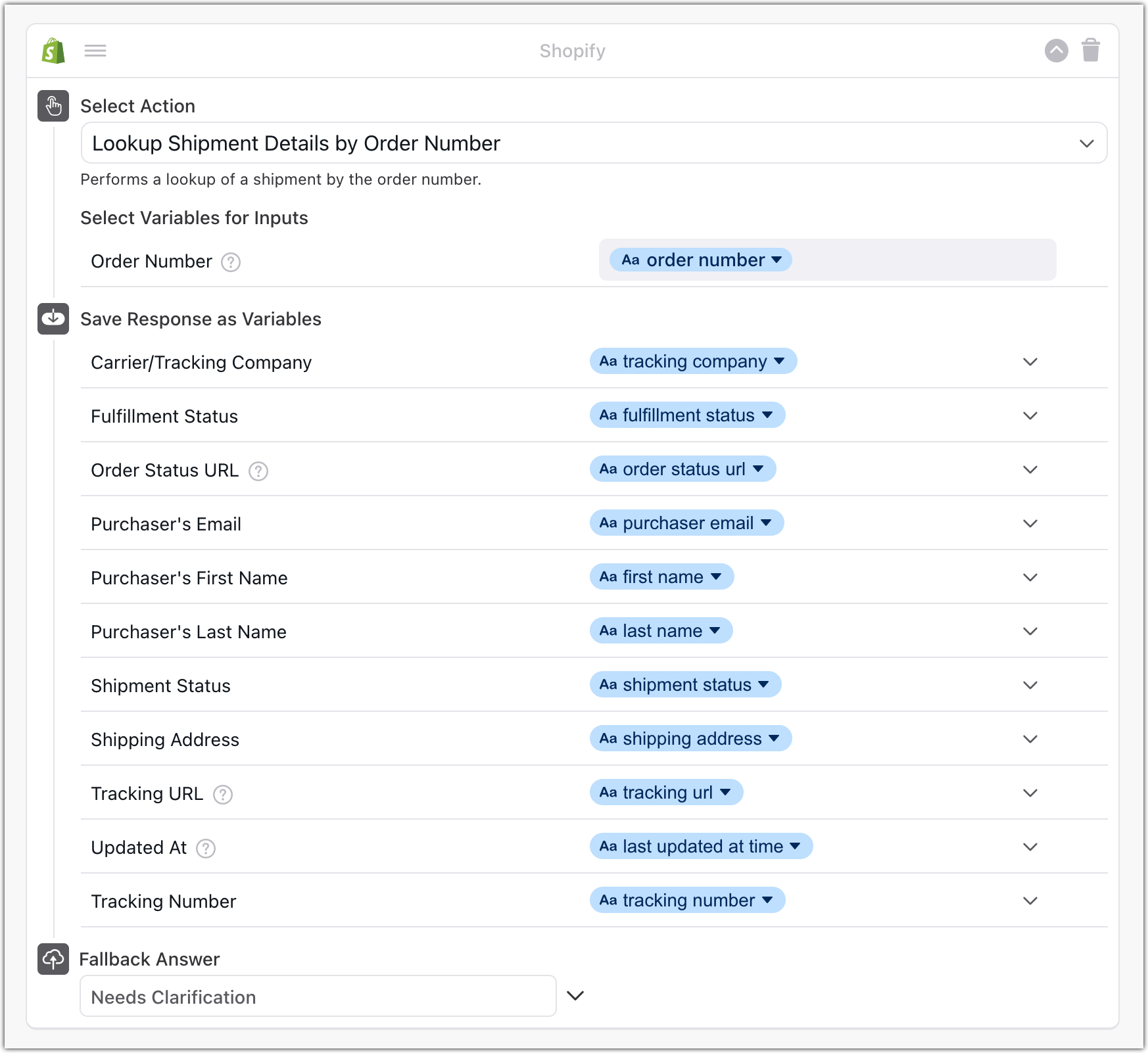
To configure the Look up Shipment Details by Order Number action, fill in the following fields accordingly:
In the Select Variables for Inputs field, select the variable that returns the Order Number, inputted by the chatter. (Order Number is the order’s position in the shop’s count of orders. Order numbers are sequential, starting at 1001.)
In the Save Responses as Variable field, select the output that you require from the list of optional responses:
Carrier/Tracking Company: The name of the tracking company
Fulfilment Status:
fulfilled: Every line item in the order has been fulfilled
null: None of the line items in the order have been fulfilled
partial: At least one line item in the order has been fulfilled
restocked: Every line item in the order has been restocked and the order canceled
Order status URL: The URL pointing to the order status web page, if applicable
Purchaser’s Email: The email ID of the customer used while making the purchase
Purchaser’s First Name: The first name of the customer used while placing the order
Purchaser’s Last Name: The last name of the customer used while placing the order
Shipment Status:
label_printed: A label for the shipment was purchased and printed
label_purchased: A label for the shipment was purchased, but not printed
attempted_delivery: Delivery of the shipment was attempted, but unable to be completed
ready_for_pickup: The shipment is ready for pickup at a shipping depot
confirmed: The carrier is aware of the shipment, but hasn’t received it yet
in_transit: The shipment is being transported between shipping facilities on the way to its destination
out_for_delivery: The shipment is being delivered to its final destination
delivered: The shipment was successfully delivered
failure: Something went wrong when pulling tracking information for the shipment, such as the tracking number was invalid or the shipment was canceled
Shipping Address:
Tracking Number:
Tracking URL:
Updated at:
Click Save.
Select this action if your Answer flow involves chatters who don’t know their order number, and thus use their email address to track their orders. In case that the chatter doesn’t have an Order ID, the other way to enable a chatter to find their last order number is using their email ID.
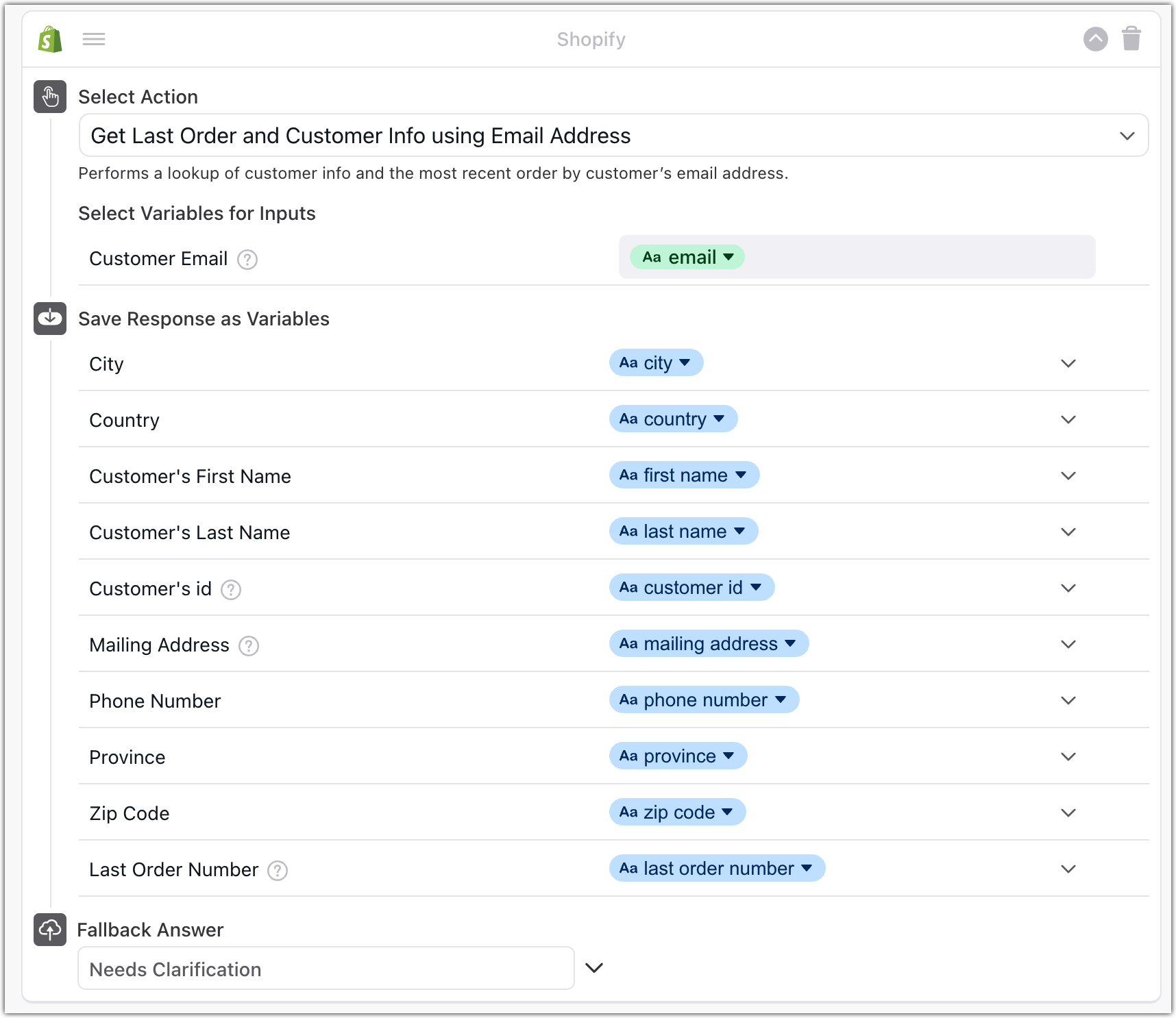
In the Select Variables for Inputs field, select the variable that returns the Customer Email ID, inputted by the chatter.
In the Save Responses as Variable field, select the output that you require from the list of optional responses:
City
Country
Customer’s First Name
Customer’s Last Name
Mailing Address
Phone Number
Province
Zip Code
Click Save.
Capture block: Ask for email address
Insert the Shopify block and select an action
Get order details by order number
Get last order number or customer info by email address
Conditional block: Set up conditions for order status values