> For clean Markdown of any page, append .md to the page URL.
> For a complete documentation index, see https://docs.ada.cx/docs/channels/chat/chat-configuration/launch-options/llms.txt.
> For AI client integration (Claude Code, Cursor, etc.), connect to the MCP server at https://docs.ada.cx/_mcp/server.
# Launch options
> **Warning**
>
> Ada has deprecated Chat. Messaging fully replaces Chat on December 15, 2026. Read [Introducing Messaging](https://docs.ada.cx/2026-09-30-introducing-messaging) to learn how to migrate.
## Overview
If your AI Agent uses Messaging, follow the [Messaging launch guide](/docs/channels/messaging/messaging-configuration/launch-options).
Launch options let you control when and where your AI Agent appears. You can show your [Chat](/docs/channels/chat) widget to only a percentage of end users, which is useful for testing or transitioning between AI Agents. You can also restrict your AI Agent to specific domains to prevent unauthorized embedding.
## Use cases
Launch options help you control AI Agent visibility and rollout.
* **Testing before launch**: Validate your AI Agent's performance with a small group before full deployment.
* **Parallel AI Agent rollout**: Show different AI Agents to different portions of your end users during a transition period.
* **Staged migration**: Move end users from one AI Agent to another without disrupting service.
## Capabilities & configuration
Launch options provide settings for rollout percentages and website restrictions.
* **Rollout percentages**: Control what percentage of end users see your AI Agent, a second AI Agent, or no AI Agent.
* **Website restrictions**: Authorize specific domains where your AI Agent can appear.
## Quick start
Configure launch options in a few steps.
On the Ada dashboard, go to **Config > CHANNELS > Chat**.
Go to the **Launch** tab.
Under **Launch controls**, set your rollout percentages.
Under **Allowed websites**, add your authorized domains.
Click **Save**.
For detailed instructions, see [Implementation & usage](#rollout-percentages-background).
## Implementation & usage
Configure rollout settings and website restrictions.
### Rollout settings
Rollout settings let you control what percentage of end users see your AI Agent.
#### Before you begin\[#rollout-percentages-background]
Before setting your AI Agent's rollout percentages, here are some things you should understand:
* These settings only affect how often end users see AI Agents that load
automatically when the page loads. They don't affect on-demand embed
methods, social media channels, third-party SDKs, or methods that
bypass the default chat button to launch your AI Agent.
For example, if you've used the [Ada Embed Directory](https://embed.ada.cx/) to make your AI Agent load every time an
end user clicks a custom button, it will load every time any end user
clicks that button, regardless of what the rollout percentage for that
AI Agent is. In this case, if you want to reduce the number of end users who
see that button, you'll have to use code on your website to make that
button visible to only a percentage of your end users.
* You can split your end users by percentage into not seeing any AI Agent,
seeing the current AI Agent, seeing a second AI Agent, or any combination of the
three. If your percentages are split, Ada rolls a virtual dice with
your probability percentages to assign each end user a category when
they first load the page. End users then stay in that category until
either they clear their cookies, or you change the percentage for any
AI Agent to 100%. If you change your percentages in the middle of the
rollout (e.g,. increasing an AI Agent's visibility from 20% to 50% to
end users), those new percentages only affect end users that Ada
hasn't already assigned a group.
* Launch controls don't redirect test chats. Testing from the Ada dashboard
always opens the AI Agent you're editing, even when its rollout is set to 0%
and traffic is directed to a second Agent. On the legacy web embed, a session
started with [`testMode`](/chat/web/sdk-api-reference#testmode) is
never redirected to the second Agent either — if you use the
[npm package version of Embed2](https://www.npmjs.com/package/@ada-support/embed2),
this requires v1.14.19 or newer. The rollout percentage still governs whether the
widget appears, though — below 100% it shows only to the rollout group the
browser lands in, and never at 0% — so set
[`rolloutOverride`](/chat/web/sdk-api-reference#rolloutoverride) to `1`
to always show it.
* If the two AI Agents have different [customer persistence](/docs/channels/chat/chat-configuration/data-controls#persistence-settings)
settings, those settings will apply for each AI Agent.
* If you're rolling out multiple AI Agents and use the Zendesk Messaging
handoff, you can only use that handoff for one AI Agent at a time. For the
second AI Agent, use a non-Zendesk handoff until your transition is complete.
* The two AI Agents use the same Embed2 script.
* Both AI Agents use the embed from the AI Agent you put your rollout settings
in. This means that any metavariables that would load for your first
AI Agent automatically load for your second one as well, and that you
can't set any metavariables to only load for the second AI Agent.
* If you're using the [npm package version of Embed2](https://www.npmjs.com/package/@ada-support/embed2), make
sure you're using v1.7.0 or newer.
#### Preview a different AI Agent\[#preview-different-ai-agent]
If you want to progressively roll out a second AI Agent, you can start by previewing the second AI Agent on your website.
Make sure your AI Agents meet the following criteria:
* Your current AI Agent is already launched and live on a webpage.
* In both AI Agents' [allowed websites](#website-restrictions), at least one domain is common between the two AI Agents so they can load.
* As a best practice, don't configure duplicate launch settings in your
second AI Agent. If you do, Ada will ignore those settings and follow the
settings in your current AI Agent instead.
**To preview a different AI Agent:**
1. On the Ada dashboard, go to **Config > CHANNELS > Chat**, then go to the **Launch** tab.
2. Under **Launch controls**, in the **New Ada subdomain** field, enter the
subdomain for the AI Agent you want to preview.
If it's a valid subdomain, a preview section appears.
3. In the preview section, you can enter a URL where your first AI Agent is
already embedded, so you can preview what it will look like when
your second AI Agent appears on that same page. Then, you can use the
buttons to either copy the preview URL or open the page in a new
tab.
4. Click **Save**.
As long as the new AI Agent is set to be shown to 0% of your end users, your AI Agent remembers its subdomain for the future when you're ready to launch it.
#### Change rollout percentages\[#change-rollout-percentages]
**To change rollout percentages:**
1. If you're using these settings to roll out a second AI Agent, make sure
your setup meets the criteria for previewing it above.
2. On the Ada dashboard, go to **Config > CHANNELS > Chat**, then go to the **Launch** tab.
3. Under **Launch controls**, enter the percentages for each case:
* End users who never see a chat button load on your website
* End users who see your current AI Agent
* End users who see your second AI Agent
The sum of all of your percentages must be 100% to save your launch
settings.
4. Click **Save**.
### Website restrictions
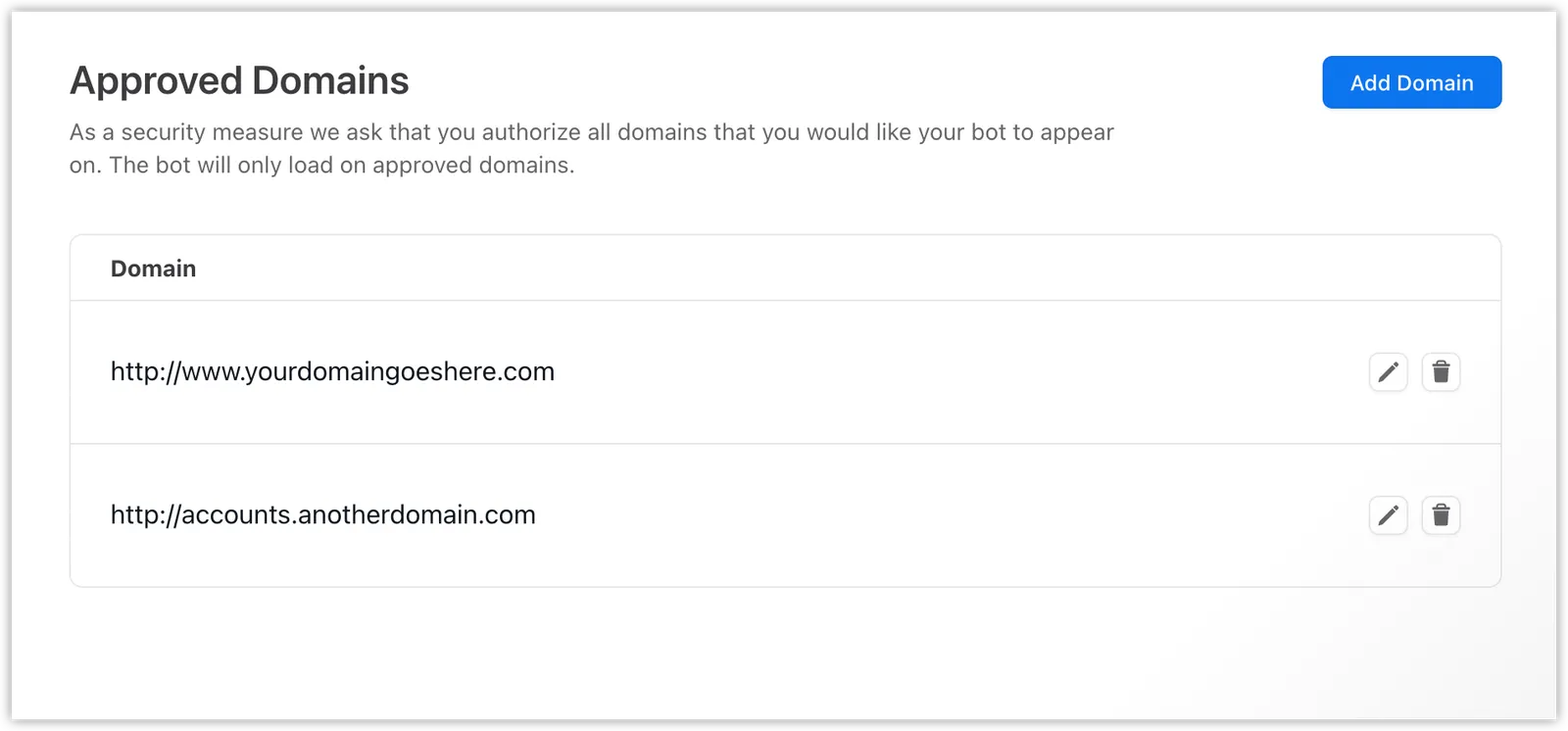
Safeguard your AI Agent against attack by malicious parties by authorizing all the domains where you'd like your AI Agent to appear. Your AI Agent will only show for end users if you authorize your website's domain URL by adding it to your list of allowed websites in Ada.
#### Add a domain\[#add-domain]
**To add a domain:**
1. On the Ada dashboard, go to **Config > CHANNELS > Chat**, then go to the **Launch** tab.
2. Beside **Allowed websites**, click **Add domain**.
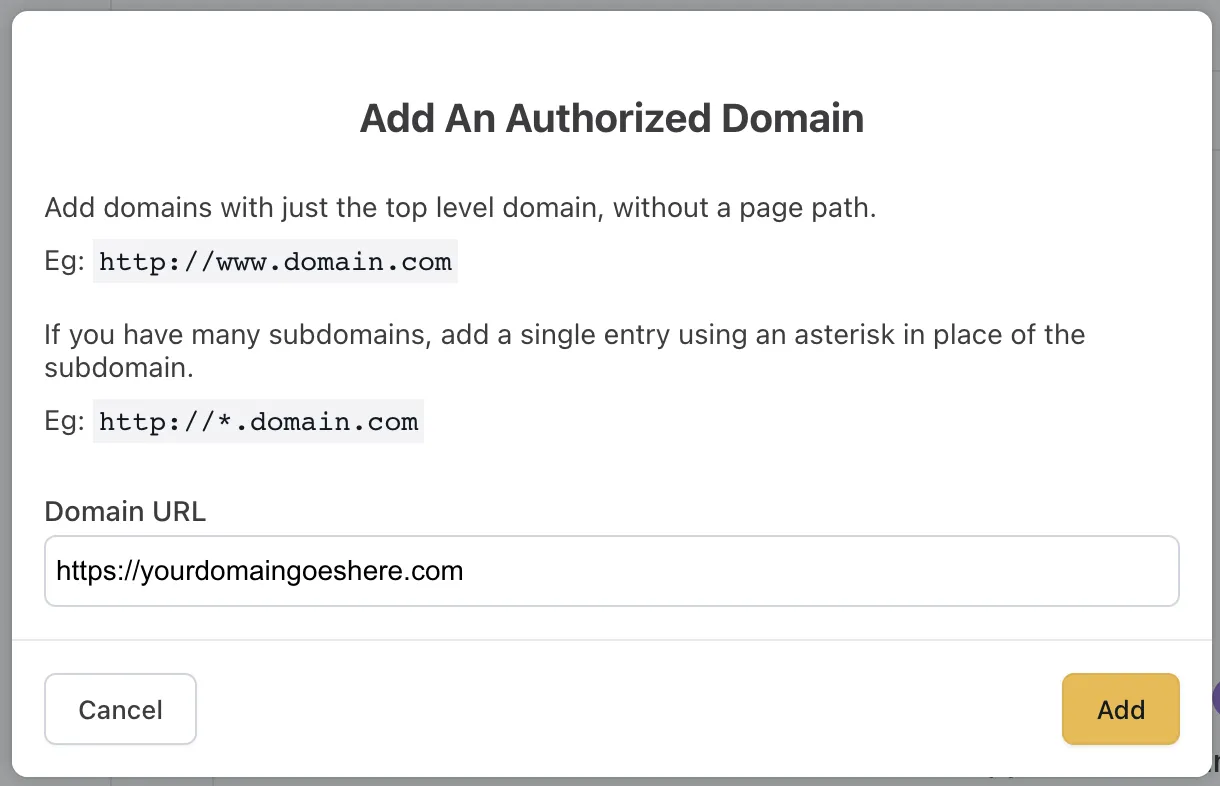
The **Add An Authorized Domain** window appears.
3. In the **Add An Authorized Domain** window, in the **Domain URL**
field, enter the domain URL you want to authorize. Use the following
formats:
* Single domain: `https://www.yourdomain.com`
* Wildcard URL matching for all subdomains:
`https://*.yourdomain.com`
* Use the top level domain URL only. Do not include any page
paths. If you have many subdomains, but want to include only
some of them, you have to add each one individually.
* Use wildcards for domains with subdomains. The top level domain
itself needs to be added separately (e.g., `https://domain.com`
needs to be added separately from `https://*.domain.com)`.
* All domain variants need to added separately.
*
         http://

         **www**

         .yourdomain.com
* `http://yourdomain.com`
*
         http

         **s**

         ://

         **www**

         .yourdomain.com
*
         http

         **s**

         ://yourdomain.com
4. Click **Add** to add the domain URL to the domain list.
#### Edit a domain\[#edit-domain]
You can edit any domains already in your list.
**To edit a domain:**
1. On the Ada dashboard, go to **Config > CHANNELS > Chat**, then go to the **Launch** tab.
2. Under **Domain**, click the **pencil** icon next to the domain entry you want to edit.
3. In the **Edit An Authorized Domain** window, make your changes to the domain URL
in the **Domain URL** field.
4. Click **Save**.
The updated domain appears in the domain list.
#### Remove a domain\[#remove-domain]
**To remove a domain:**
1. On the Ada dashboard, go to **Config > CHANNELS > Chat**, then go to the **Launch** tab.
2. Under **Domain**, click the **trash can** icon next to the domain entry you want to delete.
3. In the **Confirm Domain Removal** window that appears, click **Yes,
Remove Domain**.
This removes the domain from the list. Your AI Agent will no longer launch on that domain.
#### Troubleshooting\[#UUID-a31f8027-0e4d-c9b9-7d81-464b57615a00\_id\_4403701527315\_id\_h\_01FXNEV274VPZZNZ6ZSNBSYX7Q]
If your AI Agent is embedded on a URL but is not displaying as expected, it is likely that it is being blocked from loading on that site.
**To investigate:**
1. In Chrome, Firefox, or Safari, right-click any part of the page and
select **Inspect Element**.
2. Access the **console** from within the inspector tool.
3. On the webpage, click the chat icon to launch the AI Agent.
4. Look for errors in the console. It is likely error messages will
indicate that it "violates the Content Security Policy directives."
In other words, that the URL is not included in the AI Agent's list of
allowed websites.
5. Cross-reference your AI Agent's list of allowed websites with the URL you
are testing, to make sure the domain URL was formatted properly when you [added it to your AI Agent](#add-domain).
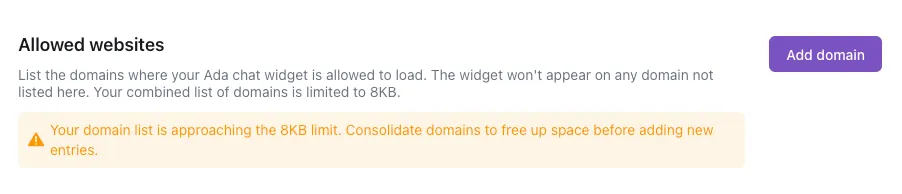
The allowed websites list has a maximum size of 8KB. The following message appears when this limit is reached:
If the current URL exceeds the allowed website limit, the following warning appears instead:
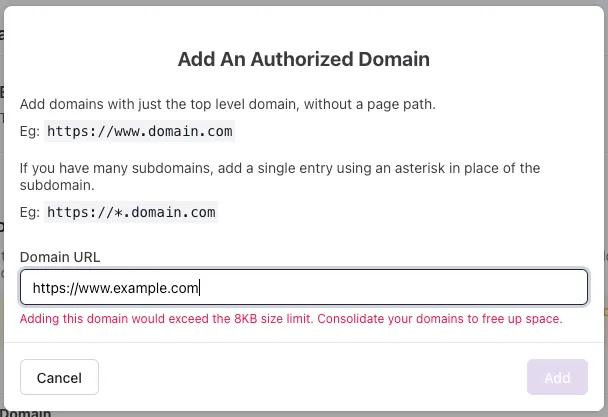
Allowed website lists that exceed the size limit may prevent the chat bubble from loading.
To keep the allowed websites list to an appropriate size, it is highly recommended to use wildcard URL matching where possible.
## Related features
* [Chat onboarding](/docs/channels/chat/chat-onboarding): Get started with Chat.
* [Appearance settings](/docs/channels/chat/chat-configuration/appearance-settings): Customize your Chat widget's look and feel.
* [Data controls](/docs/channels/chat/chat-configuration/data-controls): Configure persistence and link protocols.
* [Installation](/docs/channels/chat/chat-configuration/installation): Add the Chat widget to your website or app.
---
Have any questions? Contact your Ada team, or email us at [](mailto:help@ada.cx?subject=Help%20Docs%20inquiry).